.png)
Panel
Notifications
Review and manage notifications by severity, unread status, and bulk actions
Notifications centralizes system alerts and events in the panel. Use it to track important warnings and critical signals, manage unread items, and perform bulk actions such as marking as read or deleting notifications.
1) Overview
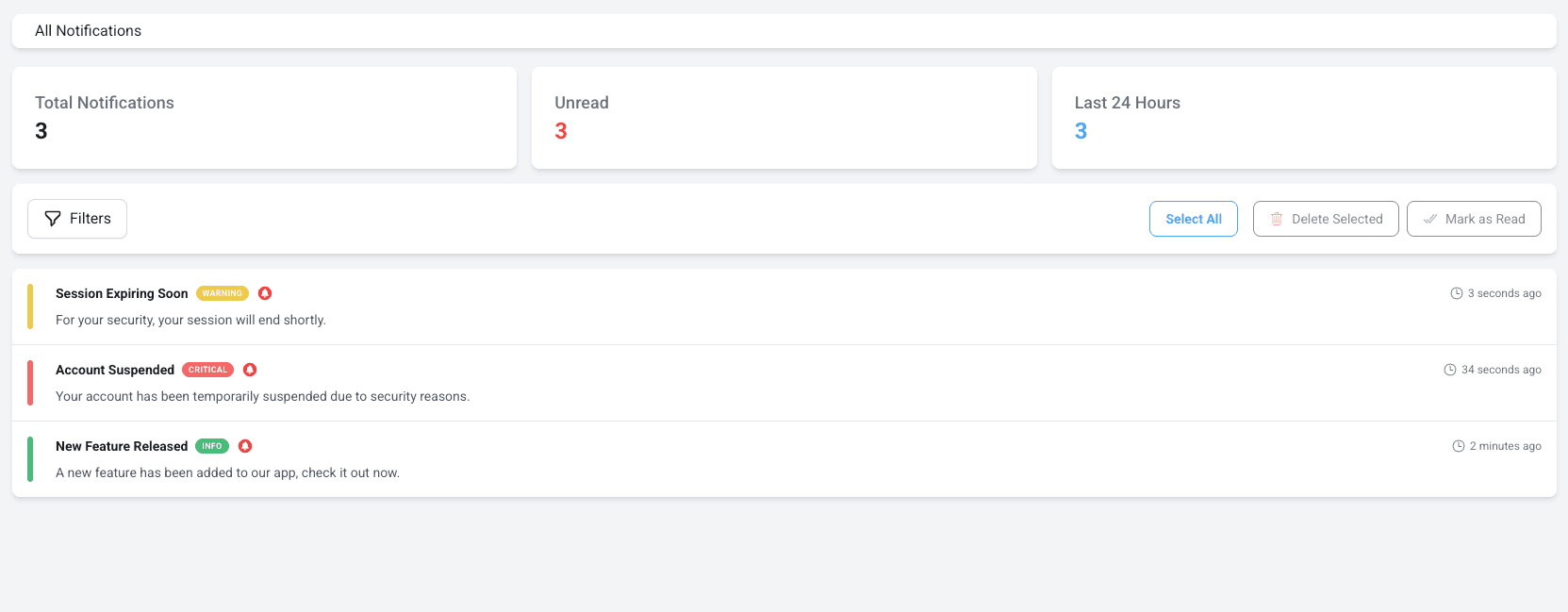
- See Total notifications and Unread counts
- Track the last 24 hours activity (where supported)
- Filter by severity (Info / Warning / Critical)
- Perform bulk actions (select all, delete, mark as read)
Screenshot: Notifications overview
2) Severity levels
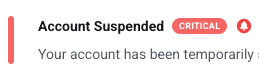
Notifications are grouped by severity to help you prioritize.
- INFO – Informational events (low urgency)
- WARNING – Potential problems that may require attention
- CRITICAL – High urgency issues that likely require action
Screenshot: Severity filter
3) Filters
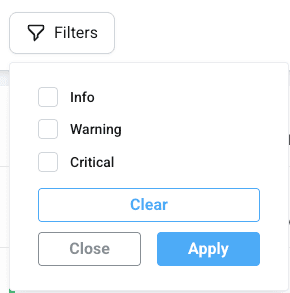
Use filters to focus on what matters during incidents and release validation.
- Severity (Info / Warning / Critical)
- Unread only (where supported)
- Date range (incident window)
Screenshot: Filters panel
4) Bulk actions
You can perform actions on multiple notifications at once:
- Select all or select specific notifications
- Mark as read to clear unread state
- Delete selected to remove items from the list
Screenshot: Bulk actions

Tip: If you receive repeated CRITICAL notifications for crashes or HTTP errors, jump directly to Crash Reports or HTTP Monitoring to investigate root cause.