.png)
Logs
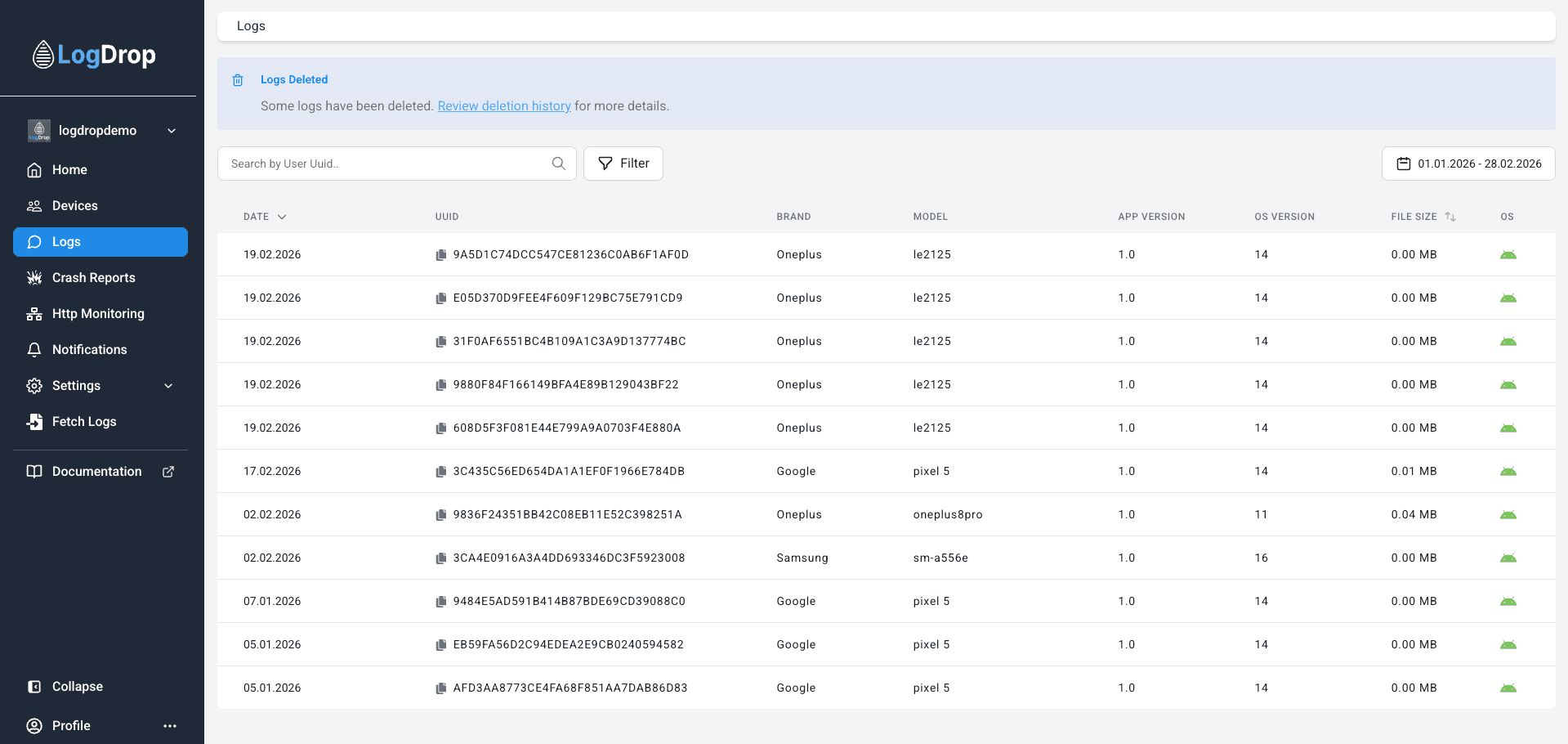
Browse log files, search/filter logs, and open Log Detail for line-by-line inspection
The Logs page lists log files uploaded from devices. Use filters and search to locate the right device/user, then open Log Detail to inspect log lines and troubleshoot issues.
1) What you can do on Logs
- List and inspect log artifacts sent from devices.
- Search by user/device context (e.g., find devices associated with a user UUID).
- Filter by Platform, Device Model, App Version, OS Version.
- Apply a date filter to focus on a specific time window (release analysis, incident window, etc.).
- Open Log Detail for line-by-line inspection and advanced search.
Screenshot: Logs list
2) Search
Use search to locate logs faster. Common workflows include searching by User UUID to list related devices, then drilling into the relevant device’s logs.
Screenshot: Logs search controls

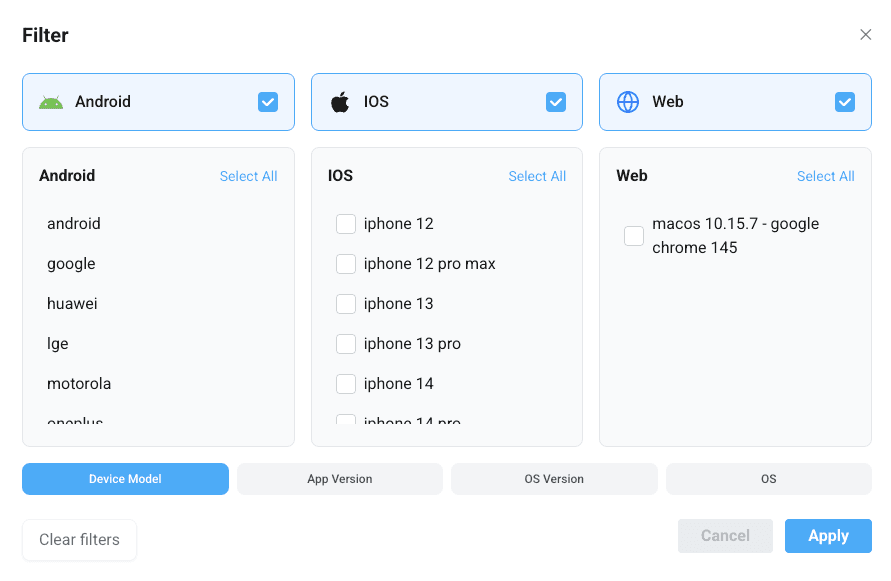
3) Filters
Filters help you narrow results when the dataset is large. These are especially useful after a new release or when you suspect OS/device-specific issues.
- Platform (iOS / Android / Huawei if applicable)
- Device Model
- App Version
- OS Version
Screenshot: Filters section
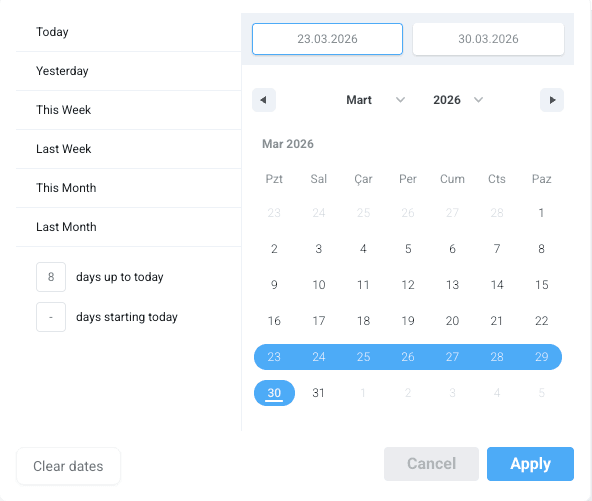
4) Date filter
Use date filtering to focus on a specific incident or post-release window. This reduces noise from older sessions.
Screenshot: Date filter
5) “Logs Deleted Information”
If logs were deleted, the Logs page may show a Logs Deleted Information section. This provides visibility that deletion occurred.
Screenshot: Logs Deleted Information (if applicable)

6) Logs table (common columns)
The log list typically includes these columns (depending on configuration):
- Date (upload/record date)
- Device UUID
- Brand / Model
- App Version
- OS Version / Platform
- File Size
- Action to open Log Detail
Tip: For deep debugging, open Log Detail and use the search operators (& | !) to isolate the exact flow/error.