.png)
Panel
Project Selection
Select the correct project and understand project cards and navigation
If you have access to multiple projects, you can switch between them from the left-side navigation. This page explains how project selection works and what the project cards show.
1) Where to select a project
- Open the left-side navigation panel.
- Click on the project name (or the projects list).
- Select the project you want to monitor.
2) “All Projects” view
The All Projects view displays the full list of projects you can access. Use it to quickly switch contexts when you manage more than one app/environment.
Screenshot: All Projects page
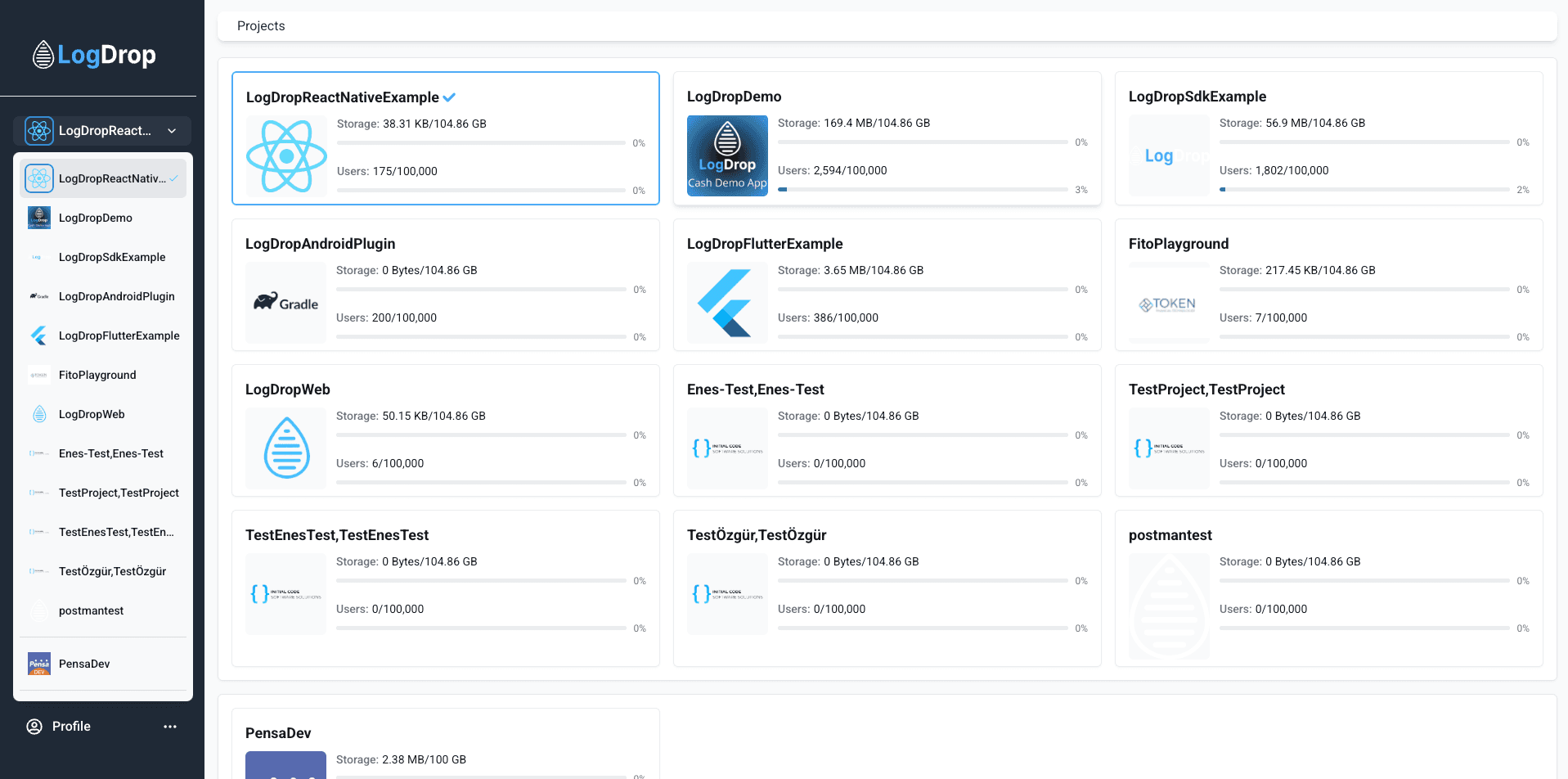
3) Understanding project cards
Each project card typically includes a quick summary so you can identify the right project at a glance.
- Project name and identifier
- Storage usage (used vs total)
- User count or current active users (depending on configuration)
Tip: After selecting a project, start with Dashboard to get a quick health overview.