.png)
PanelGetting started
Invitations & Authorization
Invite users, activate accounts, and manage access permissions
This page explains how LogDrop Panel access works: how users are invited, how accounts are activated, and what to check when a user can’t see projects or modules.
Tip: If you landed here from the breadcrumb, make sure the hub page /panel/getting-started exists (so breadcrumb won’t 404).
1) Invitation flow
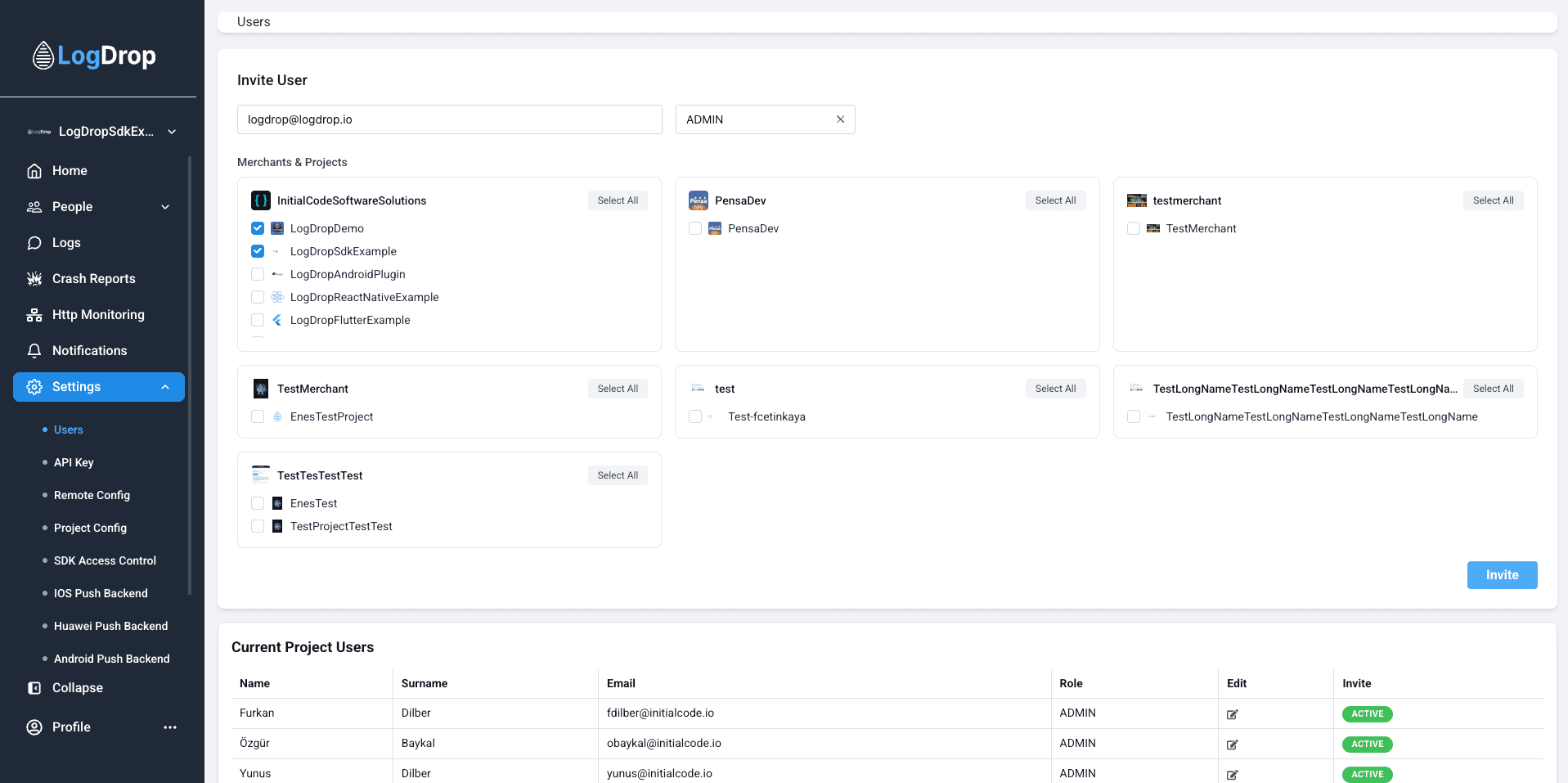
- An existing panel user sends an invitation to a new user’s email address.
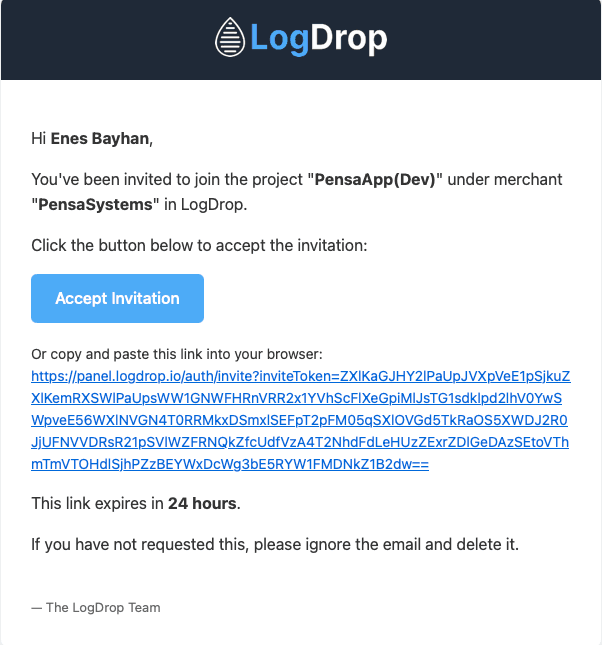
- The invited user receives an email with an activation link.
- The user activates the account and sets a password.
- The user can sign in to panel.logdrop.io with email & password.
Screenshot: Invite user screen
2) Invitation link expiration
Invitation links are time-limited. If the user clicks an expired link, they must be invited again.
Screenshot: Invitation email / expired link example
3) Permissions & visibility checks
If a user can log in but cannot see a project or a module, verify the items below.
- User is assigned to the correct Merchant / Organization (if applicable).
- User has access to the target Project.
- User role allows access to the relevant module (Dashboard / Logs / Crashes / HTTP / Settings).
- If permissions were updated recently, the user should log out and log in again.