.png)
Messages
View analytics, delivery status, and payload details for all sent push notifications
The Messages page serves as the analytics dashboard for your push campaigns. It tracks total message volumes, success rates, user interactions, and provides a detailed drill-down modal for individual messages.
1) Performance Overview
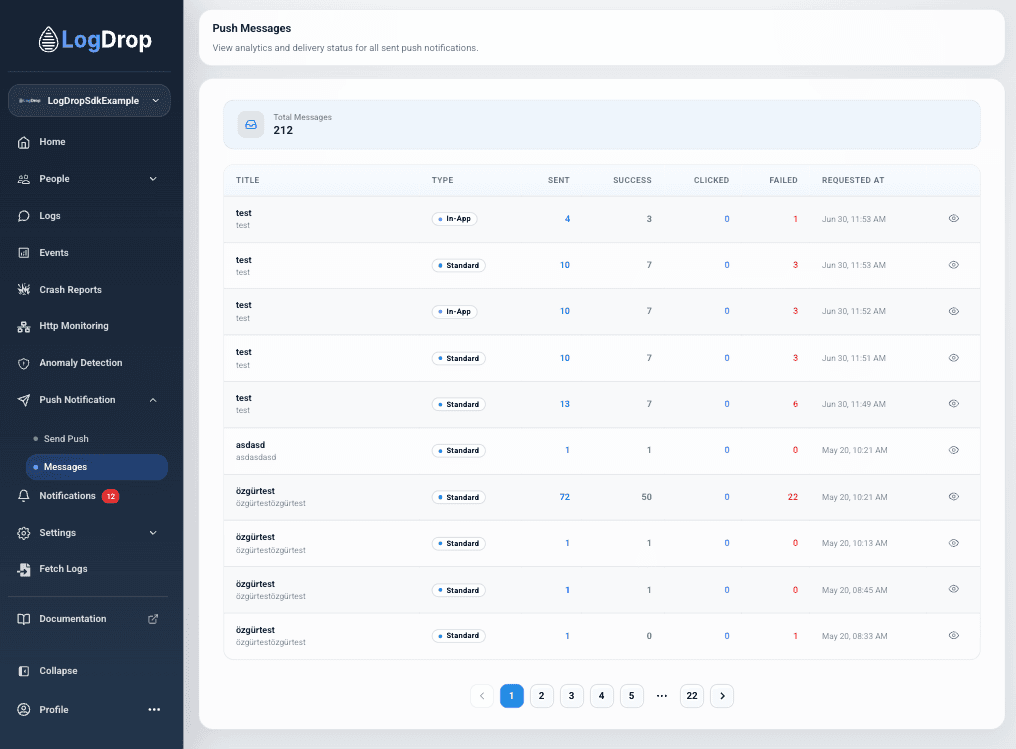
At the top of the dashboard, the Total Messages card displays the cumulative count of push notification requests processed.
2) Messages Analytics Table
A complete historical table listing all sent messages. Each row includes the following performance counters:
- Title – The title or text content of the sent notification.
- Type – Categorized as
In-ApporStandard. - Sent – The number of push requests dispatched.
- Success – The count of notifications successfully acknowledged by FCM/APNs.
- Clicked – The count of users who tapped or clicked the notification.
- Failed – The number of deliveries that failed due to expired tokens, network errors, or provider issues.
- Requested At – Timestamp when the broadcast was triggered.
Screenshot: Push Messages list
3) Message Detail Deep-Dive
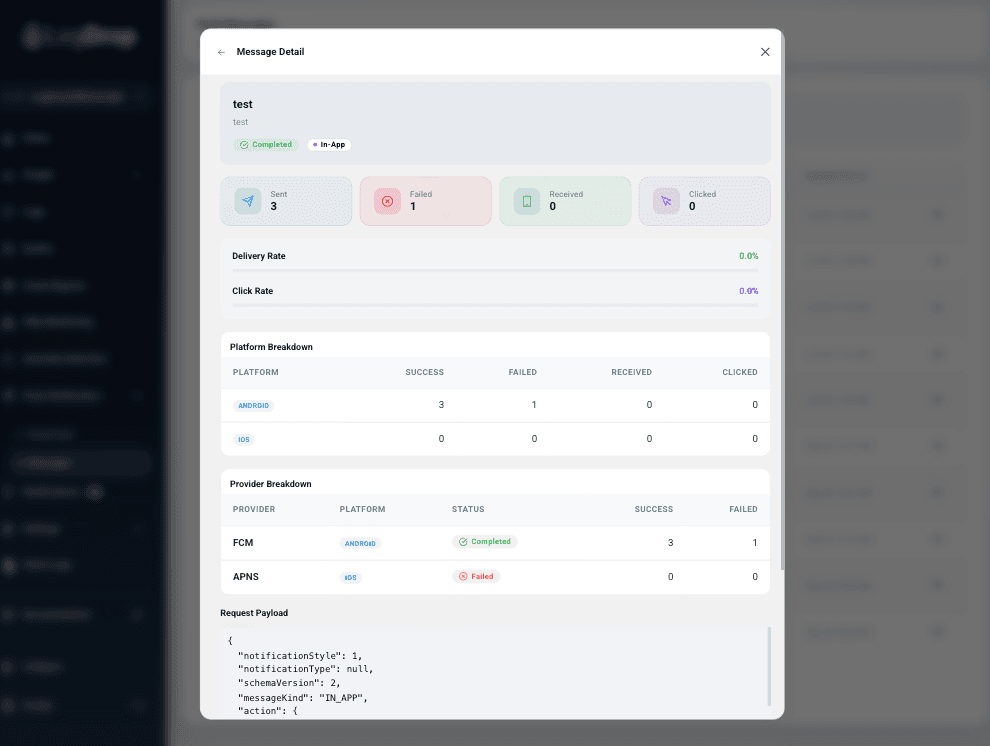
Clicking the View icon on any message row opens a detailed overlay modal containing diagnostic information:
Delivery & Click Rates
Displays calculated percentages for Delivery Rate (Success / Sent) and Click Rate (Clicked / Success) to quickly assess push campaign effectiveness.
Platform Breakdown
A comparative grid showing delivery counts (Success, Failed, Received, Clicked) broken down by operating system:
- Android (FCM routes)
- iOS (APNs routes)
Provider Breakdown
A low-level status report indicating connection health and success/failure counts for each push provider:
- FCM (with status indicator like
Completed/Failed) - APNS (with status indicator like
Completed/Failed)
Request Payload
An interactive code block displaying the raw JSON request payload dispatched to the LogDrop API. This is helpful for developers to debug exactly what notification styles, actions, scheme payloads, or custom data variables were sent in the request.
Screenshot: Message Detail modal