.png)
Endpoint Detail
Inspect a single HTTP request/response with headers, body, device context, and navigation
Endpoint Detail is the deep-dive view for a single HTTP event (request). Use it to inspect request/response headers and bodies, validate status codes and timing, and correlate network events with device logs.
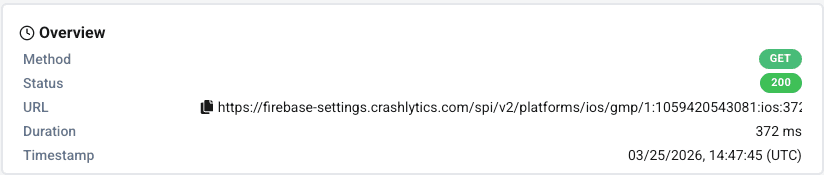
1) Overview (method, URL, status, duration)
The overview section typically includes the HTTP method, full URL, status code, duration (ms), and timestamp.
Screenshot: Endpoint overview
2) Actions (shortcuts)
Endpoint Detail provides shortcuts to quickly pivot during debugging:
- Load Request Details (fetch headers/body if not loaded by default)
- Go to Device Detail (inspect the same device timeline)
- Go to Log Detail (correlate network event with logs)
- Previous / Next navigation between requests (when available)
Screenshot: Actions toolbar

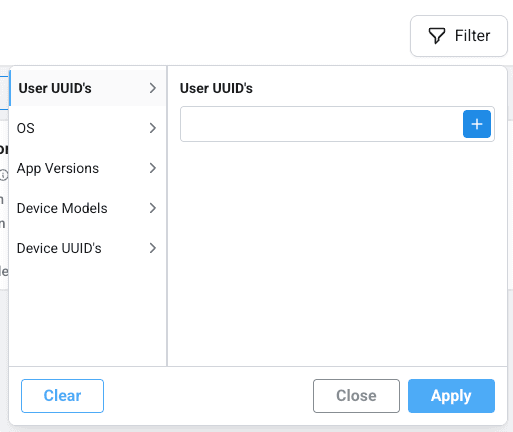
3) Filters (segment the request list)
Filters allow you to focus on a cohort of requests for the same endpoint or device group. Depending on configuration, you may see:
- App Version
- OS Version
- Device Model
- Device UUID (single device investigation)
- Date range
Screenshot: Filters
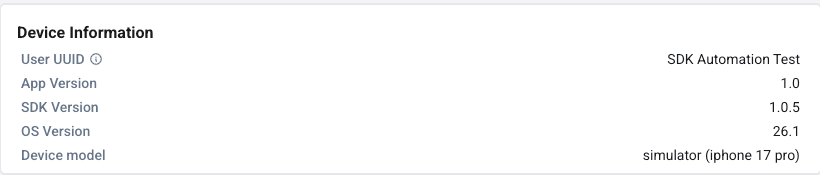
4) Device information (context)
This section helps you understand the environment where the request occurred:
- Device UUID
- App Version and SDK Version (if displayed)
- OS Version
- Device Model
Screenshot: Device information
5) Request details
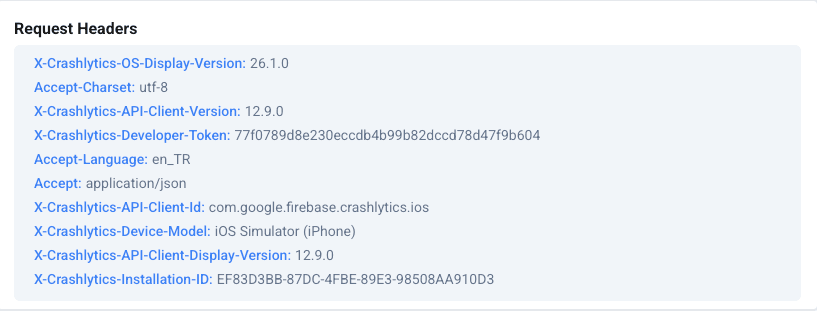
5.1 Request headers
Request headers commonly include content type, authorization, API keys, and SDK-specific headers. Verify that sensitive values are masked where required.
Screenshot: Request headers
5.2 Request body
Request body is often JSON. Use this to validate payload correctness, required fields, and whether sensitive data is masked.
Screenshot: Request body

6) Response details
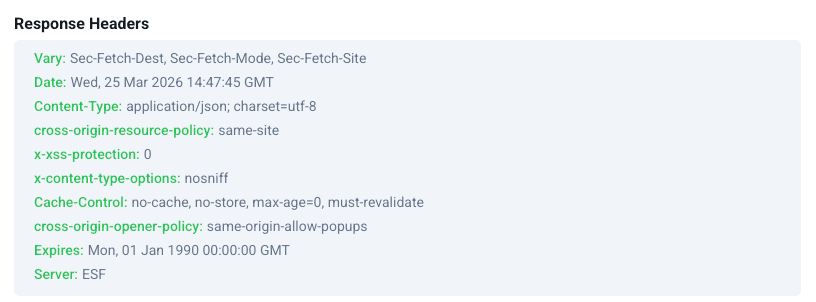
6.1 Response headers
Response headers can help diagnose caching, security policies, server behavior, and content types.
Screenshot: Response headers
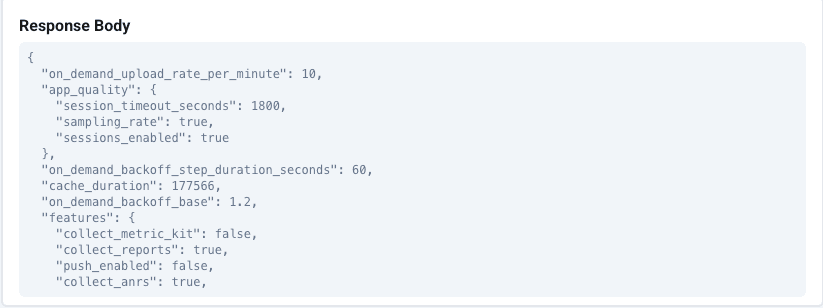
6.2 Response body
Response body shows success/error payloads. For failures, compare error codes/messages against the request payload and server expectations.
Screenshot: Response body
Tip: If you suspect a device-specific issue, jump to Device Detail and compare the same window in Log Detail.