.png)
Alerts & Grafana
Create project alert rules, connect Grafana Cloud IRM, and review delivery history in the LogDrop Panel
Use Alerts in the LogDrop Panel to watch application logs, HTTP errors, events, crashes, and anomalies. Create a notification destination, define when a rule should fire, then review its delivery in History.
Open Alerts
Select a project in the panel and choose Alerts from the left menu. The page has three tabs:
| Tab | What it shows |
|---|---|
| Destinations | Where alerts are sent, connection tests, and delivery cooldowns |
| Rules | Signal conditions, thresholds, selected destinations, and trigger counts |
| History | Alert occurrences, delivery results, and links to related LogDrop data |
The Destinations tab opens first. Create and enable at least one destination before adding a rule. Admins can create, edit, test, enable, and delete configurations; other project users can view the page.
Connect Grafana Cloud IRM
- In Grafana Cloud IRM, open Integrations → Monitoring systems, create a Formatted Webhook integration, and copy its webhook URL. Grafana's OnCall incoming webhook guide has the current Grafana steps.
- In LogDrop, open Alerts → Destinations and select New destination.
- Enter a Name, choose Grafana Cloud IRM as the Destination type, and paste the URL into Webhook URL.
- If the Grafana integration requires a service account token, enter the full
Bearer <token>value in Authorization header (optional). - Set Destination cooldown, leave Enabled on, and select Test connection. Then select Save.
Screenshot: New destination
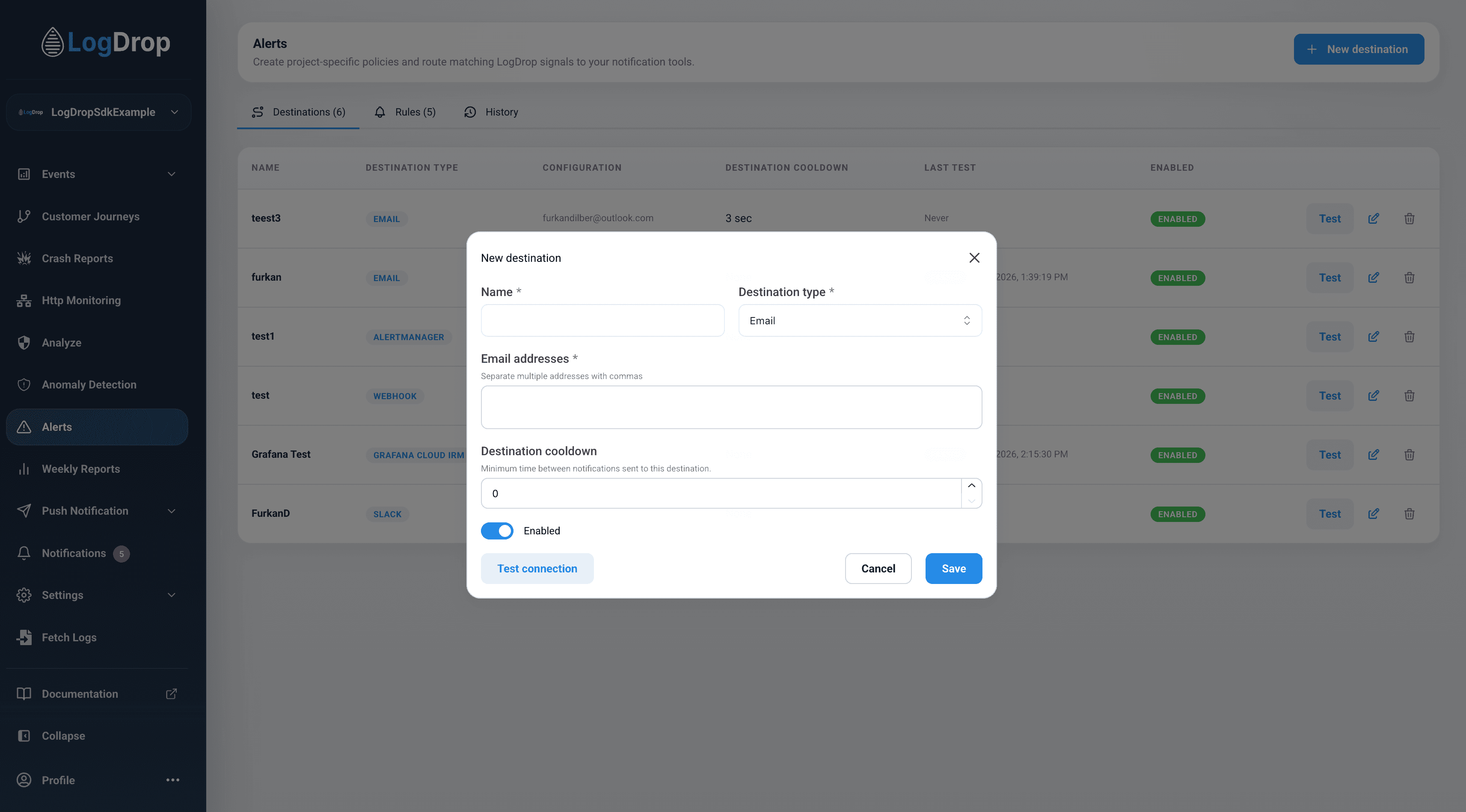
The destination type defaults to Email in this screenshot. Select Grafana Cloud IRM to show the webhook URL and optional authorization fields.
The Destinations table shows the masked URL, whether authorization is configured, and the last test result. You can also use Test on a saved destination. A connection test sends a test message to Grafana; it does not create an alert occurrence or change rule counters.
When editing a destination, leave the URL or authorization field blank to keep its stored value. The editor also has Remove stored authorization header if you need to clear the token. LogDrop stores the URL and authorization header encrypted.
Grafana Cloud IRM, Slack, Webhook, and Alertmanager destinations require Third-party integrations to be enabled for the project. Webhook URLs must resolve to public HTTP or HTTPS addresses.
LogDrop sends Grafana Cloud IRM a formatted payload with an alert ID, title, alerting state, summary, and a link back to LogDrop. It currently sends the firing state only; it does not send a later ok event to resolve the Grafana alert automatically.
Create a rule
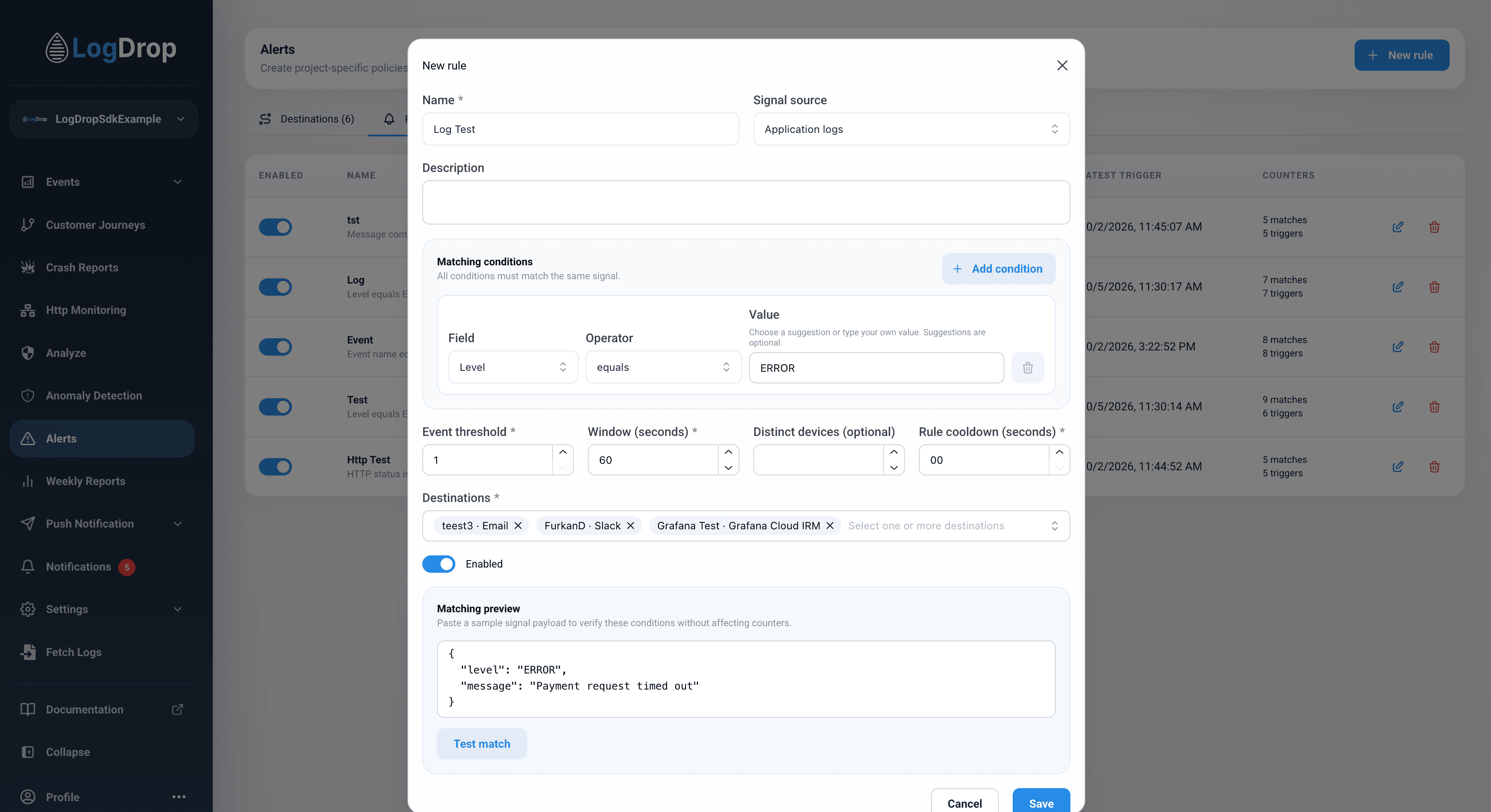
- Open Alerts → Rules and select New rule.
- Enter a Name and choose a Signal source. Add one or more Matching conditions using a field, operator, and value. All conditions must match the same signal.
- Set Event threshold and Window (seconds). For example, a threshold of
3in a window of300fires after three matching signals within five minutes. - Optionally set Distinct devices and Rule cooldown (seconds). A distinct-device threshold cannot exceed the event threshold.
- Select one or more enabled Destinations, keep Enabled on, and select Save.
Screenshot: New rule
| Signal source | Available condition fields |
|---|---|
| Application logs | Level, Message |
| HTTP errors | HTTP status, HTTP method, Domain, Path, Latency, Error type, Error message |
| Events | Event name, Event property |
| Crashes | New issue, Regression, Frequent crash, Crash title, Stack trace, Issue occurrence count |
| Anomalies | Severity, Anomaly type, AI confidence, Regression |
For an event property, choose Event property and enter its property name. Enter multiple values separated by commas where the selected operator permits them. Numeric fields use numeric values; boolean fields use true or false.
Before saving, use Matching preview: paste a sample JSON signal and select Test match. The result tells you whether the sample matches the rule's conditions. It does not send an alert or evaluate the threshold over time.
The Rules tab shows each rule's condition summary, policy, destinations, latest trigger, match count, and trigger count. An admin can use the switch to disable a rule, or edit or delete it from the row.
Review alert history
Open Alerts → History to see occurrences and each destination's delivery status. Filter by Pending, Sent, Suppressed, or Failed; use Refresh for new results and Previous or Next to move through pages. The link at the end of a row opens the related LogDrop data.
Suppressed can indicate a rule or destination cooldown. If a Grafana delivery fails, first check the destination's test result and webhook URL, then inspect the occurrence's delivery status in History. Remove a destination from every rule before deleting it.
Other destination types
The same rule can send to several destinations. In New destination, choose Email (comma-separated addresses), Slack (incoming webhook URL), Webhook (public URL), or Alertmanager (alerts endpoint URL). Webhook destinations can also use an optional Authorization header. Choose the destination type that matches the receiver's payload format.