.png)
Projects and permissions
Choose what your assistant can access, handle new permissions, and revoke connections.
Choose projects and permissions
During browser sign-in, the Connect to LogDrop page shows the requesting application and the projects and permissions you can share.
- Select the projects the assistant needs. Projects are grouped by merchant.
- Review Read and Write permissions for each feature.
- Use the information icon beside a feature to see what that permission includes.
- Use each section's Select all checkbox only if you want to grant every permission in that section.
- Approve to finish connecting, or cancel to leave access unapproved.
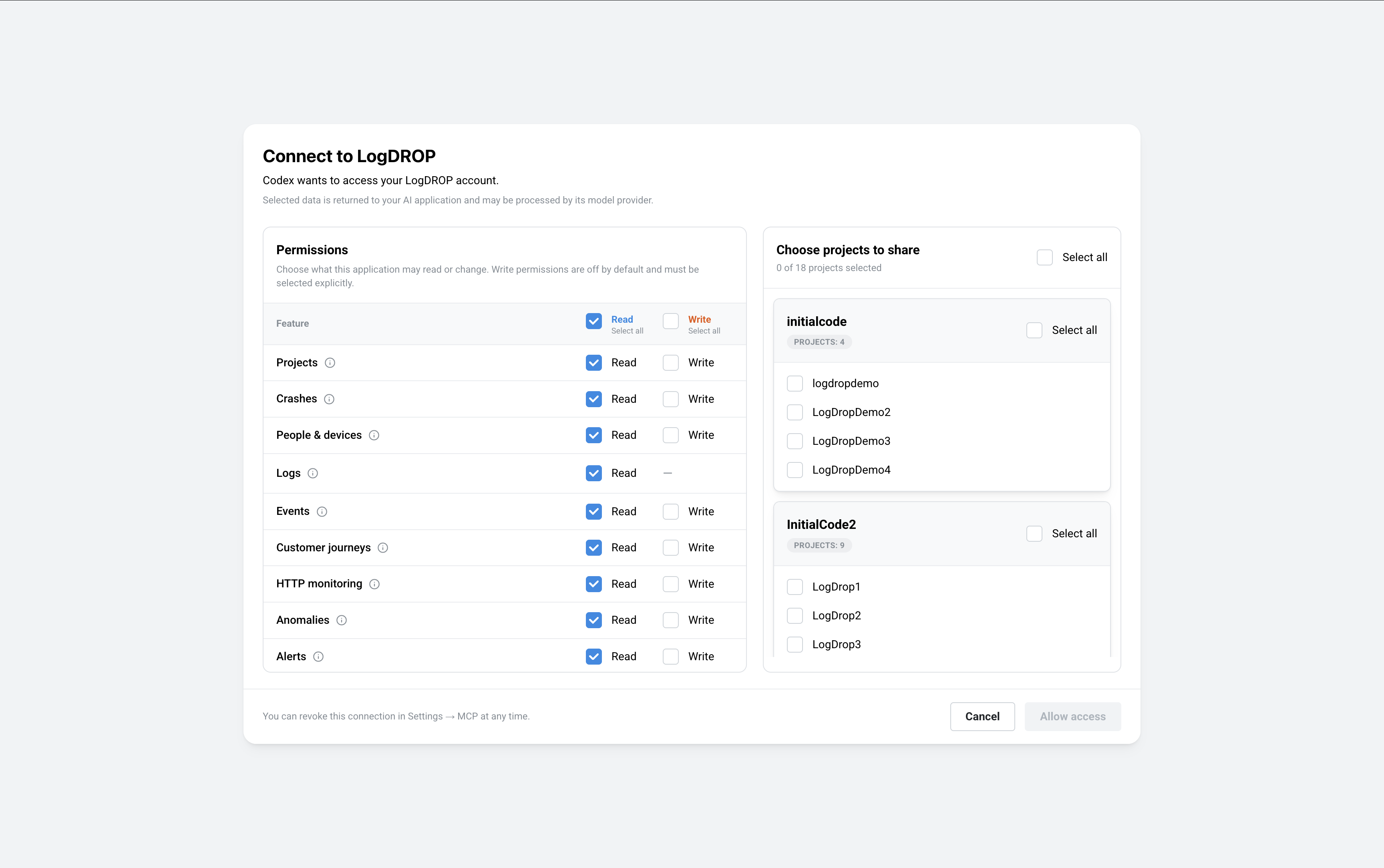
Write permissions are off by default for a fresh authorization and must be selected explicitly. Review the actual checkbox selections each time you reconnect.
Read permissions allow the assistant to retrieve information. Write permissions allow supported changes, including updates or deletions where the feature supports them. An application's labels such as “read,” “write,” or “destructive” describe tools; LogDrop still checks the permissions and your panel role when a tool runs.
A connection cannot give you more access than your panel account has. Sharing a project or selecting a write permission does not make you a merchant administrator. Actions that require an administrator still require that role.
Panel review for sensitive workflows
Push preparation and customer journey publication use panel review links. Open the returned link, check the project and action, and finish in the panel. Pushes are sent only when you send them from the panel; journey drafts are published only when you publish them there.
For other write operations, the assistant may call the tool directly once authorized. Confirmation behavior can differ between AI applications and their settings. Review the permissions you grant rather than relying on a chat confirmation for every change.
When new permissions become available
An existing connection keeps its granted permissions. LogDrop does not automatically add new write permissions to it.
When a connection was authorized before new permissions became available, a New MCP permissions available notice can appear on Home. Select Review MCP connections to open the MCP page. You can also dismiss the notice. Reviewing or dismissing the notice does not grant access.
A permission you deliberately left unchecked is not treated as a newly added permission just because the connection does not have it. Your current connection can keep working with its existing permissions.
Authorize additional permissions
- Open your AI application's LogDrop connection and start Connect, Sign in, or Authenticate again. For Codex CLI, run
codex mcp login logdrop. - On LogDrop's authorization page, choose the projects and permissions you now want to share.
- Return to the AI application. Refresh its MCP connection or fully restart the application if it still has an old tool list.
- In Settings → MCP → Connections, identify the old connection and select Revoke access once the replacement works.
A new authorization can create a separate connection. The old connection is not automatically revoked just because a newer one exists. Check the application name, creation/expiry information, last use, and granted projects to avoid revoking the replacement by mistake.
Revoke access
- Open Settings → MCP → Connections.
- Find the connection you want to stop.
- Select Revoke access and confirm in the panel dialog.
Revocation stops that connection's future access. If you later want to use it again, authorize a new connection. Removing a server from your AI application's settings and revoking its access in LogDrop are separate actions; use the panel to stop an old grant.
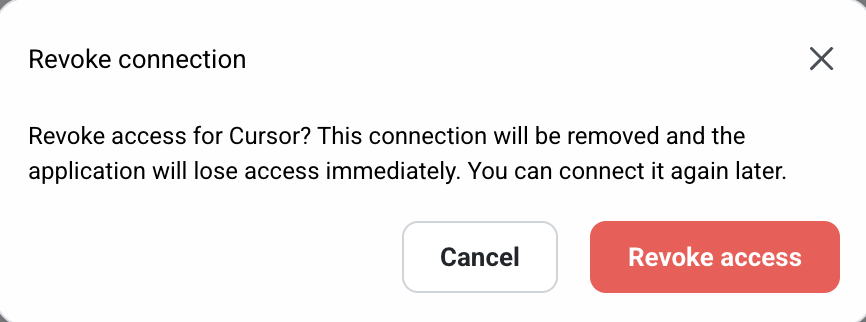
The confirmation dialog is shown before access is revoked.
Keep access focused
Share only the projects and feature permissions needed for the task. If your assistant only needs to investigate crashes, you can leave unrelated write permissions off. Do not paste access tokens, passwords, or integration credentials into the conversation to work around a permission error.