.png)
Overview
Connect your AI assistant to LogDrop, choose its access, and manage your connections.
Connect Codex, Claude, Cursor, GitHub Copilot, Antigravity, or another compatible MCP application to LogDrop. Ask questions about your applications in plain language, investigate problems, and make supported changes with the permissions you choose.
MCP (Model Context Protocol) is the connection between your AI application and LogDrop. A tool is an action the assistant can call, such as listing devices or reading a crash report. LogDrop also supplies instructions that help the assistant choose tools, connect related records, and follow supported workflows. You do not need to copy a tool list or a separate instructions file into every chat.
Connect your AI application
Set up Codex, Claude, Cursor, Copilot, Antigravity, or another MCP client.
Projects and permissions
Choose read and write access, review new permissions, and revoke old connections.
Usage and limits
Understand your merchant's shared allowance and request higher limits.
Troubleshooting
Fix stale tool lists, sign-in problems, missing permissions, and client setup issues.
Start from the panel
- Sign in at panel.logdrop.io.
- Select your merchant and project.
- Open Settings → MCP.
- Select Connect MCP, then choose your AI application.
- Complete sign-in and choose the projects and permissions to share.
The Connections tab shows your connected applications, granted permissions, selected project count, expiry, and last use. Connections can cover several projects, including projects in different merchants that you can access. The Usage & limits tab shows the allowance for the merchant currently selected in the panel.
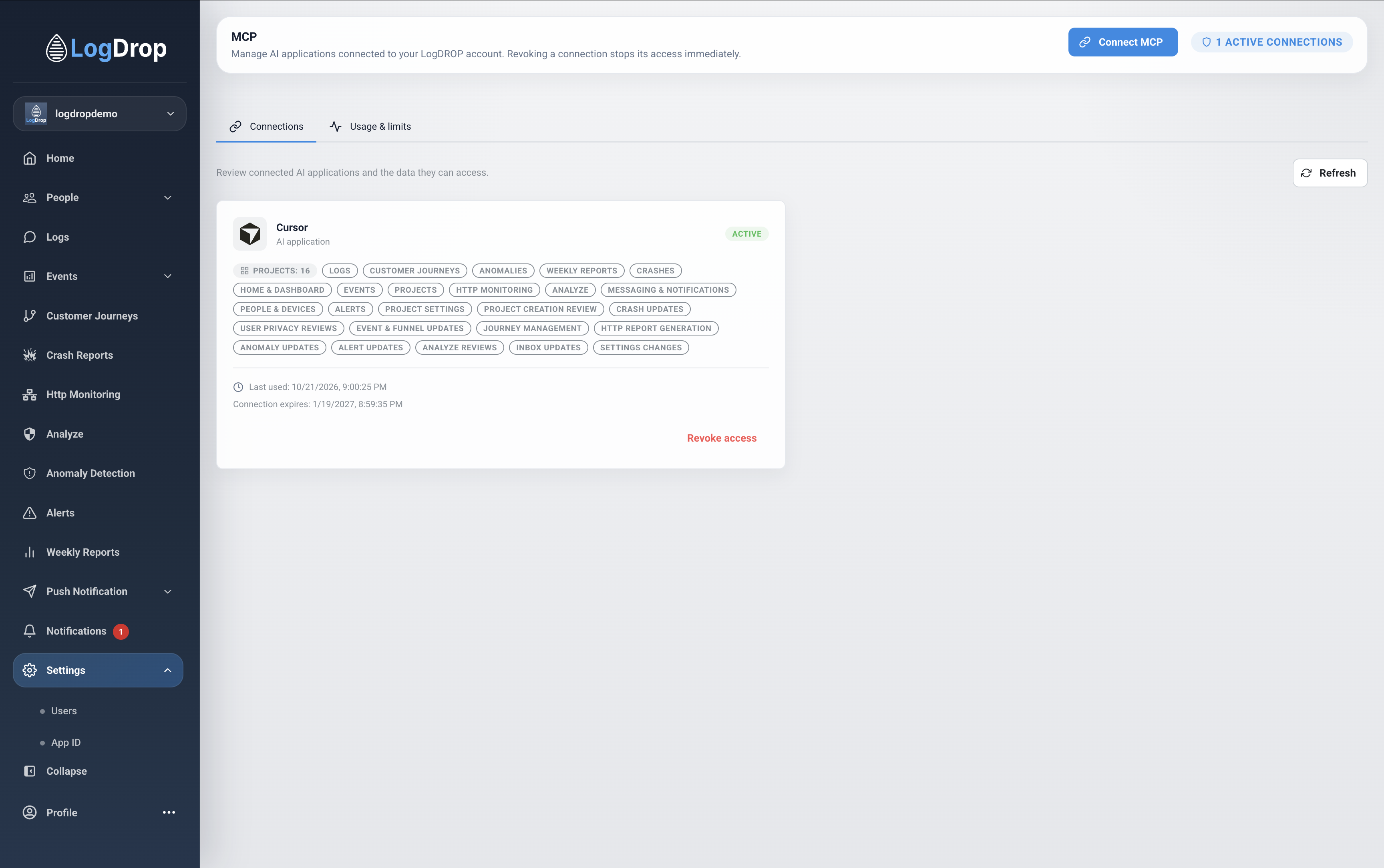
Example connection list. Your applications, projects, and permissions may differ.
What you can ask
You can start with normal requests. You do not need to know the names of the tools.
- “Show me the devices in my project.”
- “Why did the latest Android crash happen?”
- “Is there anything unusual in this app's HTTP requests?”
- “Check this app for security risks.”
- “How healthy was the app this week?”
- “Help me add LogDrop to my Flutter app.”
- “Prepare a push notification for users in this segment.”
Name the project and time range when you know them. For crash or network investigations, include a device, user, session, or record ID if you have one. The assistant can use related log records to investigate further; a crash's log UUID can help locate the matching entry in a log file.
Available areas
The exact tools available to your assistant depend on your permissions and panel role.
| Area | Examples |
|---|---|
| Projects, dashboard, and people | Project discovery, dashboard statistics, devices, application users, and custom attributes. |
| Logs, crashes, and HTTP | Log search, crash groups and stack traces, HTTP summaries, request details, and supported review actions. |
| Security and application health | Risk events, threat score, anomaly details, saved Analyze results, and weekly reports. |
| Events, funnels, and customer journeys | Event definitions, properties and observed values, funnel results, and supported event or journey changes. |
| Alerts and messaging | Alert rules, suggested filter values, notification inbox, message history, and push preparation. |
| Settings and SDK setup | Supported user, App ID, app/project configuration, access-control actions, and SDK onboarding guidance. |
For a security question, the assistant may need several sources: saved analysis findings, risk event details, threat score, anomalies, and relevant logs or requests. A clean result in one source is not proof that the whole app is secure. For SDK integration, the onboarding tools provide setup guidance and links to the platform documentation and release information.
SDK type and operating system are different. SDK type identifies the LogDrop library integration, such as native Android or React Native. Operating system identifies where the app runs, such as Android or iOS. A React Native app can run on either operating system.
Changes that finish in the panel
Some tools return a panel link so you can review and complete the action yourself.
- Push notifications: the assistant prepares a link to the Send Push form. Review the recipients, platforms, title, body, and any message or deep-link options. Only your action in the panel sends the push.
- Customer journey publication: the assistant can prepare a draft and provide a review link. You review and publish the journey in the panel.
- Large file uploads: use the panel links for binary analysis files and crash symbol files. You select and upload the files in the panel.
Other authorized write tools can make changes directly. Do not assume every write tool opens a panel review page or that every AI application asks for confirmation before each change. See Projects and permissions.
Your data and the AI application
Data returned by LogDrop is sent to your chosen AI application and may be processed by its model provider. Choose the projects and permissions appropriate for that application and your organization's policies. You can stop a connection's access from Settings → MCP → Connections.