.png)
Connect your AI application
Connect Codex, Claude, Cursor, Copilot, Antigravity, or another MCP client to LogDrop.
Click a screenshot to open its full-resolution version in a new tab.
Before you connect
Sign in to the LogDrop panel, select a project, and open Settings → MCP → Connect MCP. Choose your application in the connection dialog. Each tab offers the setup supported by that application: an install button, commands, or a request you can copy into an agent chat.
The public LogDrop MCP server address is:
https://mcp.logdrop.io/mcpUse the remote HTTP connection with browser sign-in (OAuth). You do not need to copy your SDK App ID, a LogDrop password, or an access token into a chat to connect.
Codex
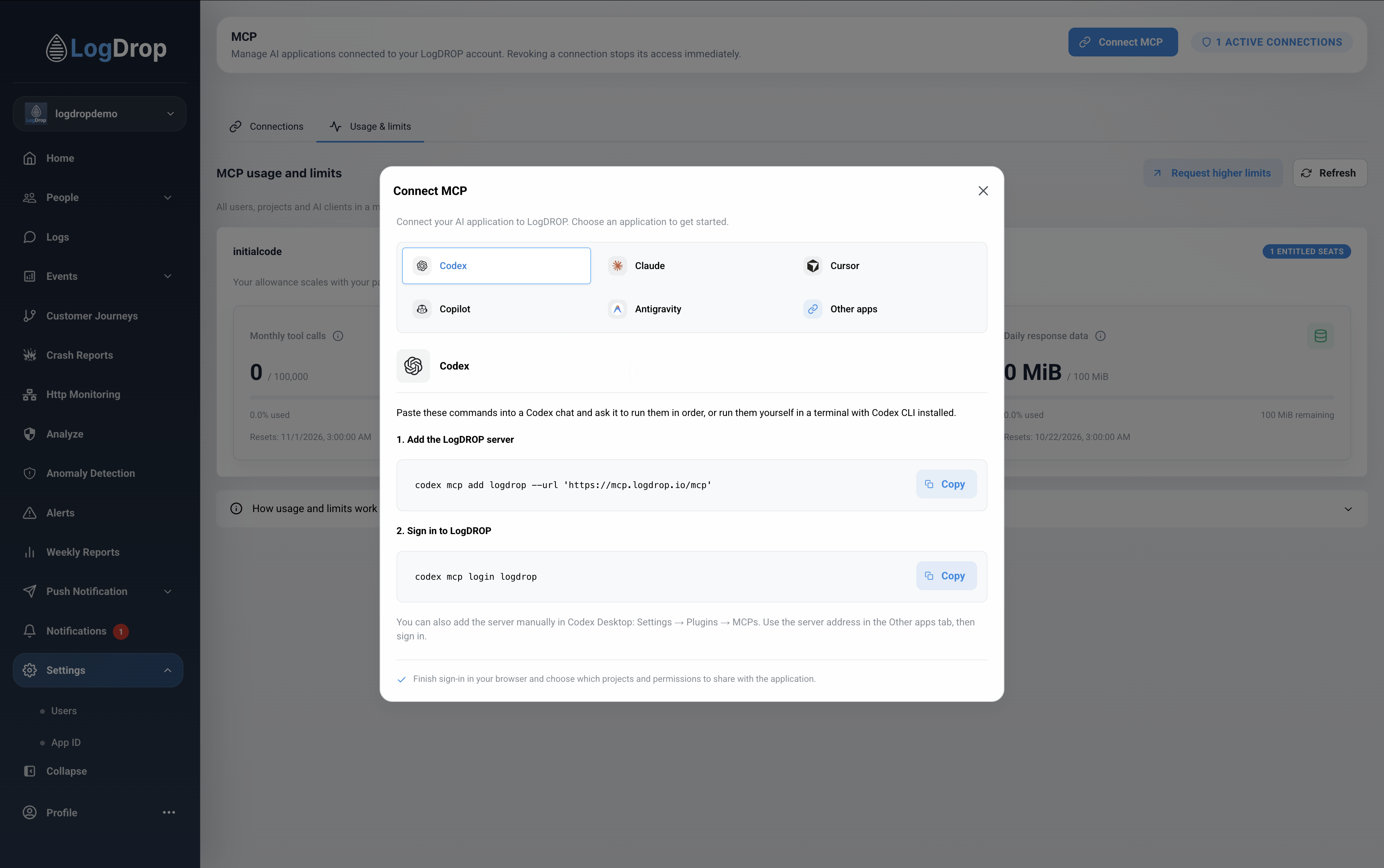
- Select the Codex tab in Connect MCP.
- Copy the two commands and run them in order in a terminal with Codex CLI installed. You can also paste them into a Codex chat and ask it to run them if that session can run local commands.
- Finish the browser sign-in and choose your projects and permissions.
codex mcp add logdrop --url 'https://mcp.logdrop.io/mcp'
codex mcp login logdrop
If LogDrop is already configured at the correct address, only run the login command when you need to authorize again. The connection dialog does not open Codex and type commands for you.
You can also configure a remote HTTP server manually in Codex's MCP settings. Depending on your version, these are under Settings → Plugins → MCPs. Use LogDrop as the display name, enter the server address above, and select the sign-in or authentication action.
After setup, start a chat and ask, for example: “List the projects I can access in LogDrop.” If tools are missing, see refreshing the tool list.
Official Codex MCP documentation
Claude
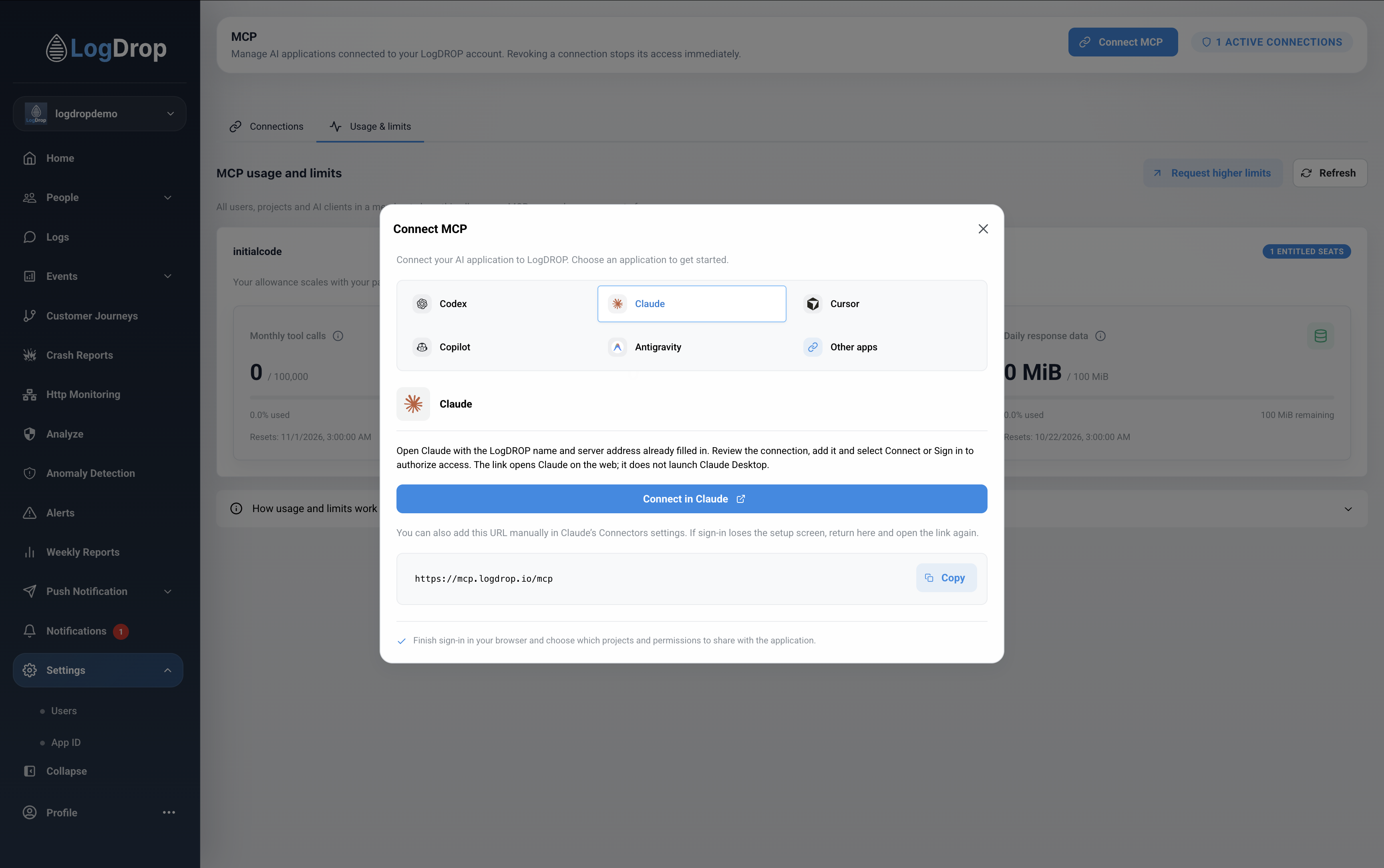
- Select the Claude tab, then Connect in Claude.
- The button opens Claude's web connector setup with the LogDrop name and server address filled in. It does not launch Claude Desktop.
- Review the connector and continue. Select Connect or Sign in when prompted.
- Complete the LogDrop authorization page, then return to Claude and enable the connector for your conversation if required.
Remote connectors are managed through your Claude account and can be used in supported Claude clients, including Claude Desktop. Make sure you are using the same account and organization. This is separate from manually installing a local Claude Desktop server.
Team or Enterprise account? Your organization may require an owner or another authorized role to add the custom connector first. You then connect your own LogDrop account. If the Add button is disabled, contact the person who manages your organization's Claude connectors.
If the link opens the general customization page without the setup dialog, sign in to the intended Claude account and open Connect in Claude again. You can also add a custom connector manually using the server address above.
Claude's custom connector guide
Cursor
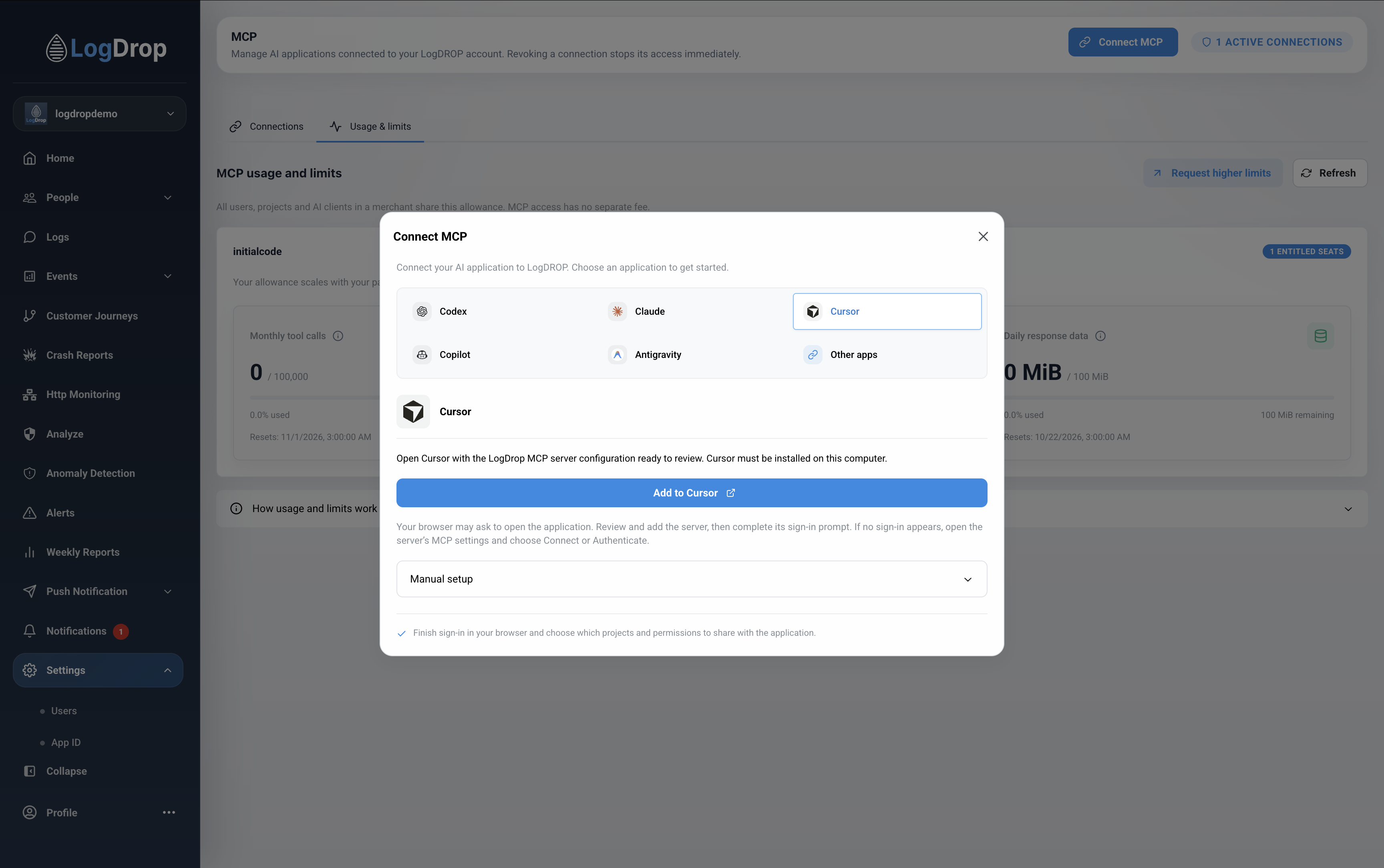
- Select Cursor → Add to Cursor.
- Allow the browser to open Cursor if prompted.
- Review and add the LogDrop server configuration in Cursor.
- Complete the authentication prompt and LogDrop authorization page.
If sign-in does not open, find LogDrop in Cursor's MCP settings and select Connect or Authenticate. The connection dialog also includes Manual setup as a fallback.
GitHub Copilot in VS Code
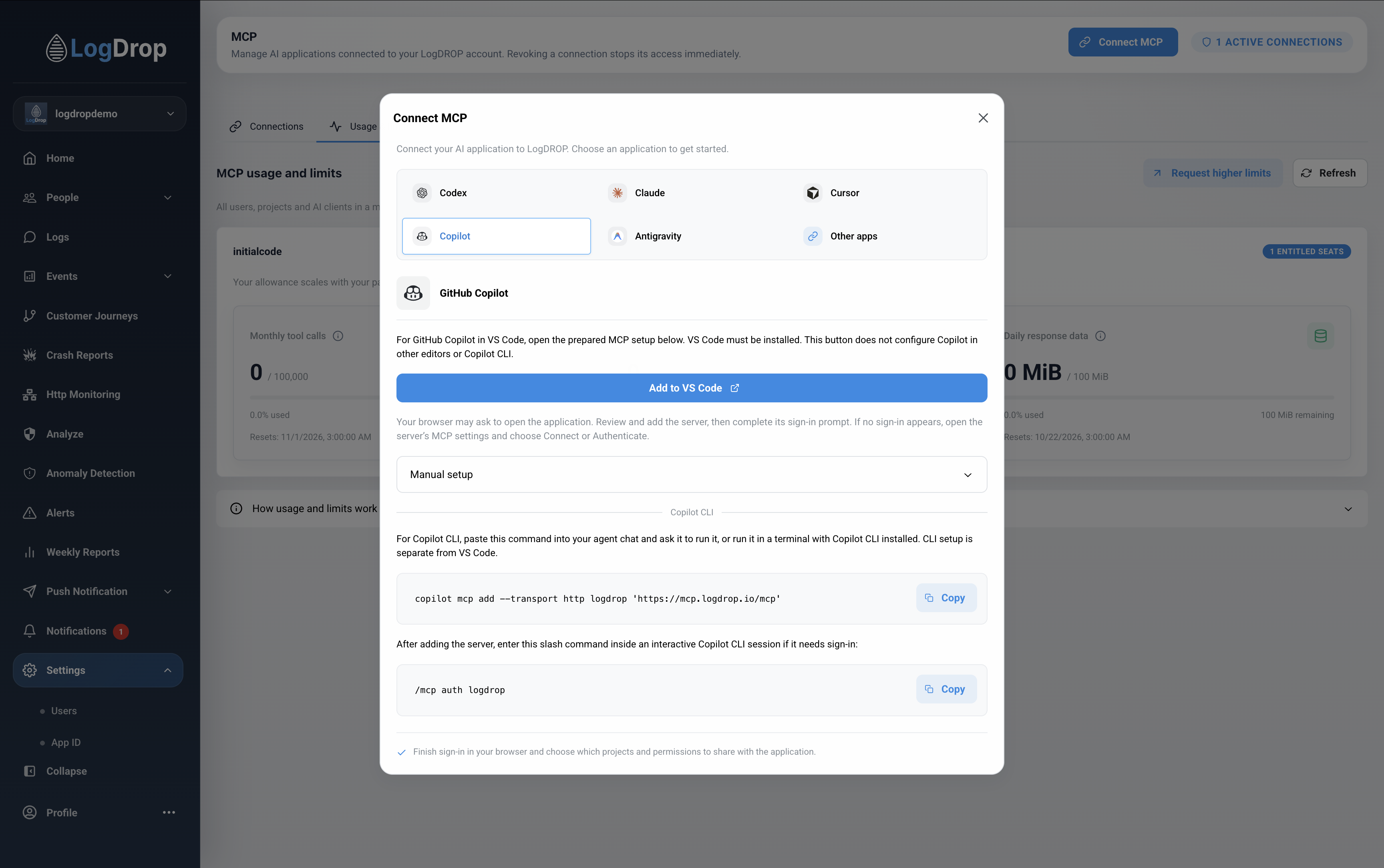
- Select Copilot → Add to VS Code.
- Allow the browser to open VS Code, then review and add the server.
- Open LogDrop's MCP controls in VS Code and complete authentication.
- Finish LogDrop's project and permission selection.
This button sets up VS Code. It does not configure Copilot in every editor or automatically set up Copilot CLI. Your LogDrop connection card may be named Visual Studio Code because VS Code identifies itself as the connecting application.
Some Copilot/AgentHost versions can show a migration prompt or fail to open sign-in. See VS Code and Copilot setup issues before moving a working server configuration.
Copilot CLI
The Copilot tab also provides a separate CLI setup:
copilot mcp add --transport http logdrop 'https://mcp.logdrop.io/mcp'If it needs sign-in, enter this command inside an interactive Copilot CLI session:
/mcp auth logdropAntigravity
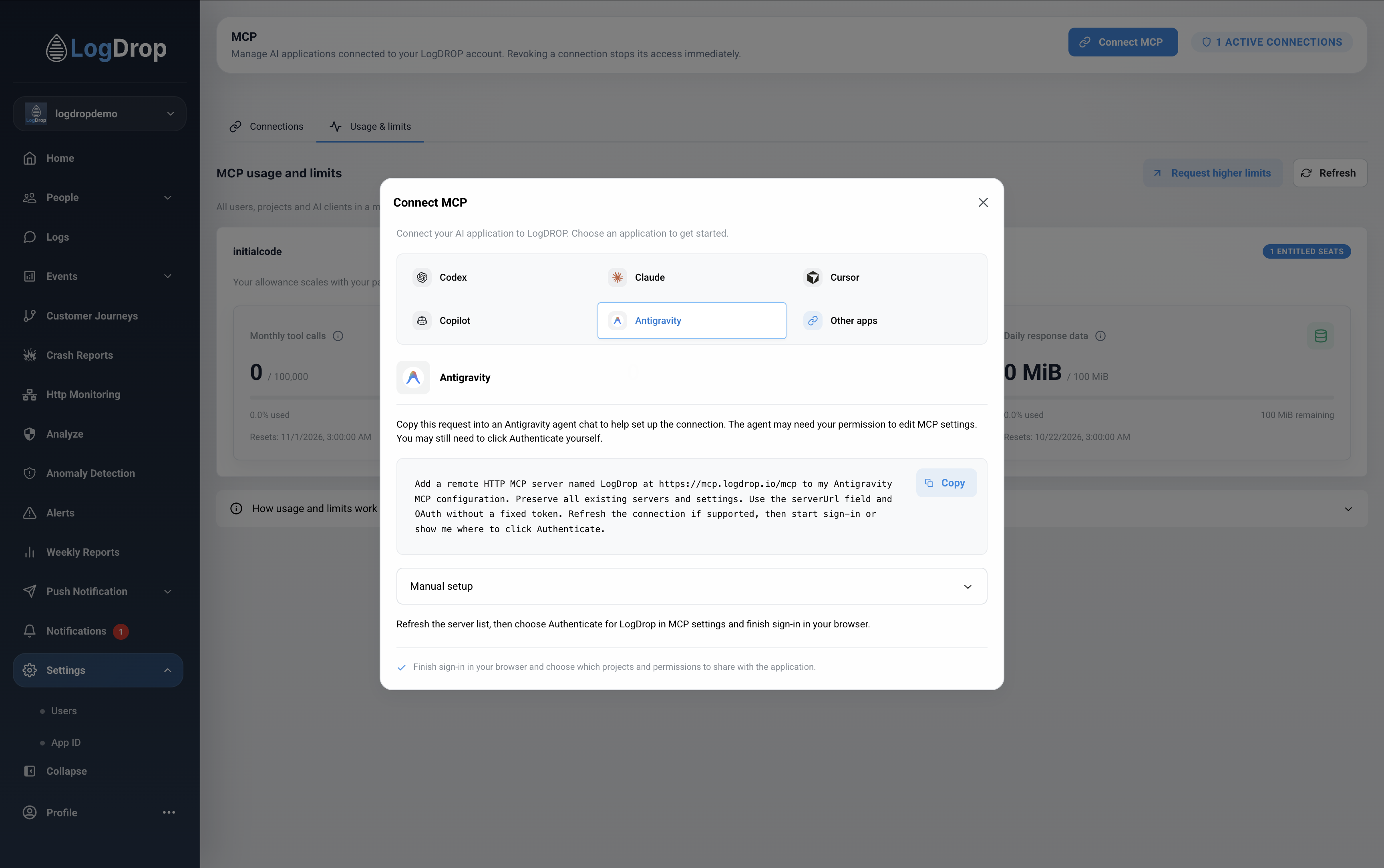
- Select the Antigravity tab.
- Copy the setup request into an Antigravity agent chat. The request tells the agent to add LogDrop while preserving existing servers and settings.
- Review any requested settings changes.
- Refresh the MCP server list, select Authenticate for LogDrop, and finish browser authorization.
The agent may help configure the server, but you may still need to start authentication yourself. Manual setup is also available in the dialog:
{
  "mcpServers": {
    "LogDrop": {
      "serverUrl": "https://mcp.logdrop.io/mcp"
    }
  }
}
Merge this entry into the application's existing configuration; do not replace other server entries.
Other applications
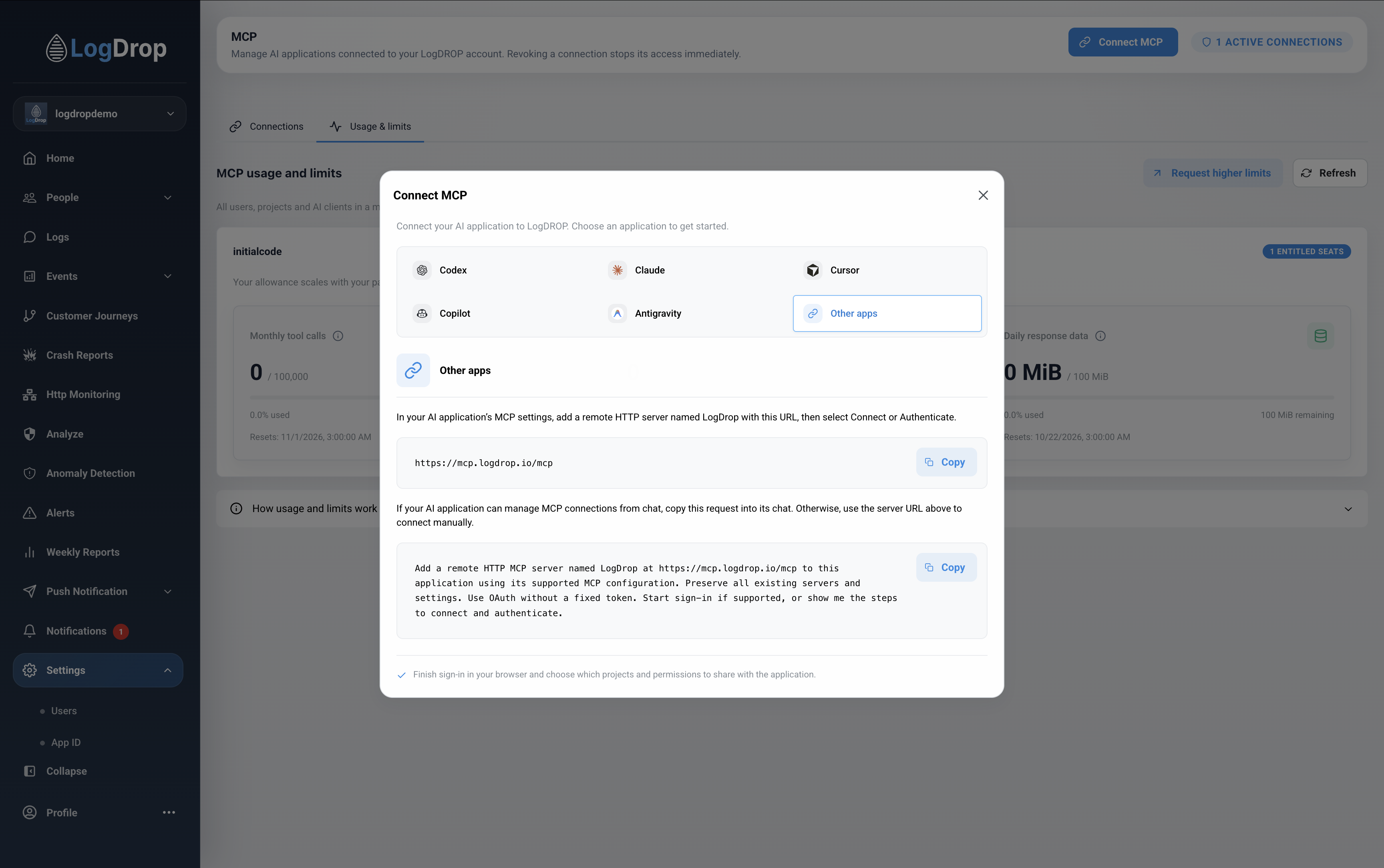
Select Other apps to copy the server URL or a general setup request for your agent. Your application must support remote HTTP MCP servers and OAuth sign-in. Add a server named LogDrop, enter the address above, then select Connect or Authenticate.
The setup request is a convenience, not an automatic installer. Your application must have access to its MCP configuration to make the change, and its setting names may differ.
Finish authorization
All setup methods lead to LogDrop's authorization page. Choose the projects to share, select read and write permissions, and approve the connection. Return to your AI application after the browser confirms completion. See Projects and permissions for details.