.png)
Usage and limits
Understand the merchant-wide MCP allowance and request higher limits.
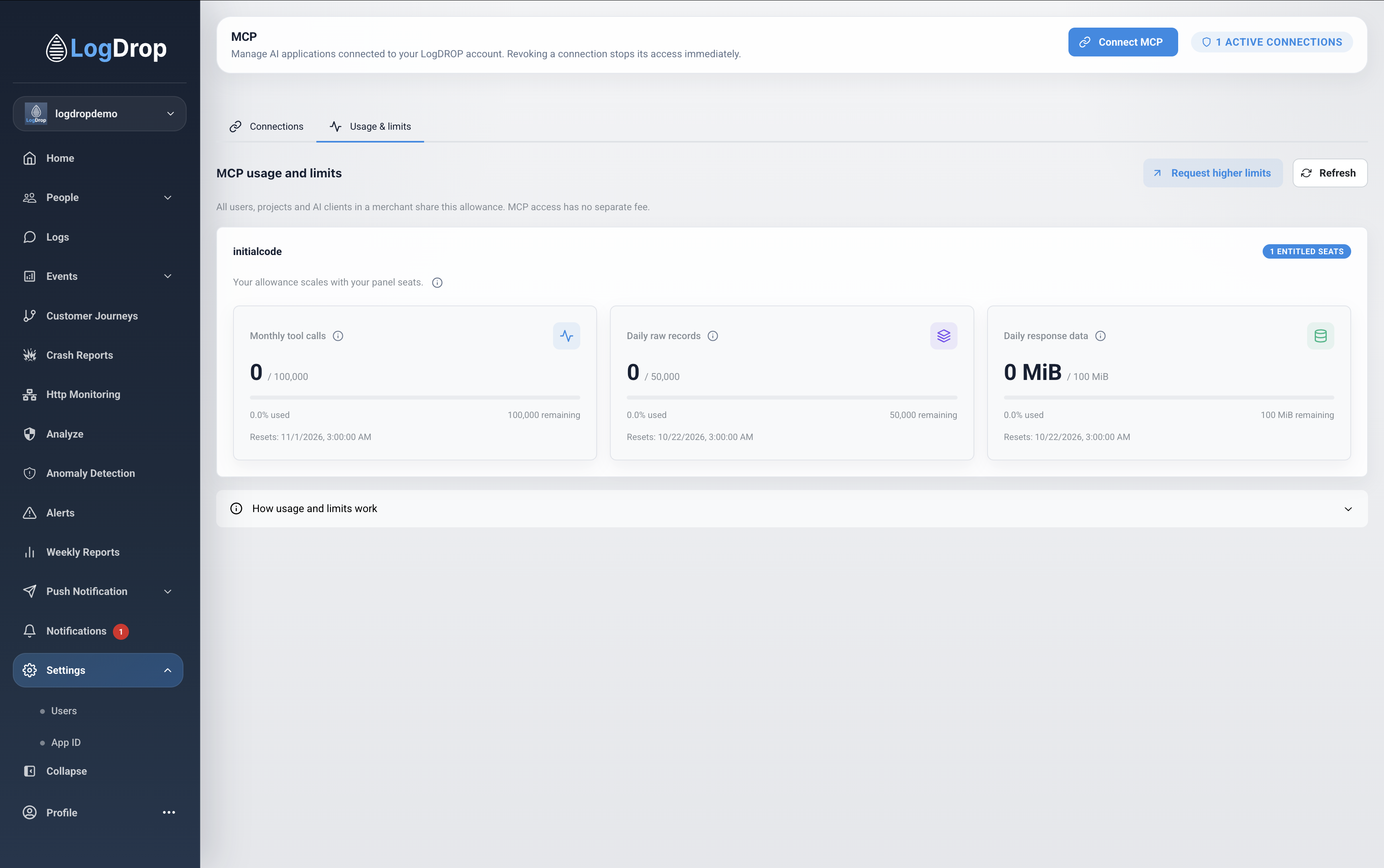
Open Settings → MCP → Usage & limits. The page shows usage for the merchant currently selected in the panel.
What the numbers mean
| Counter | Meaning |
|---|---|
| Monthly tool calls | MCP tool calls counted toward the merchant's monthly allowance. |
| Daily raw records | Raw data records returned through MCP and counted toward the daily allowance. |
| Daily response data | Response data counted toward the daily allowance, shown in MiB. |
The cards show usage, the applicable limit, remaining allowance, and the reset time. The allowance is shared by the merchant's users, projects, and connected AI applications. Creating another connection does not create another allowance.
The displayed allowance takes the merchant's panel-seat entitlement and any approved limit changes into account. Check the values shown in your panel rather than assuming a fixed limit from an example screenshot. MCP access has no separate fee; your AI provider's own subscription and usage charges are separate.
Request higher limits
A merchant administrator can select Request higher limits:
- Enter the requested monthly calls, daily records, and daily response data limits.
- Explain your use case and why the current allowance is not enough.
- Submit the request.
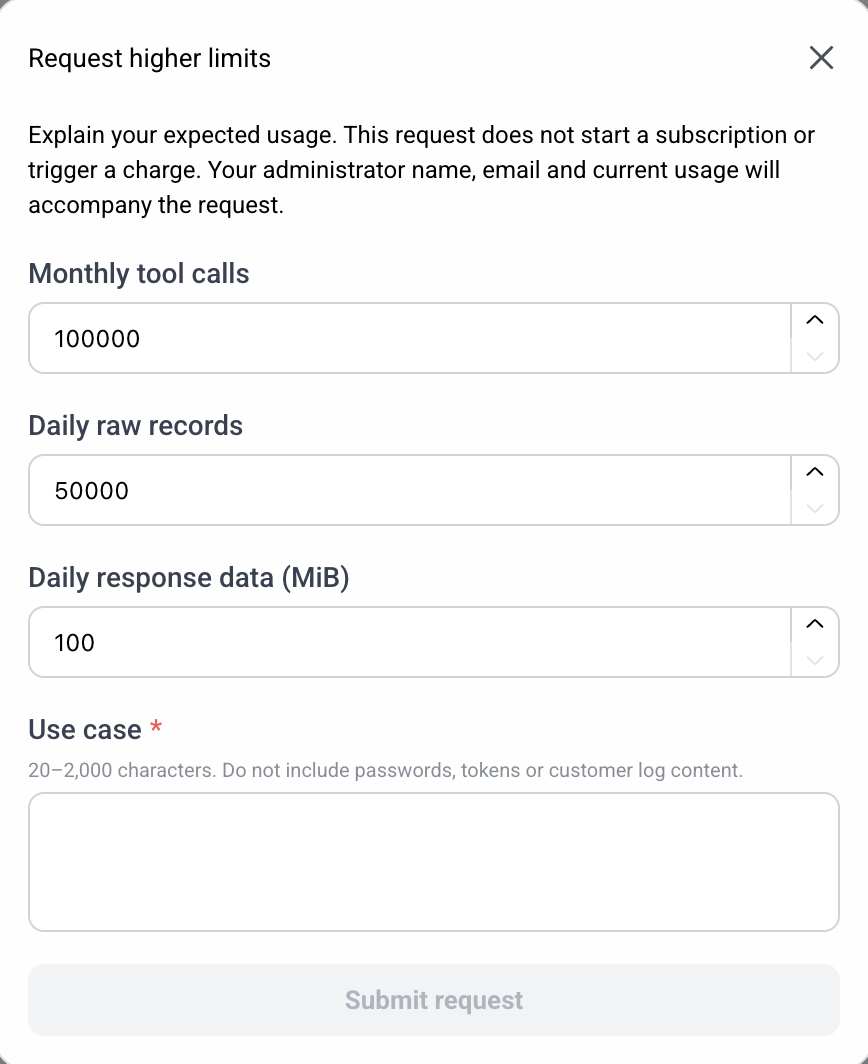
Your administrator name, email, and current usage accompany the request. Do not include passwords, tokens, or customer log content in the use case.
The page shows a pending-review status while a request is waiting for review. Submitting a request does not immediately increase your limits. If you do not see the request action, check your merchant role or whether a request is already pending.
When a limit is reached
Use the reset information and limit message to decide whether to wait or request a higher allowance. Narrow the project, date range, or filters and ask for summaries before loading many raw records. Do not repeatedly reconnect or create connections to try to reset usage.
For large log investigations, follow the download or panel links the assistant provides rather than asking it to print an entire file in the chat.