.png)
Project Config
Configure crash alerts and integrations (Slack, Jira) per project
Project Config contains project-level settings such as crash alert rules and integrations (Slack, Jira). Use this page to control when notifications are sent and how incidents are routed to your tools.
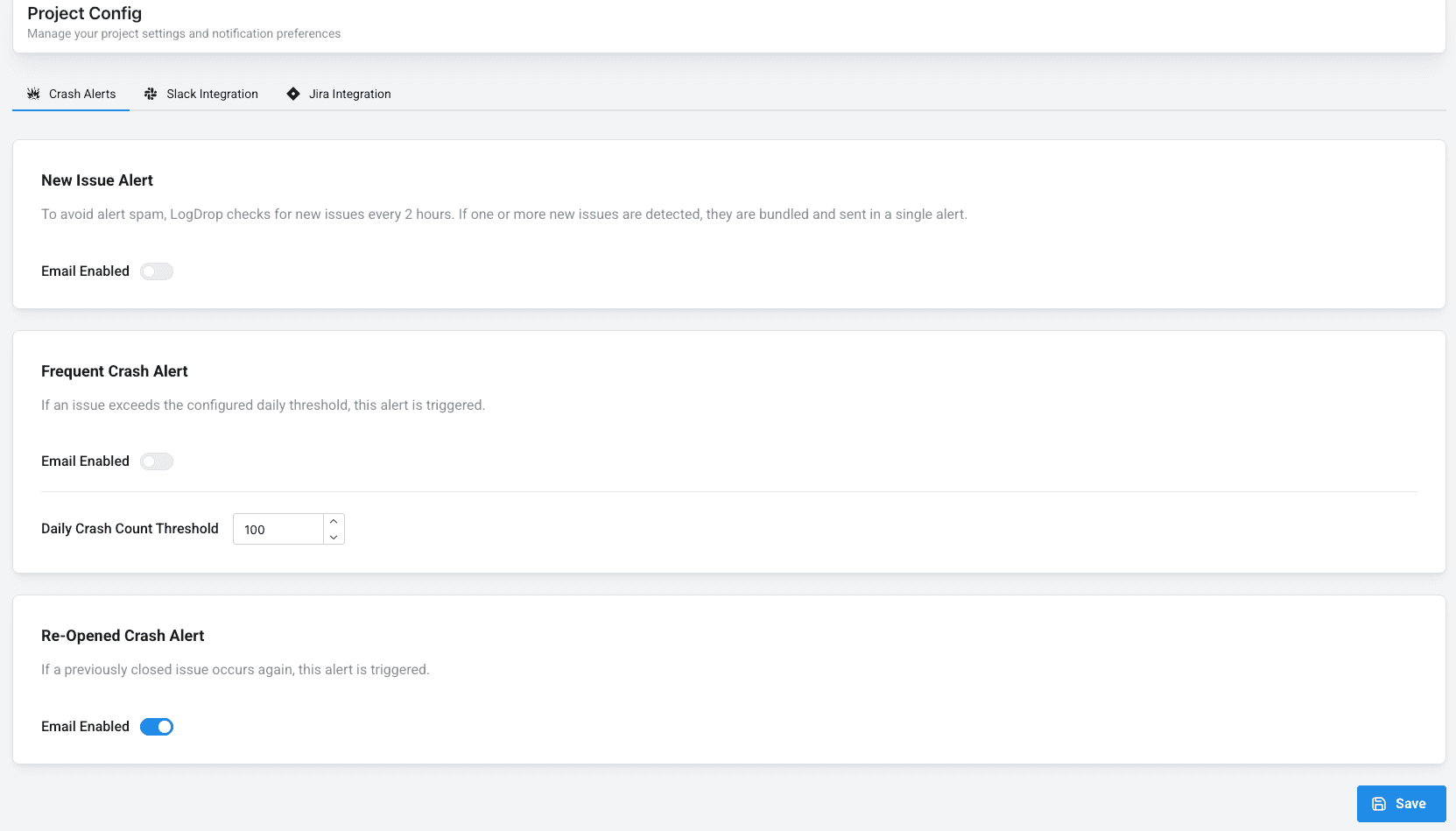
1) Crash Alerts (Email)
Crash alerts notify your team about new or recurring issues. Common alert types include:
- New Issue Alert: Checks periodically (e.g., every 2 hours) and may bundle notifications.
- Frequent Crash Alert: Triggers when a crash exceeds a daily threshold.
- Re-opened Crash Alert: Notifies when a previously closed issue happens again.
Screenshot: Crash alerts configuration
2) Slack Integration (Incoming Webhook)
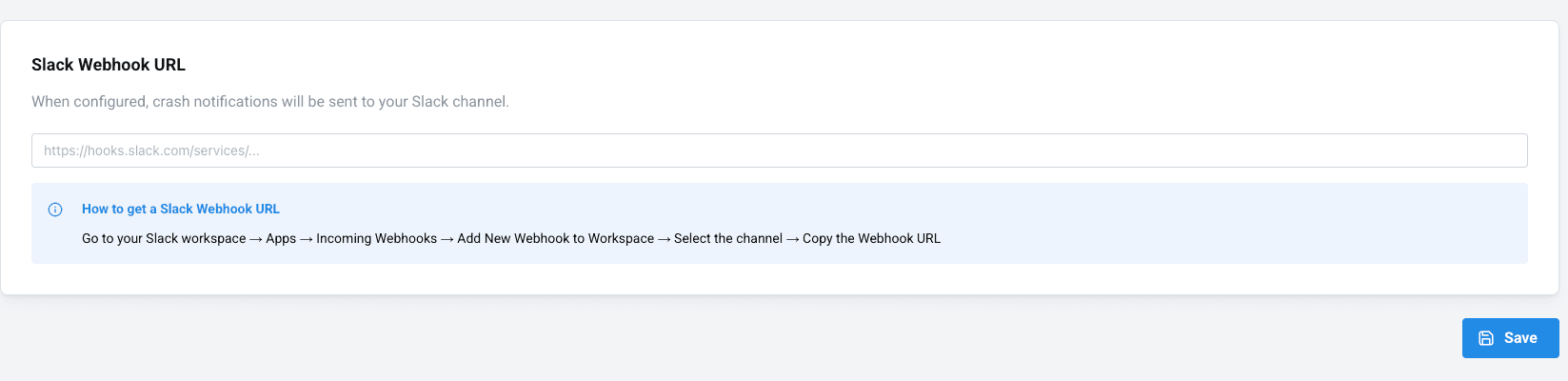
Slack integration posts crash alerts to a chosen channel using an Incoming Webhook.
- In Slack, go to Apps and search for Incoming Webhooks.
- Create a new webhook and select the target channel.
- Copy the generated Webhook URL.
- Paste it into the panel and Save.
Screenshot: Slack webhook field in panel
Tip: Use a dedicated channel (e.g., #logdrop-alerts) and pin runbooks for faster incident response.
3) Jira Integration
Jira integration can automatically create issues from crash reports, helping you track and assign work. The panel typically supports two connection methods:
- OAuth (recommended): easiest for long-term maintenance
- API Token: manual setup for token-based Jira access
Screenshot: Jira connection settings

4) Jira Automation (Project / Issue Type / Assignee)
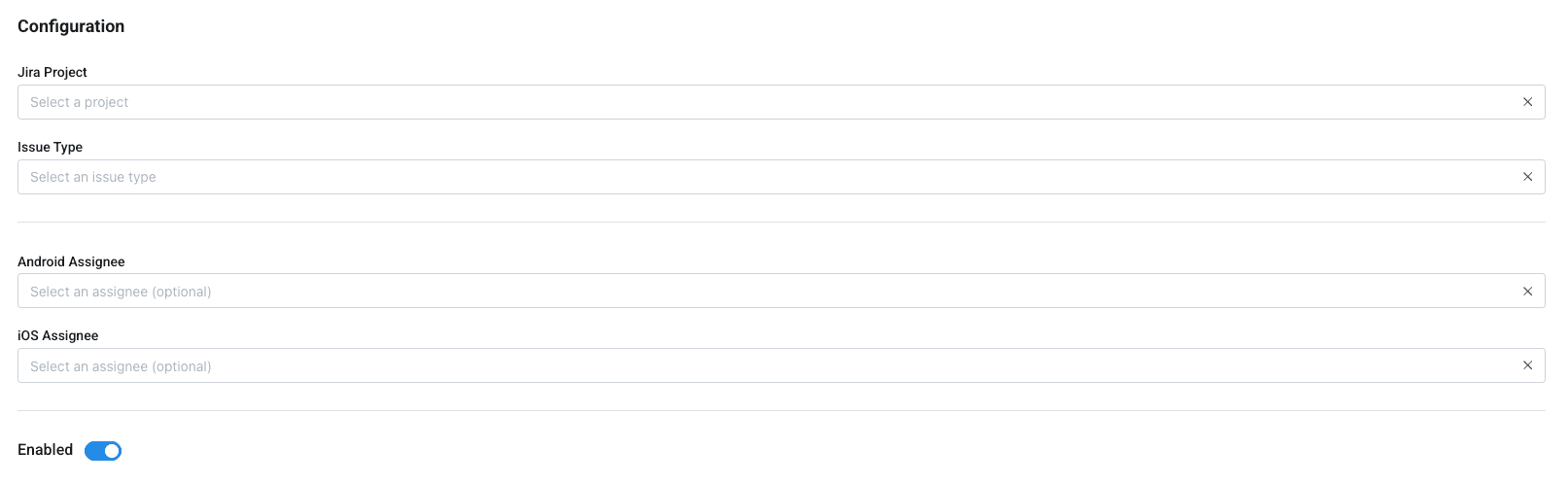
After connecting Jira, configure how issues should be created and routed:
- Select the target Jira Project
- Choose the Issue Type (Bug / Task / etc.)
- Optional: set assignees per platform (Android / iOS) if supported
- Confirm which crash events should create tickets (e.g., new issues only)
Screenshot: Jira automation rules
5) Risk Config
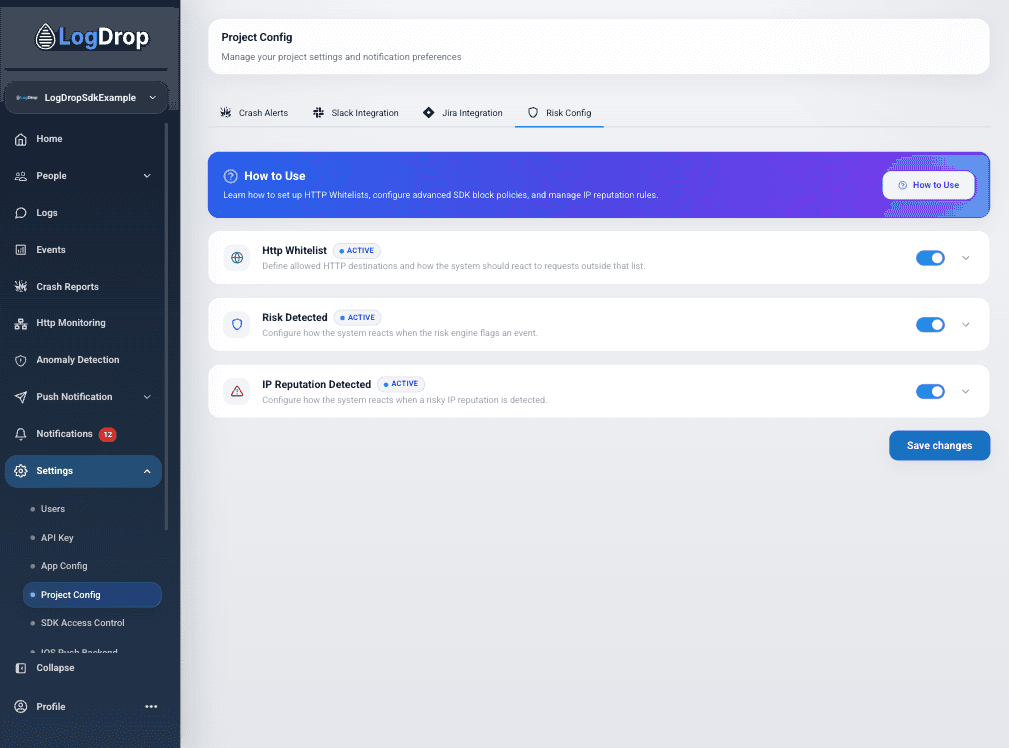
Risk Config is the security configuration tab within Project Config. It lets you define HTTP whitelisting policies, configure automated responses to risk detections, and manage IP reputation threat rules — all with granular SDK and backend action controls.
Risk Config contains three independent security modules, each with its own toggle, backend notification channels, and SDK-level enforcement actions.
Screenshot: Risk Config overview
5.1) HTTP Whitelist
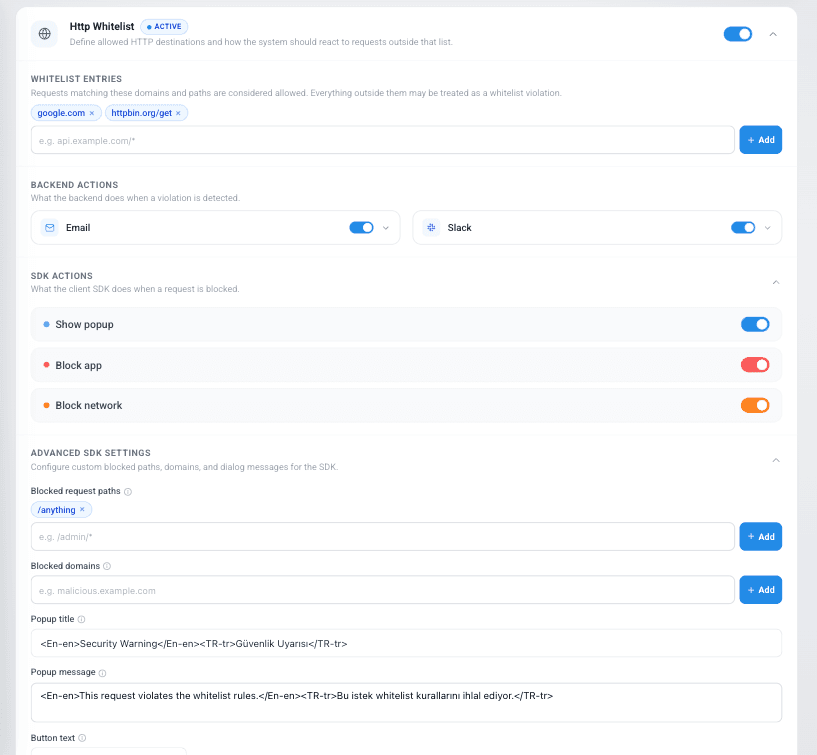
Define allowed HTTP destinations and configure how the system reacts when a request is made outside that list.
- Whitelist Entries – Add trusted domains and paths (e.g.,
google.com,httpbin.org/get). Any request outside this list is flagged as a violation. - Backend Actions – Choose notification channels (Email / Slack) when a violation is detected.
- SDK Actions – Define client-side enforcement:
- Show Popup – Display a warning dialog to the user.
- Block App – Prevent the app from continuing execution.
- Block Network – Block all further outgoing network requests.
- Advanced SDK Settings – Fine-tune with blocked request paths (e.g.,
/admin/*), blocked domains, and multi-language popup text (supports<En-en>/<TR-tr>tags).
Screenshot: HTTP Whitelist expanded
5.2) Risk Detected
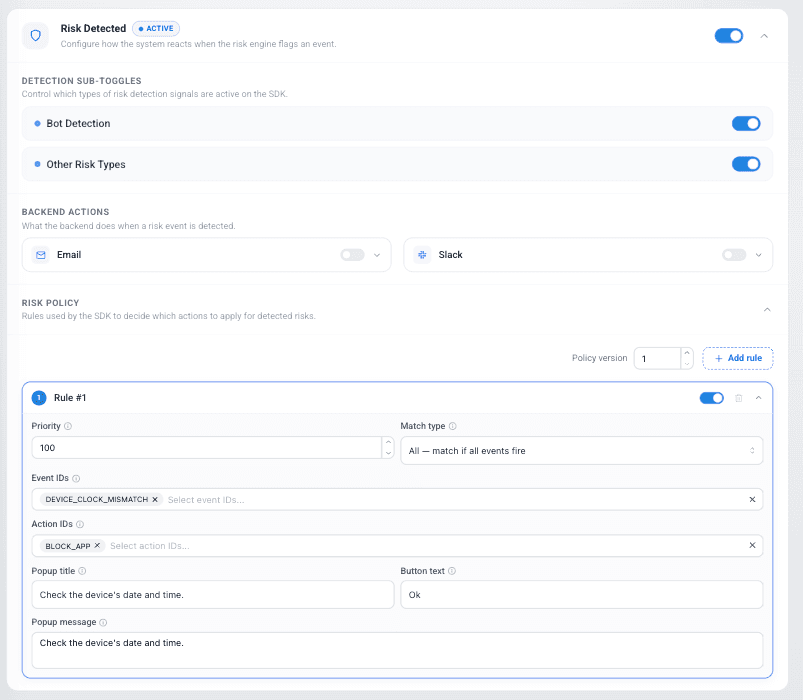
Configure how the system reacts when the risk engine flags a suspicious event on a device.
- Detection Sub-Toggles – Control which risk signals are active: Bot Detection and Other Risk Types (e.g., rooted devices, emulator usage).
- Backend Actions – Enable Email / Slack notifications for risk events.
- Risk Policy – Define rule-based policies the SDK evaluates:
- Priority – Numeric priority for rule ordering (e.g.,
100). - Match Type –
All(match if all events fire) orAny(match if any event fires). - Event IDs – Select which risk events trigger this rule (e.g.,
DEVICE_CLOCK_MISMATCH). - Action IDs – Select which actions to execute (e.g.,
BLOCK_APP). - Popup Title / Message / Button Text – Customize the in-app warning dialog.
- Priority – Numeric priority for rule ordering (e.g.,
Screenshot: Risk Detected configuration
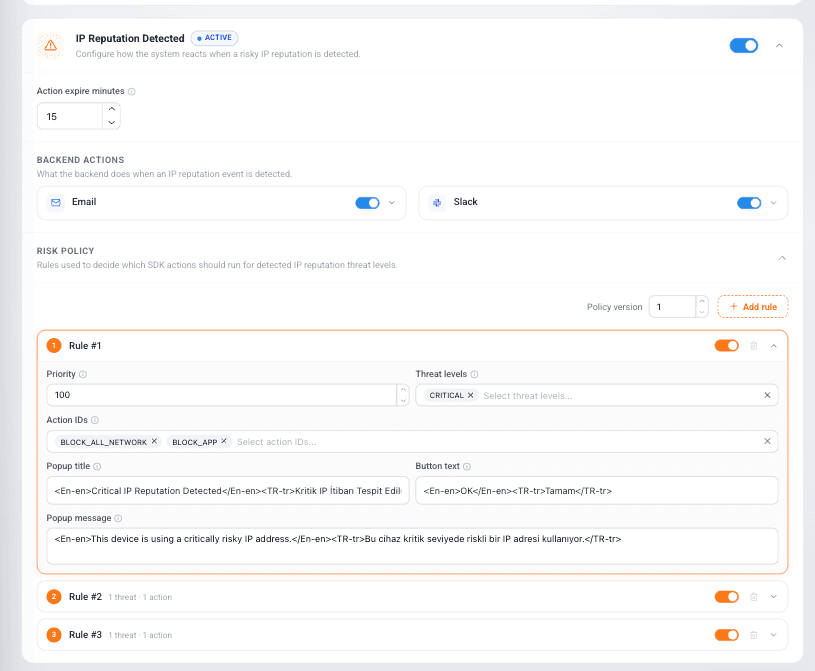
5.3) IP Reputation Detected
Configure how the system reacts when a device connects from a risky IP address (based on threat intelligence feeds).
- Action Expire Minutes – Set the duration (in minutes) for how long SDK enforcement actions remain active (e.g.,
15minutes). - Backend Actions – Enable Email / Slack notifications for risky IP detections.
- Risk Policy – Define threat-level-based rules:
- Priority – Rule evaluation order.
- Threat Levels – Select severity tiers (e.g.,
CRITICAL). - Action IDs – Actions to execute (e.g.,
BLOCK_ALL_NETWORK,BLOCK_APP). - Popup Title / Message / Button Text – Multi-language warning text displayed on the device.
Multiple rules can be defined with different threat level thresholds and action combinations.
Screenshot: IP Reputation Detected configuration