.png)
SDK Access Control
Block/unblock devices and IPs to prevent abuse and control SDK access
SDK Access Control helps you restrict SDK usage for security and abuse prevention. You can block access by Device UUID and/or IP address, and later unblock when needed.
1) What you can do here
- Block Device UUID (with a reason)
- Block IP address (with a reason)
- Review blocked entries and unblock when appropriate
Screenshot: SDK Access Control overview
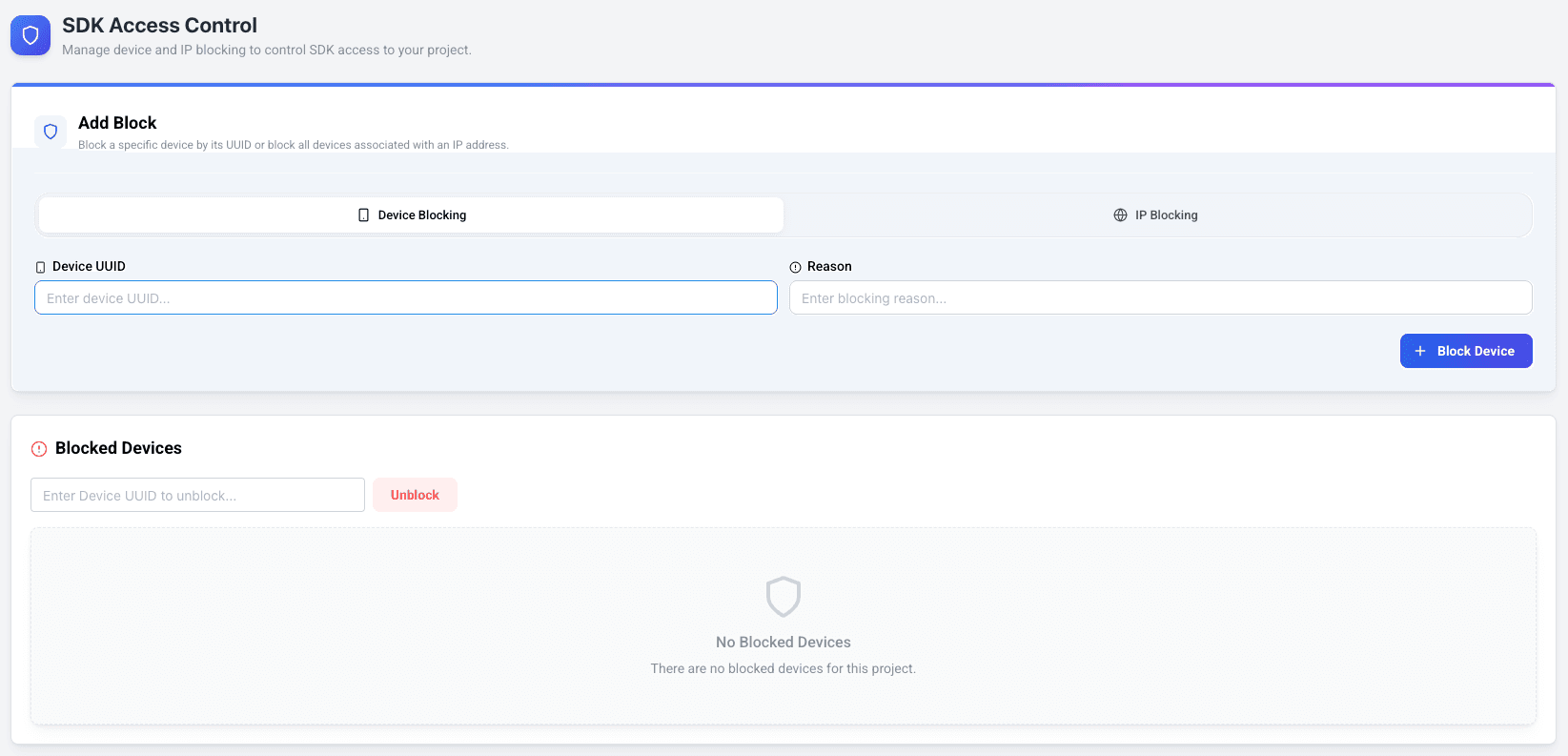
2) Block by Device UUID
Use device blocking when you need to stop SDK traffic from a specific device (e.g., abusive behavior, compromised device, test devices, or compliance requests).
- Click Add Block (or equivalent action).
- Select Device UUID as the block type.
- Enter the target Device UUID.
- Add a clear reason (recommended for auditability).
- Save to activate the block.
Screenshot: Add Device UUID block

3) Block by IP address
IP blocking is useful when traffic from a specific IP is suspicious or abusive. The system blocks devices currently associated with that IP.
Important: Blocking an IP blocks devices currently associated with that IP. New devices using the same IP later may not be automatically blocked (depending on implementation).
- Click Add Block.
- Select IP as the block type.
- Enter the IP address and a reason.
- Save to activate the block.
Screenshot: Add IP block

4) Unblocking
Review the blocked list and remove blocks when no longer needed.
- Locate the entry in the blocked list.
- Use the Unblock action.
- Depending on constraints, unblocking may be performed via Device UUID only.
Screenshot: Blocked list / Unblock action

Best practice: Always include reasons for blocks and periodically review the list to avoid accidental long-term restrictions.