.png)
Push Backends
Configure APNS (iOS), HMS (Huawei), and FCM (Android) for push capabilities and Fetch Logs
Push Backends settings configure the push providers required for features like Fetch Logs (and any push-based workflows). Configure the provider(s) used by your mobile and web platforms: APNS (iOS), HMS (Huawei), and FCM (Android).
1) iOS (APNS)
For iOS, you can typically configure APNS using either P12 or P8. Choose the method that matches your Apple setup and operational preference.
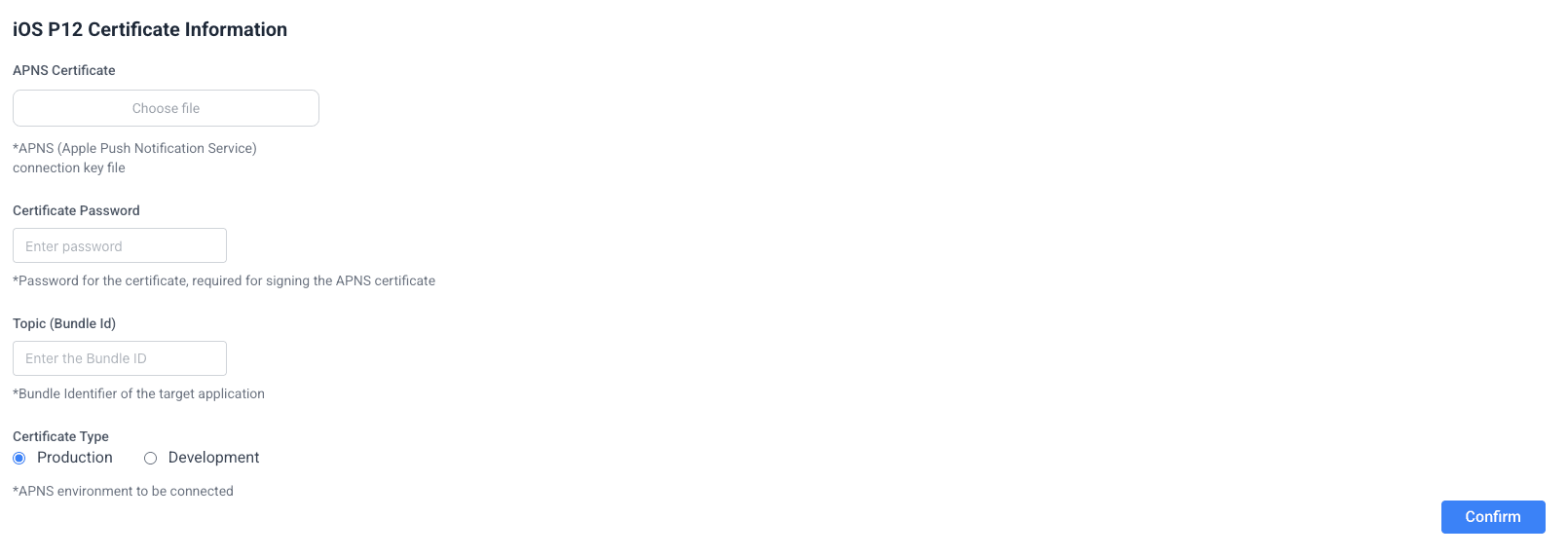
1.1 P12 configuration
- Upload the .p12 certificate file
- Enter the certificate password
- Set the Topic / Bundle ID
- Select environment: Development or Production
Screenshot: APNS (P12) settings
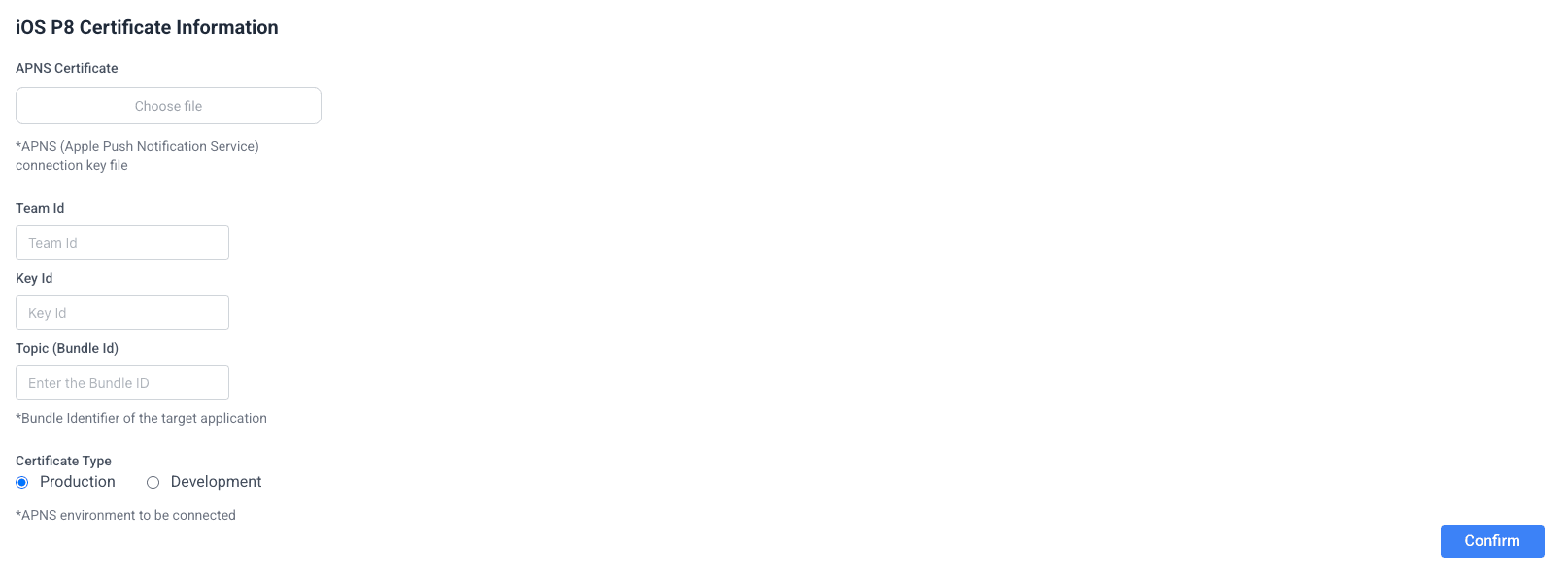
1.2 P8 configuration
- Upload the .p8 key file
- Enter Team ID
- Enter Key ID
- Set the Topic / Bundle ID
- Select environment: Development or Production
Screenshot: APNS (P8) settings
2) Huawei (HMS)
For Huawei devices, configure Huawei Mobile Services (HMS) credentials so the system can send pushes to Huawei endpoints.
- HMS App ID
- HMS App Secret
Screenshot: HMS settings

3) Android (FCM)
For Android, configure Firebase Cloud Messaging (FCM) by uploading a Firebase Service Account JSON.
3.1 Generate the Service Account JSON
- Open your Firebase project.
- Go to Project Settings.
- Open the Service accounts tab.
- Click Generate new private key.
- Download the JSON and upload it to LogDrop panel.
Screenshot: FCM upload

Tip: If Fetch Logs warns that a push backend is missing, return here and configure the provider used by your target devices.