.png)
Remote Config
Control SDK features, ignore lists, and sensitive data masking (regex) safely
Remote Config lets you control SDK behavior at runtime—without releasing a new app version. Use it to enable/disable features, exclude specific URLs from logging, and mask sensitive information using regex rules.
1) SDK Features
You can toggle SDK capabilities per project. Common feature toggles include:
- HTTP Logging — capture request/response metadata and performance
- Crash Tracking — collect and analyze crash reports
Screenshot: SDK Features toggles

2) URL Ignore List
URL Ignore List prevents specific domains or endpoints from being logged. This is useful for excluding internal services, health checks, or endpoints that should not appear in logs.
Important: Ignore List affects logging only. It does not block the request itself.
Screenshot: URL Ignore List

3) Sensitive Info Filter (Regex)
Use regex rules to mask sensitive fields (KVKK/GDPR). Typical use cases include masking tokens, emails, phone numbers, card-like patterns, or secret headers.
Safety rule: If a regex breaks the JSON structure, the corresponding log can be rejected by the system. Always test before saving.
Screenshot: Sensitive Info Filter (Regex)

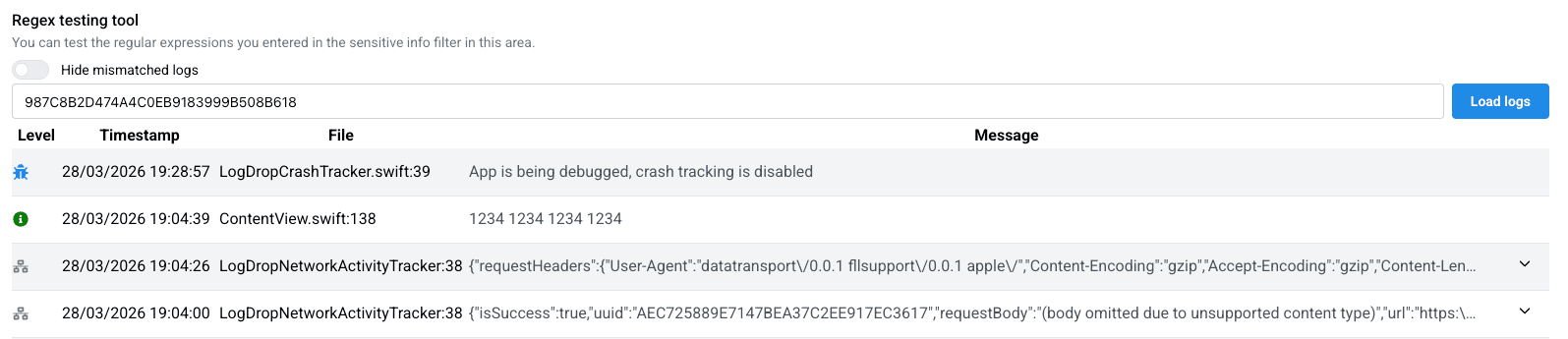
4) Regex Testing Tool (required)
Before saving a new regex rule, you must test it with a real device context. The panel typically requires a Device UUID (or equivalent) for test execution.
- Enter a Device UUID that has recent logs.
- Run the test and verify masked output.
- Only after a successful test, save the regex configuration.
Screenshot: Regex test flow
5) Recommended workflow (best practice)
- Create one rule at a time (small changes).
- Test with a device that has representative real traffic/logs.
- Confirm that JSON remains valid after masking.
- Roll out changes during low-traffic periods when possible.