.png)
Roles from IdP groups
Give members their LogDrop roles and projects from the groups they are in at your identity provider.
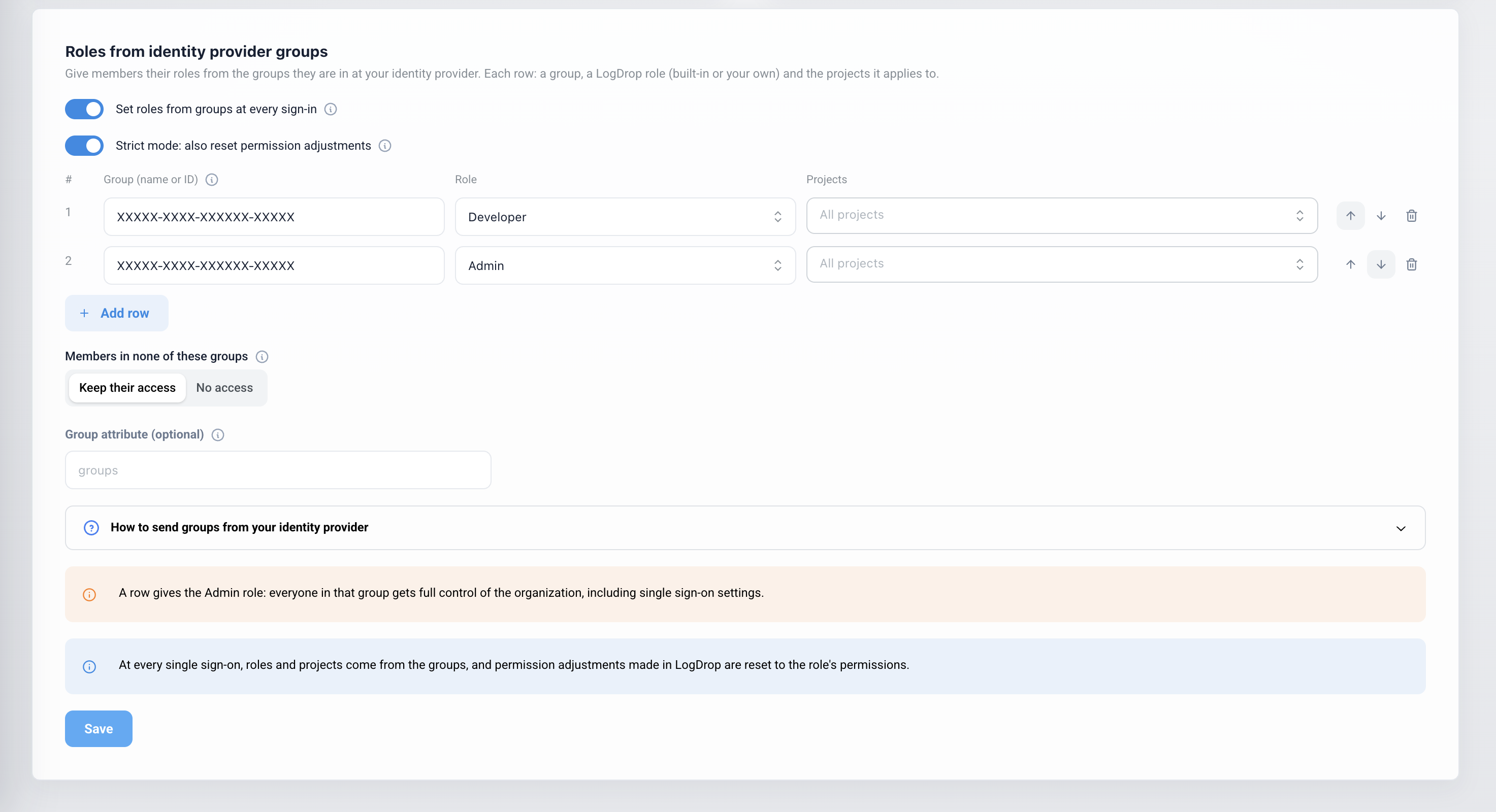
Instead of setting roles in LogDrop one by one, map your identity provider's groups to LogDrop roles. Each row is a group, a role (built-in or your organization's own) and the projects it applies to. Find it at the bottom of the User provisioning tab.
How the table works
- Set roles from groups at every sign-in turns the table on. Roles are applied at every SSO sign-in, and at once when your identity provider pushes group changes over SCIM or when you save a changed table.
- Group (name or ID): the group as your identity provider sends it. Letter case does not matter. Microsoft Entra ID sends group object IDs by default; paste the group's Object ID.
- Projects: leave empty for all projects.
- Order matters: in each project, the first row whose group the member is in decides the role. Use the arrows to reorder rows.
- Members in none of these groups: Keep their access leaves their current access (new members get the role for new members); No access refuses their sign-in and takes them out of the organization.
- Group attribute (optional): leave empty in most setups. LogDrop reads the usual group attributes of Okta, Microsoft Entra ID and other providers. Fill it in only if your provider sends groups under another name.
- The owner is never changed.
The identity provider wins
At every single sign-on, a member's roles and projects come from their groups. A role changed in LogDrop is replaced. When you open such a member in Team, LogDrop shows that their roles come from your identity provider. Change their groups there instead.
Strict mode decides what happens to permission adjustments made in LogDrop for a member whose role stays the same:
| Strict mode | Extra permissions given in LogDrop |
|---|---|
| Off | Kept while the role is the same. |
| On | Reset to the role's permissions at every sign-in. |
Rows that give Admin
Everyone in a group mapped to Admin gets full control of the organization, including single sign-on settings. LogDrop shows a warning when a row gives Admin.
Send groups from your identity provider
The table works only if your identity provider sends each member's groups to LogDrop: at sign-in, and as pushed groups if you use SCIM. You set this up in your identity provider.
How to send groups from your identity provider has steps for Okta, Microsoft Entra ID, Google Workspace, Keycloak, OneLogin and other providers. In short:
| Provider | Where |
|---|---|
| Okta | Sign On → SAML → Group Attribute Statements: name groups, filter Matches regex .*. For SCIM, use Push Groups. |
| Microsoft Entra ID | Single sign-on → Attributes & Claims → Add a group claim → Groups assigned to the application. For SCIM, keep Provision Microsoft Entra ID Groups enabled. |
| Google Workspace | SAML attribute mapping → Group membership, app attribute groups. |
| Keycloak | Client scopes → dedicated scope → Group list mapper, attribute groups, Full group path off. |
If a user is in more than 150 groups, Microsoft Entra ID sends a link instead of the groups and LogDrop cannot read them. Assign only the groups you need to the application.