.png)
Set up SSO
Choose a sign-in name, add LogDrop to your identity provider as a SAML application, connect its metadata and test the sign-in.
Open Organization → Single Sign-On and use the Setup tab. The wizard takes four steps: a sign-in name, the values to enter in your identity provider, your identity provider's metadata, and a test sign-in.
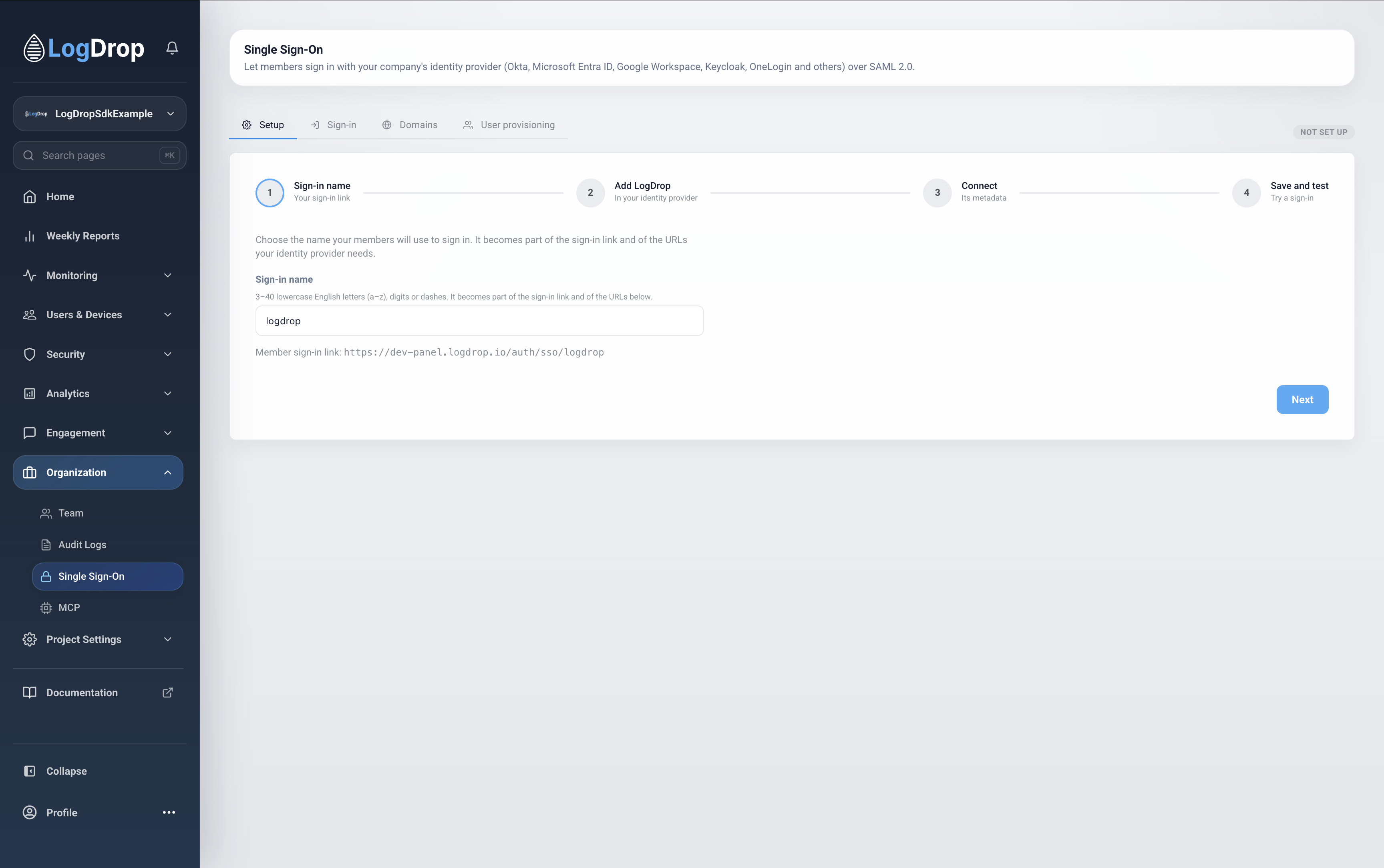
1) Choose a sign-in name
The sign-in name is what members type on the Sign in with SSO page, and it is part of your sign-in link and of the URLs your identity provider needs.
- 3–40 characters: lowercase English letters (a–z), digits and dashes.
- It must be unique across LogDrop. Names used by panel pages (for example
loginoradmin) are not allowed. - Changing it later changes your URLs, so you would have to update your identity provider too.
2) Add LogDrop to your identity provider
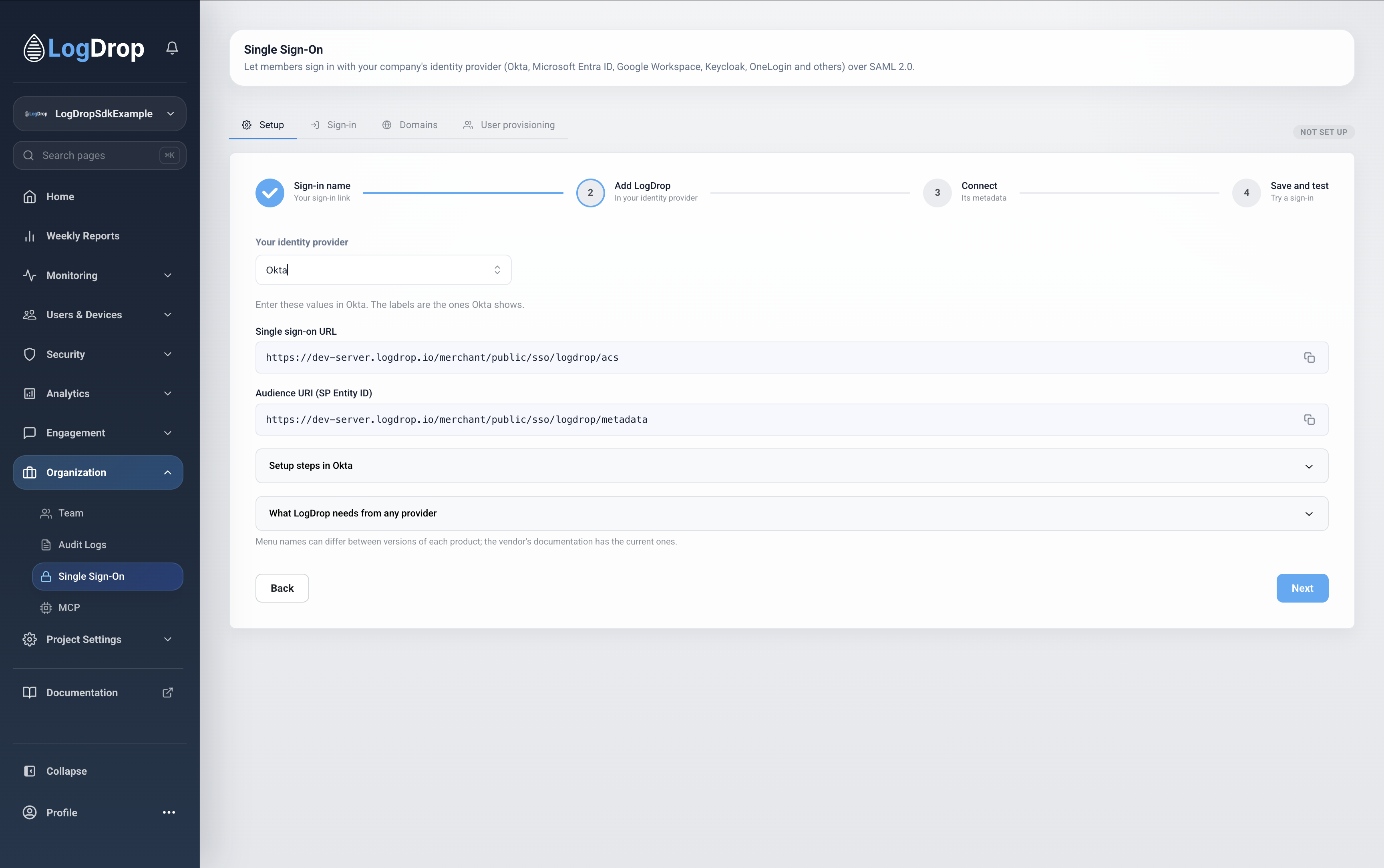
In your identity provider, you create a SAML application for LogDrop. It needs two LogDrop values: where to send members back after they sign in (the ACS URL) and LogDrop's identifier (the entity ID).
Pick your identity provider. LogDrop shows the two values to enter under the field names your provider uses:
| LogDrop value | Okta | Microsoft Entra ID | Other providers |
|---|---|---|---|
…/merchant/public/sso/<sign-in name>/acs | Single sign-on URL | Reply URL (Assertion Consumer Service URL) | ACS URL |
…/merchant/public/sso/<sign-in name>/metadata | Audience URI (SP Entity ID) | Identifier (Entity ID) | SP entity ID |
Copy each value with its copy button. Setup steps in your provider has a short checklist for Okta, Microsoft Entra ID, Google Workspace, Keycloak, OneLogin and other SAML 2.0 providers, with a link to the vendor's guide.
What LogDrop needs from any provider
Whatever your provider, its SAML application must meet these requirements. Sign-ins fail if one is not met.
- Signed assertion. Signing only the response is not enough.
- NameID format
Email addressorPersistent.Transientis refused. In Okta, change the defaultUnspecifiedtoEmailAddress. - No assertion encryption.
- SP-initiated sign-in with the HTTP-Redirect binding: the sign-in starts at LogDrop. An app tile in your provider's portal works when it opens your LogDrop sign-in link.
- An e-mail address for every user, as the NameID or as an e-mail attribute.
Then assign the application to the people or groups who should sign in to LogDrop.
Microsoft Entra ID
Set Sign on URL (Optional) to your LogDrop sign-in link, so the My Apps tile starts a sign-in LogDrop accepts. Leave Relay State and Logout URL empty. One Entra application can list several identifiers and reply URLs, for example for a test and a production organization.
3) Connect your identity provider
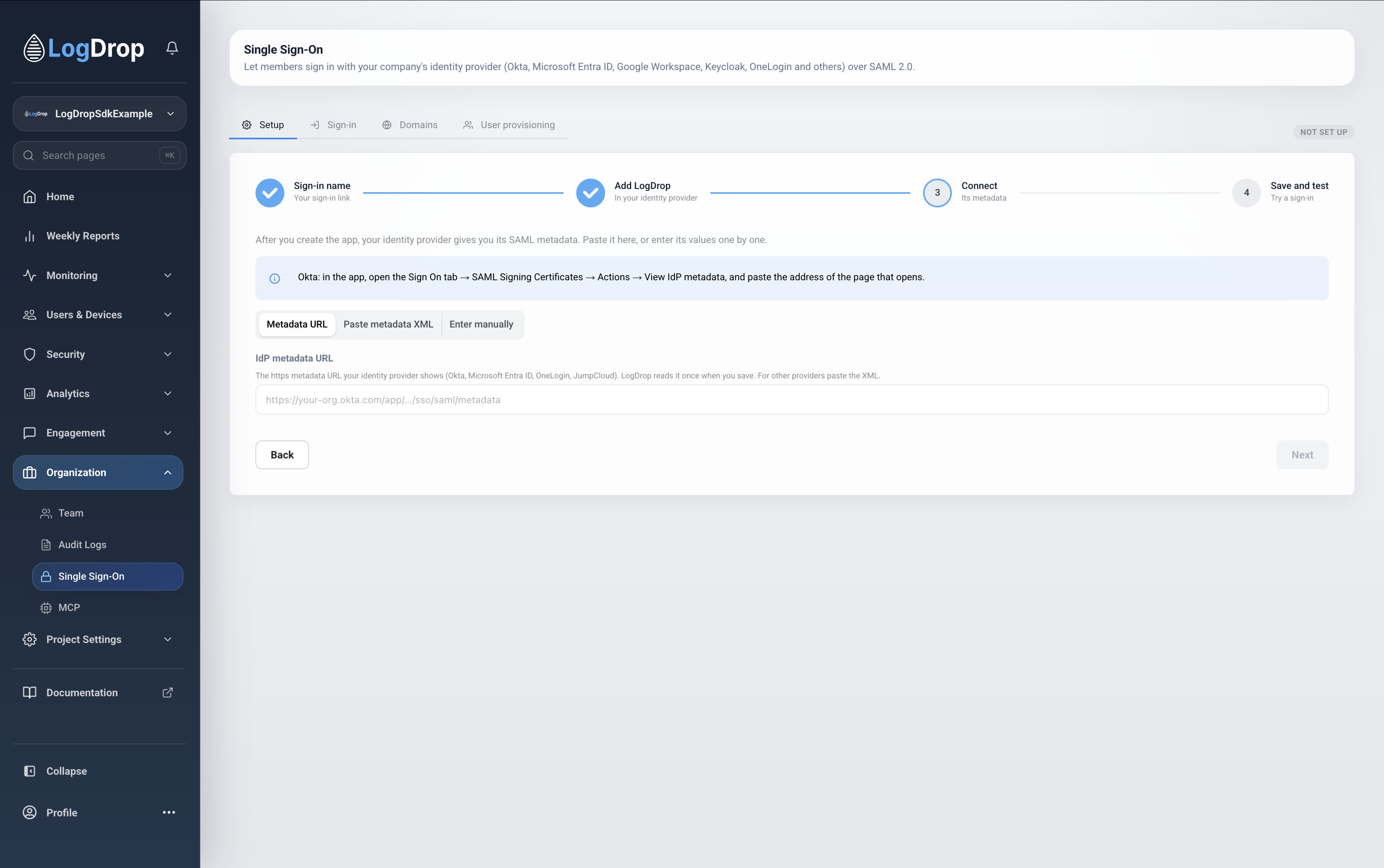
After you create the application, your identity provider gives you its SAML metadata, which includes its entity ID, its single sign-on URL and its signing certificate. With it, LogDrop knows where to send members to sign in and can check that a response really comes from your provider. Give it to LogDrop in one of three ways:
| Option | When to use it |
|---|---|
| Metadata URL | Your provider shows an https metadata address (Okta, Microsoft Entra ID, OneLogin, JumpCloud). LogDrop reads it once when you save. |
| Paste metadata XML | Your provider gives the metadata as a file (for example Google Workspace or Keycloak). Paste the whole XML. |
| Enter manually | Enter the IdP entity ID (issuer), the single sign-on URL (HTTP-Redirect) and the signing certificate (PEM). |
The blue note above the options says where your provider shows its metadata.
Certificate rotation
When your identity provider is about to change its signing certificate, add the new certificate before the change: Enter manually accepts more than one certificate. Otherwise sign-ins fail from the moment the provider switches.
4) Save and test
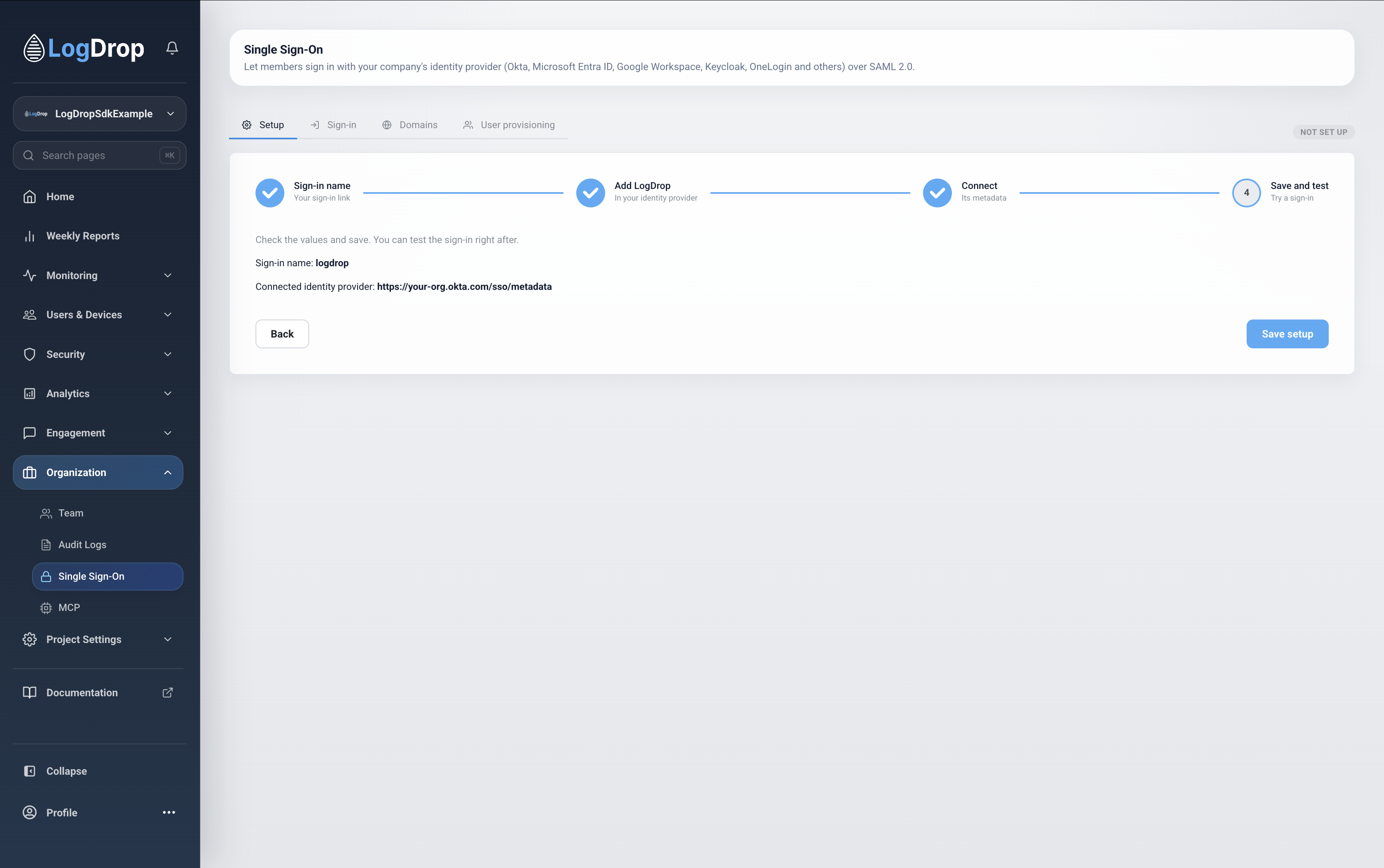
Check the sign-in name and the connected identity provider, then select Save setup. Test the sign-in right after: open your sign-in link in a private window and sign in as a member.
Once a test sign-in works:
- Verify your domain, so members are linked without a password.
- Require single sign-on, so people turned off in your identity provider cannot keep using a LogDrop password.
- Optionally, add members automatically and set roles from groups.