.png)
Overview
Let members sign in to LogDrop with your company's identity provider over SAML 2.0, and add or remove them automatically.
Single sign-on (SSO) lets your members sign in to LogDrop with your company's identity provider (IdP), such as Okta, Microsoft Entra ID, Google Workspace, Keycloak, OneLogin or any other SAML 2.0 provider. Your IdP checks who they are, so the same account rules, password policy and multi-factor authentication apply to LogDrop too.
What you can do
SAML sign-in is the base. The other features build on it, and you add them as you need them.
| Feature | What it does |
|---|---|
| SAML sign-in | Members sign in through your IdP with your organization's sign-in link. |
| Require SSO | Members must sign in through your IdP. The owner can always use their password, so a broken setup cannot lock you out. |
| Verified domains | Prove that your company owns its e-mail domain. Needed for automatic linking, JIT and SCIM. |
| JIT (just-in-time) | People from a verified domain become members on their first SSO sign-in, without an invitation. |
| SCIM provisioning | Your IdP adds, updates, deactivates and removes members, and pushes group changes, without anyone signing in. |
| Roles from IdP groups | A group → role table sets each member's role and projects from their IdP groups. |
Set up SSO
Choose a sign-in name, add LogDrop to your identity provider and connect it.
Sign-in rules
Turn SSO on, require it, and set how often members sign in again.
Verified domains
Prove your e-mail domain with a DNS TXT record.
User provisioning
Add members automatically with JIT, or let your IdP manage them over SCIM.
Roles from IdP groups
Map IdP groups to LogDrop roles per project.
Troubleshooting
Sign-in errors and common identity provider mistakes.
Before you start
- Who can set it up: organization Admins. Single sign-on settings cannot be given to other roles, because a wrong setup can lock members out.
- Where: Organization → Single Sign-On in the panel.
- Your package: single sign-on must be included in your organization's package. If it is not, the page shows an upgrade notice. A setup you already made is kept and works again once single sign-on is included.
- Your identity provider: you need an admin account there to create a SAML application for LogDrop.
How members sign in
Members open the login page and choose Sign in with SSO, then enter your organization's sign-in name. They can also bookmark your organization's sign-in link, https://panel.logdrop.io/auth/sso/<sign-in name>, which goes straight to your identity provider.
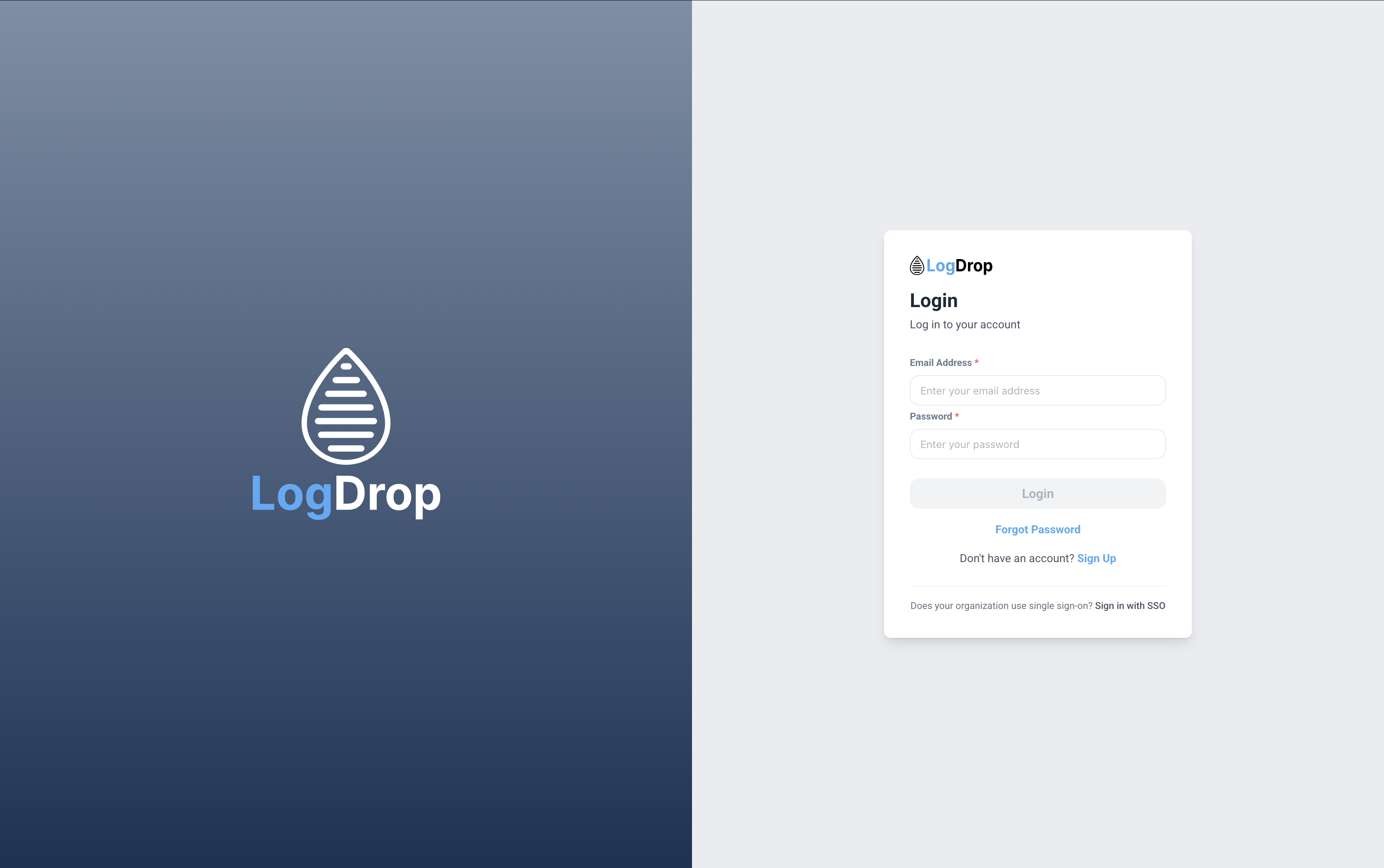

Left: the login page. Right: the page that asks for the sign-in name.
The first time someone signs in through SSO, LogDrop links their identity to a LogDrop account:
- If their e-mail address is on one of your verified domains, the account with that address is linked automatically. With JIT a missing account or membership is created.
- Otherwise LogDrop asks once for that LogDrop account's e-mail and password. LogDrop never links accounts only by the e-mail address an identity provider sends.
One organization per SSO session
A single sign-on session works only in the organization that issued it. Your other organizations stay in the organization menu; opening one of them asks for that organization's own sign-in (its SSO, or your password).
Accounts created by SSO
Accounts that JIT or SCIM create have no LogDrop password. While every organization they belong to has single sign-on on, they sign in only through their identity provider: password sign-in and password reset do not work for them. In Team, these members and members linked to your identity provider show an SSO badge.