.png)
WhatsApp Config
Connect a WhatsApp Business account and prepare approved templates for Customer Journeys
Select the screenshot to open it at full size.
Before connecting
WhatsApp Config connects the project to your WhatsApp Business Account through Meta. You need it only if a journey in this project uses a WhatsApp Message step.
WhatsApp messages in Customer Journeys use your project's own WhatsApp Business Account, phone number, and Meta-approved templates. The project needs WhatsApp access in its subscription, and LogDrop's Meta connection must be ready. Your business is responsible for Meta onboarding, billing, template approval, and lawful messaging consent.
Connect with Meta
You connect through Meta's Embedded Signup, where you choose the business account and sender number for this project. After connecting, the page shows the approved templates you can use in journeys.
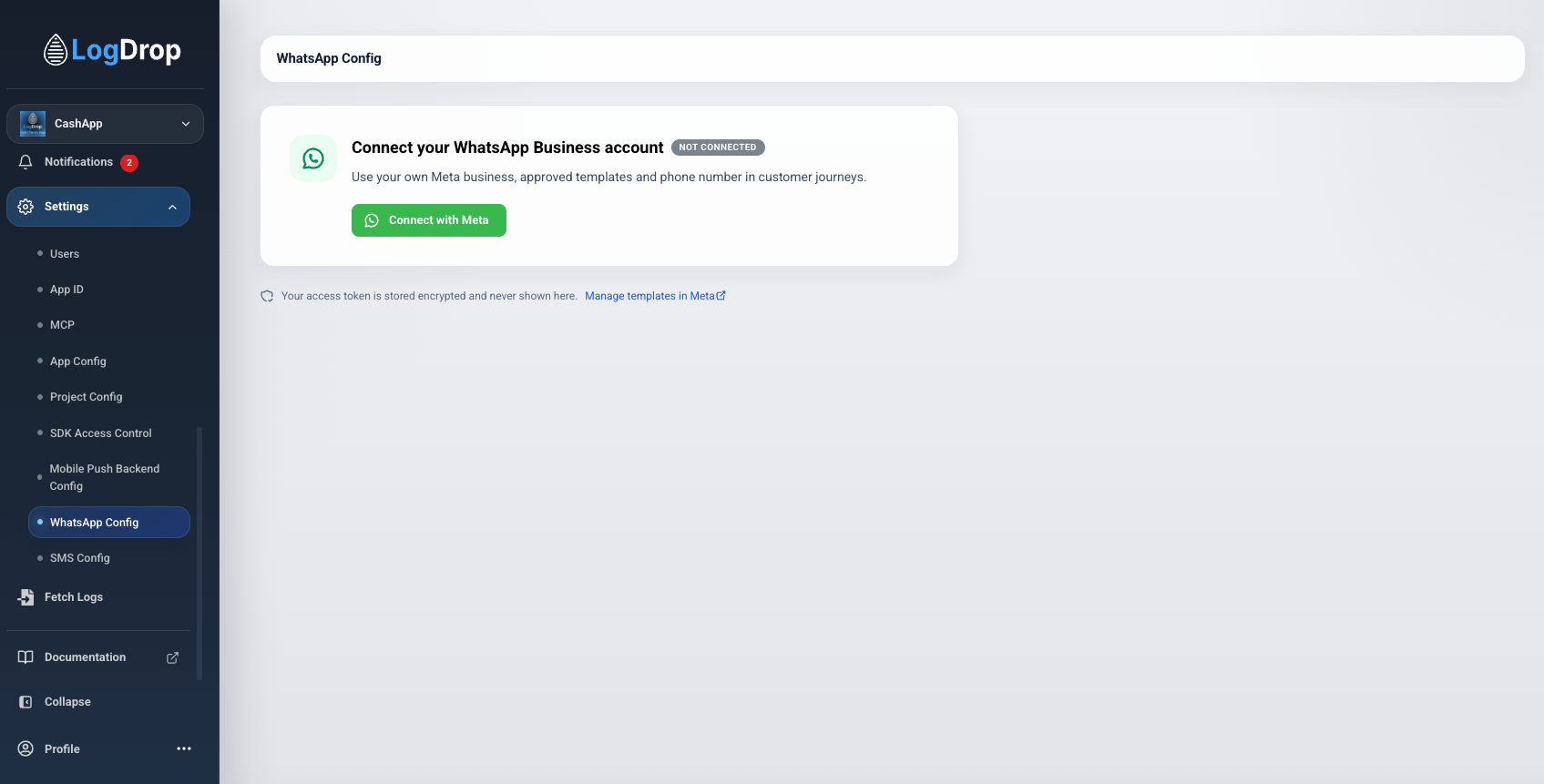
- Select the project and open Settings → WhatsApp Config.
- Click Connect with Meta and complete the Embedded Signup flow with the intended business account and sender number.
- If Meta requires number registration, complete the separate six-digit security PIN step. Keep that PIN safe; LogDrop does not store it.
- Confirm that the page shows Connected, the expected phone number, and the approved templates available to the project.
Only approved text templates with a body and optional footer are selectable in a journey. Manage and submit templates through Meta, then return to LogDrop to select them. The access token is stored encrypted and is not displayed in the panel.
Connections are project-specific. If you use separate development and production projects, connect each project independently, even when they use the same sender number. See WhatsApp messages in Customer Journeys for recipient and consent settings.
Reconnect or disconnect
Reconnect when the project should use a different business account or sender number. Disconnect when it should stop sending WhatsApp messages from journeys.
Before changing an existing connection, the panel shows the affected journeys for review. A connection change can pause affected active journeys and end their active or waiting runs. After reconnecting, inspect each WhatsApp step, select the current connection and template, save the draft, and publish it again. Disconnecting stops future WhatsApp submissions from journeys that used the connection.
Messages already submitted to Meta cannot be recalled by changing or disconnecting the LogDrop connection.