.png)
Nodes and Conditions
Choose events, waits, branches, filters, conditions, and exit outcomes
Select a screenshot to open it at full size.
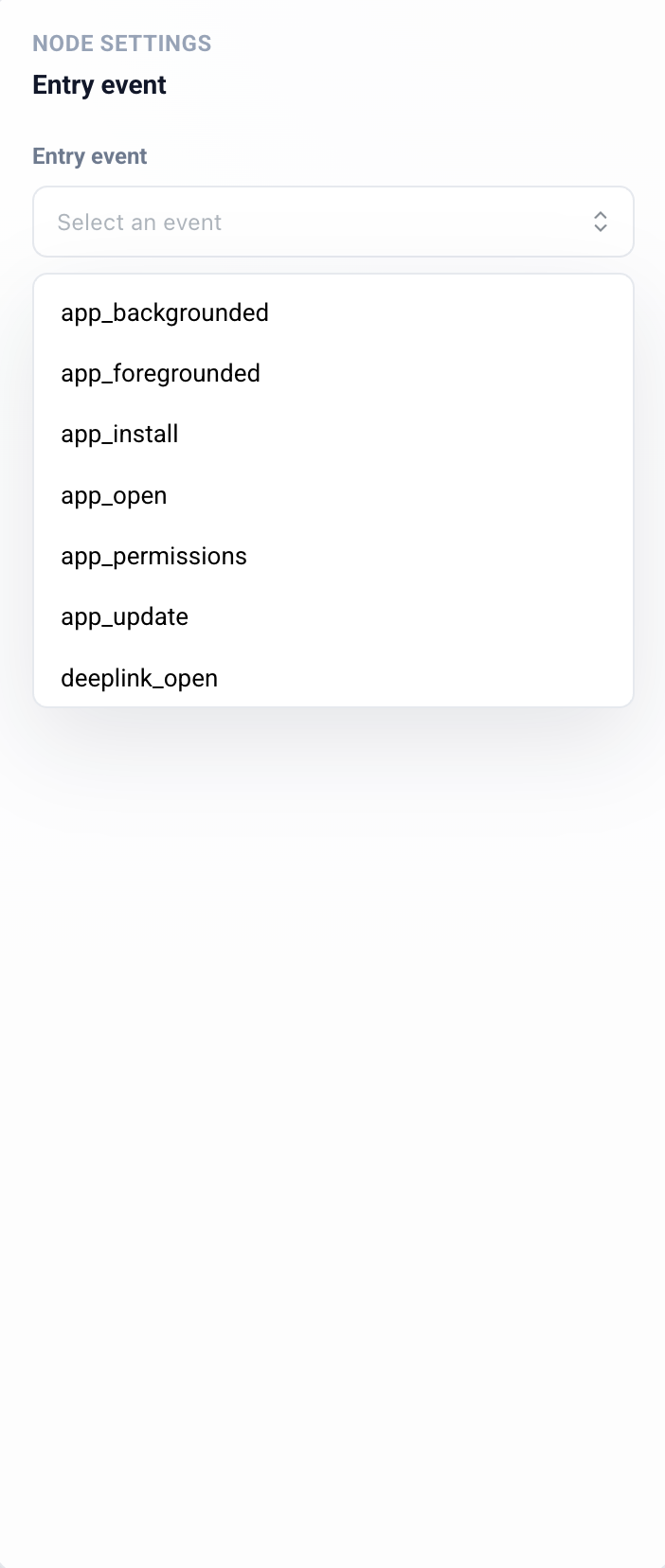
Entry event
The Entry event defines what starts a user's run. Select an event from your project's list. System events and your custom events are shown with the same event selectors used elsewhere in the panel; custom events carry a distinguishing badge.
Add property filters when an event alone is too broad. For example, an event named
product_viewed could be restricted to a particular product category if your event
includes a category property. All filters on the entry must match the same event.
Only an active, published journey accepts new entries. Publishing does not turn historical events into new journey runs.
Wait: a fixed duration
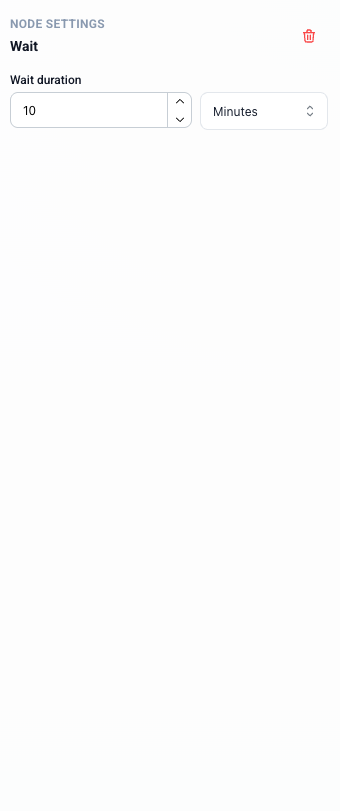
Use Wait to delay the next step for a known amount of time.
- Add a Wait node.
- Enter Wait duration.
- Select Seconds, Minutes, Hours, or Days.
- Connect Next to the step that should follow.
For example, a Wait of 10 minutes delays the next message for 10 minutes after the user reaches this step. It does not wait for a particular event. The duration must be at least 1 second and no more than 60 days, and must fit within the journey's overall duration.
Wait for event: an event or a timeout
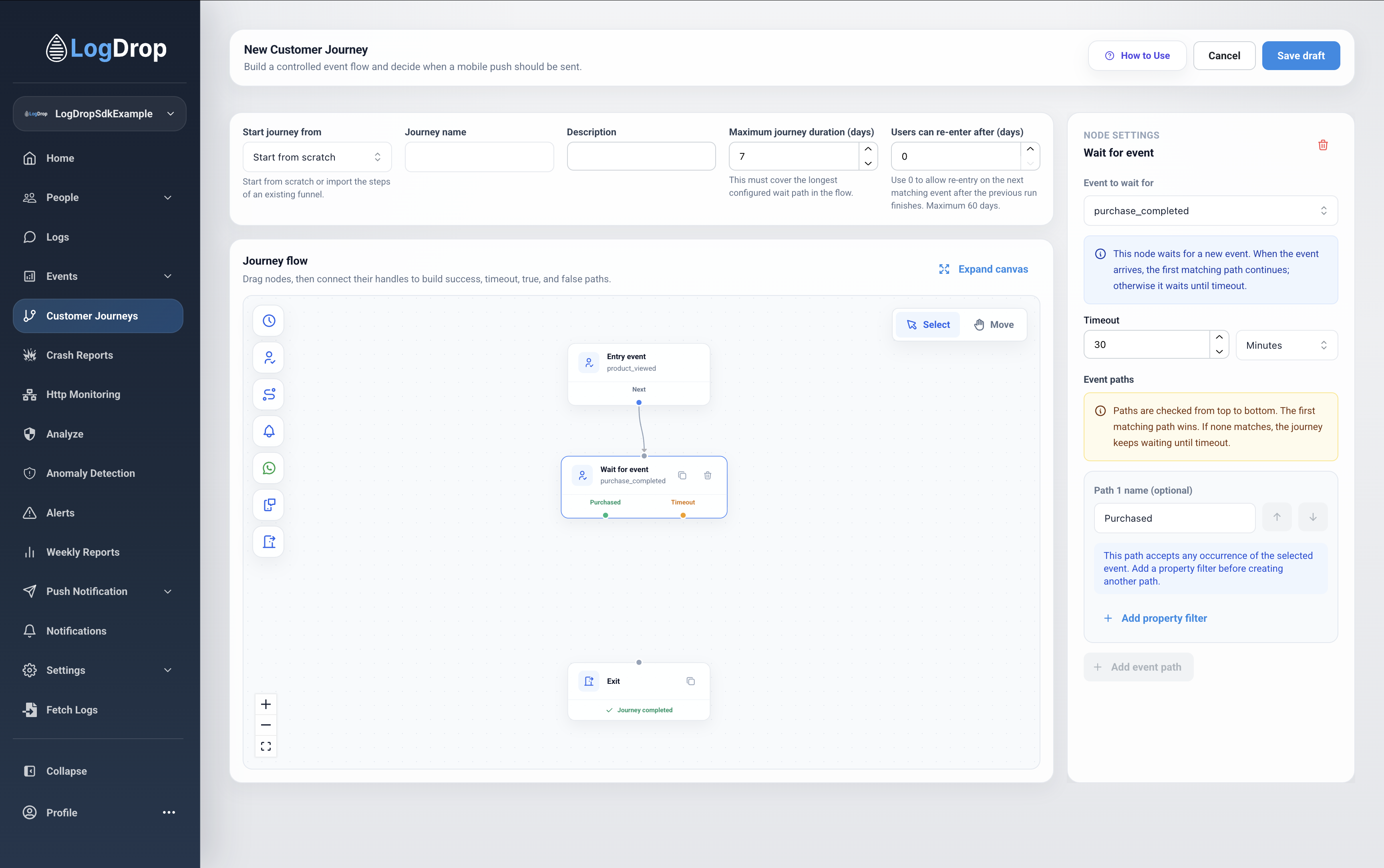
Use Wait for event when the next action depends on what the user does.
- Select Event to wait for.
- Set the Timeout duration and unit.
- Configure one or more Event paths.
- Connect each event path and the Timeout output.
The step waits for a new occurrence of the selected event after the user reaches it. It does not complete merely because the user performed that event earlier in the journey.
| Result | Next action |
|---|---|
| A new event matches an event path | Continue through the first matching path. |
| The event arrives, but no path's filters match | Keep waiting until a later matching event or the timeout. |
| The timeout expires | Continue through Timeout. |
For example, wait for purchase_completed. The event path can lead to a completed Exit,
while Timeout leads to a reminder.
Multiple event paths
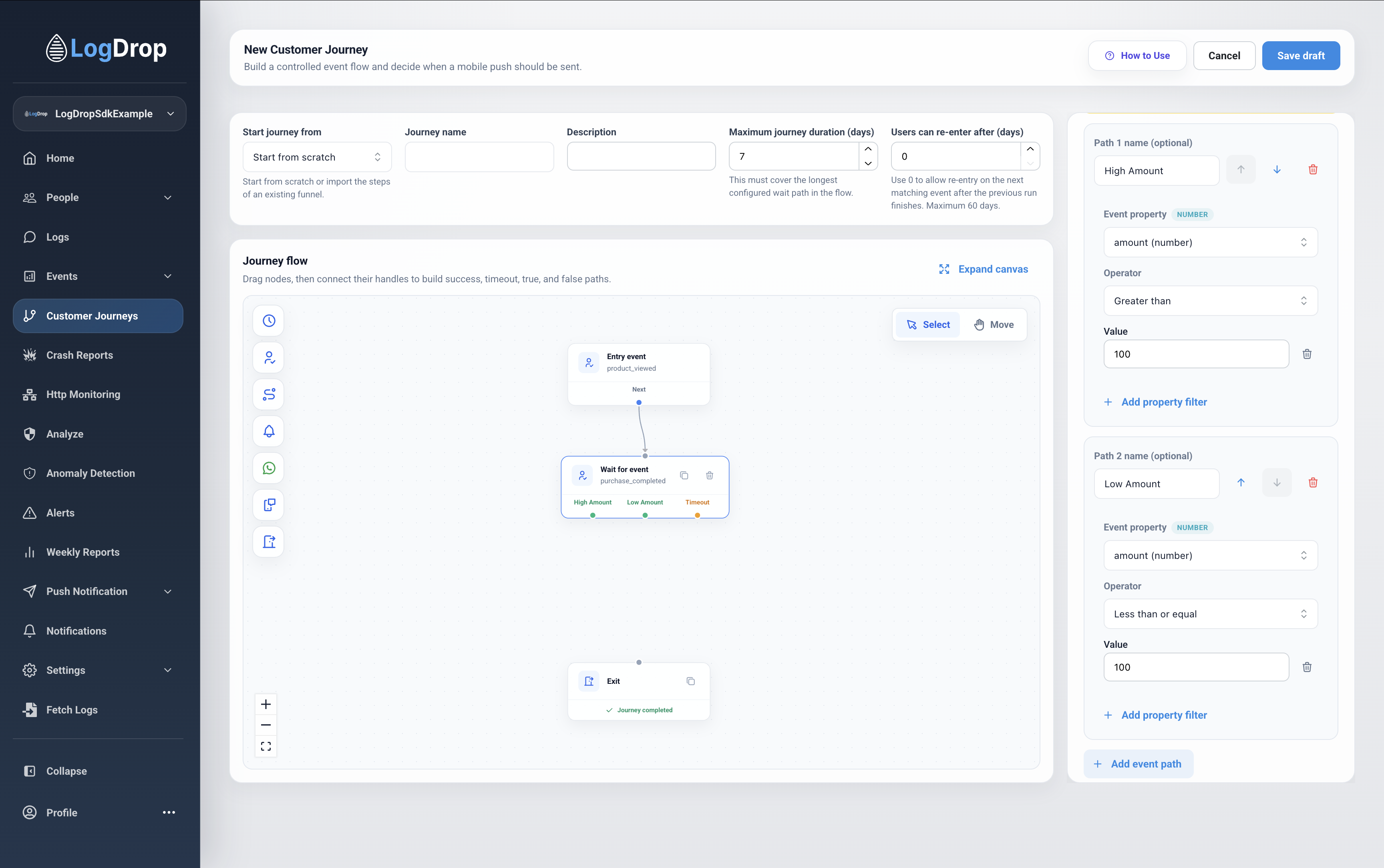
Use several paths when the same event should lead to different next steps depending on its properties, such as the purchase amount. You can define 1–5 paths for the same selected event. Give each path an optional name, add its property filters, and connect its output to the intended next step.
Paths are checked from top to bottom. The first matching path wins. Use the up/down controls to order paths when their criteria could overlap.
For example, for a purchase_completed event containing amount:
| Path | Filter | Destination |
|---|---|---|
| Higher-value purchase | Amount is at least 100 | A thank-you notification. |
| Lower-value purchase | Amount is less than 100 | A completed Exit. |
| Timeout | No matching event before the timeout | A reminder. |
A path without filters accepts any occurrence of the selected event. Such a catch-all path must be the only event path; add a filter before adding another path. Each path can contain up to 5 property filters, and all its filters must match the same event.
Condition: evaluate existing information
A Condition immediately chooses True or False. It does not wait for a new event. Connect both outputs, including the route for users who do not match.
Under Condition source, choose one of the following.
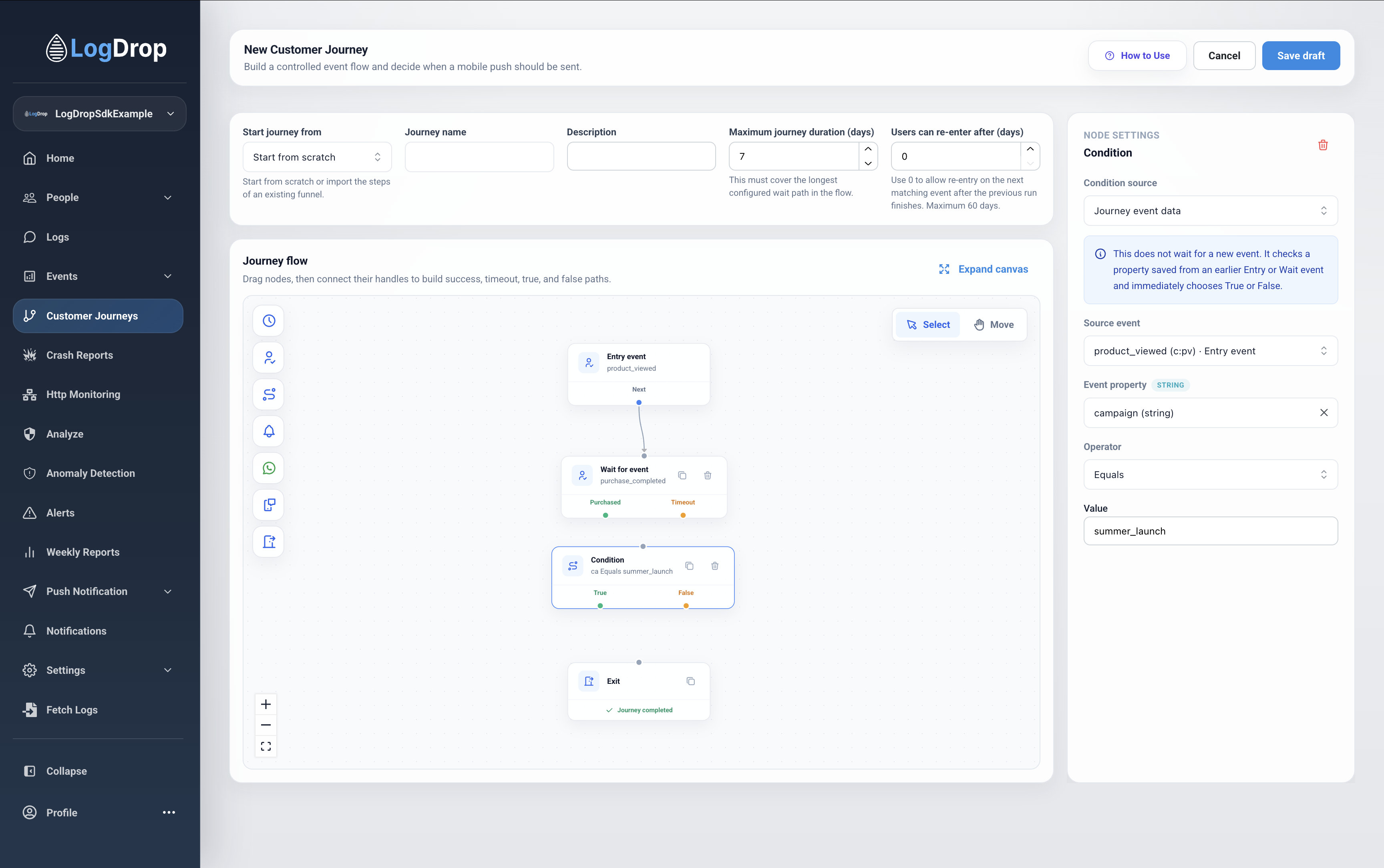
Journey event data
Use a property captured by an Entry event or Wait for event node earlier in the flow.
- Select Journey event data.
- Choose the preceding node under Source event.
- Select an Event property.
- Select the operator and provide a value when required.
- Connect True and False to their next steps.
For example, if the product-view event includes price, check whether that value is
at least 100. True could use a different message, while False ends the journey.
The condition uses the data captured by that selected node. It does not query an
unrelated event or wait for the property to change.
The source must be an event node that comes before the condition. If the project has not defined properties for that event, there are no property choices to use.
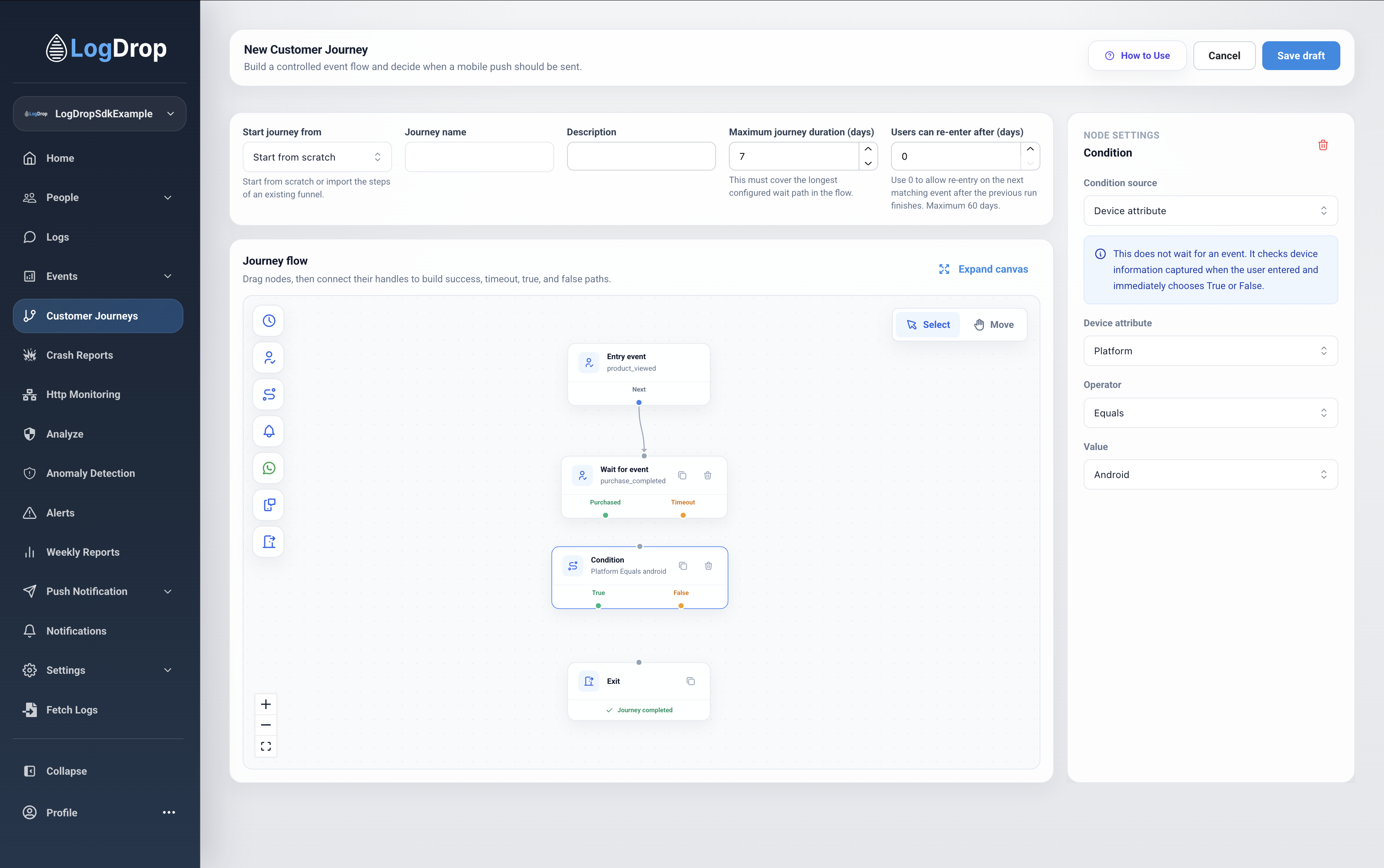
Device attribute
Use information captured when the user entered the journey:
- Platform: iOS, Android, or Web.
- Operating system and OS version.
- App version.
- Device model or device brand.
For example, select Platform → Equals → Android to choose an Android-specific path. Device conditions use the entry-time values, not a fresh check at every condition. This matters if the user updates the app or uses another device during the run.
Device attribute is not a custom user-attribute condition. Select event data for event properties; select device data for the listed device fields. SMS and WhatsApp phone and consent attributes are configured separately in their message steps.
Property filters and values
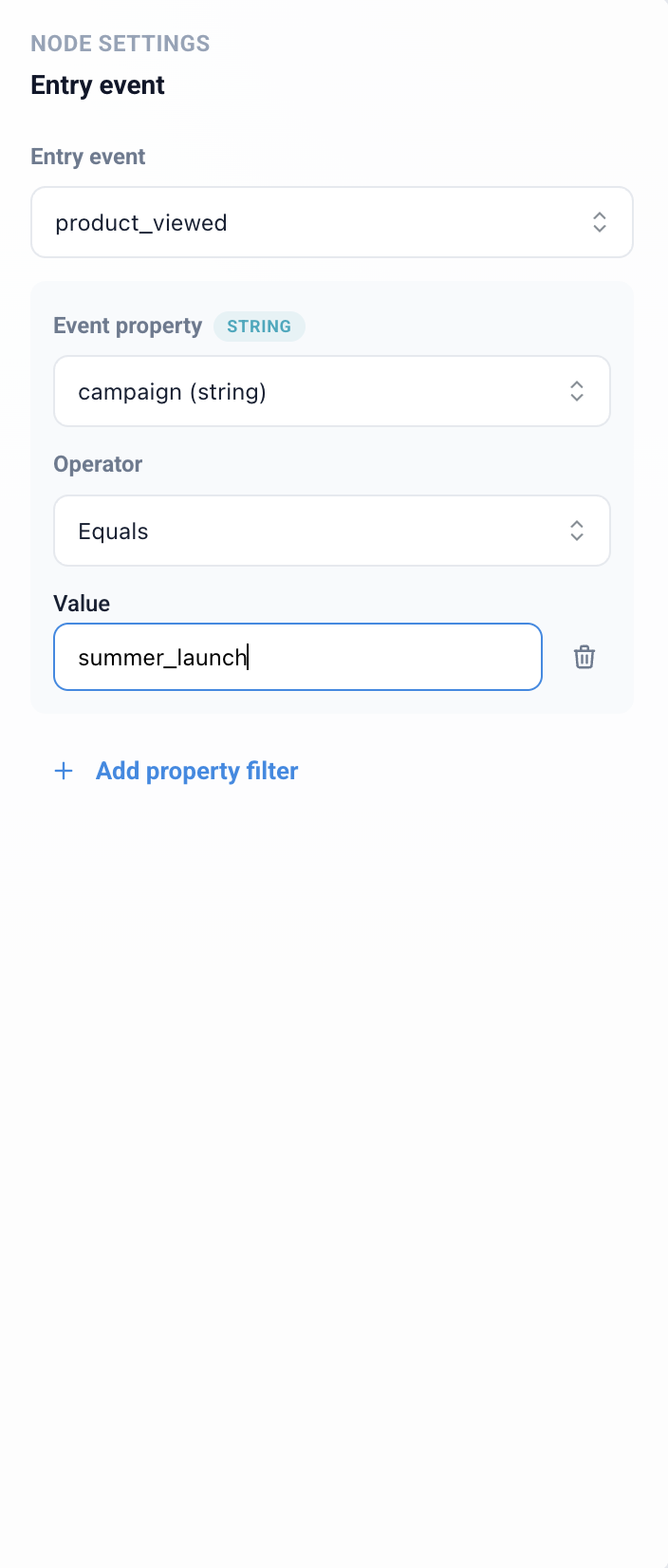
A property filter compares a property of an event with a value, such as amount at least 100.
Use filters to narrow which events start a journey or follow an event path.
The panel uses the selected event's property definitions and observed property types to offer appropriate controls. Choose an event or source event before selecting a property. When an event or property is changed, review the remaining operator and value settings.
| Property type | Typical controls |
|---|---|
| Text or date | Equals, Does not equal, Contains, Is one of, Exists, Does not exist. |
| Number | Equality and numeric comparisons, including greater/less than and their inclusive versions. |
| Boolean | True/False selection, Exists, or Does not exist. |
| Array | Contains, Contains any, Contains all, Exists, or Does not exist. |
| Object | Select the object field when applicable, then use the available comparison controls. |
Exists and Does not exist do not require a value. Multi-value operators accept multiple values. Numeric comparisons should use numbers rather than a descriptive label. Suggested property values help you select values already seen in the project; when a value control permits typing, you can supply the intended comparison value.
If a property appears with Multiple types, inspect the chosen type and comparison. For example, a number should be compared numerically rather than as a text value. Use consistent property types in the events your application sends.
Text equality for event properties is case-sensitive: use the same value as your app
sends. For example, premium and Premium are different event values.
Exit: choose the recorded outcome
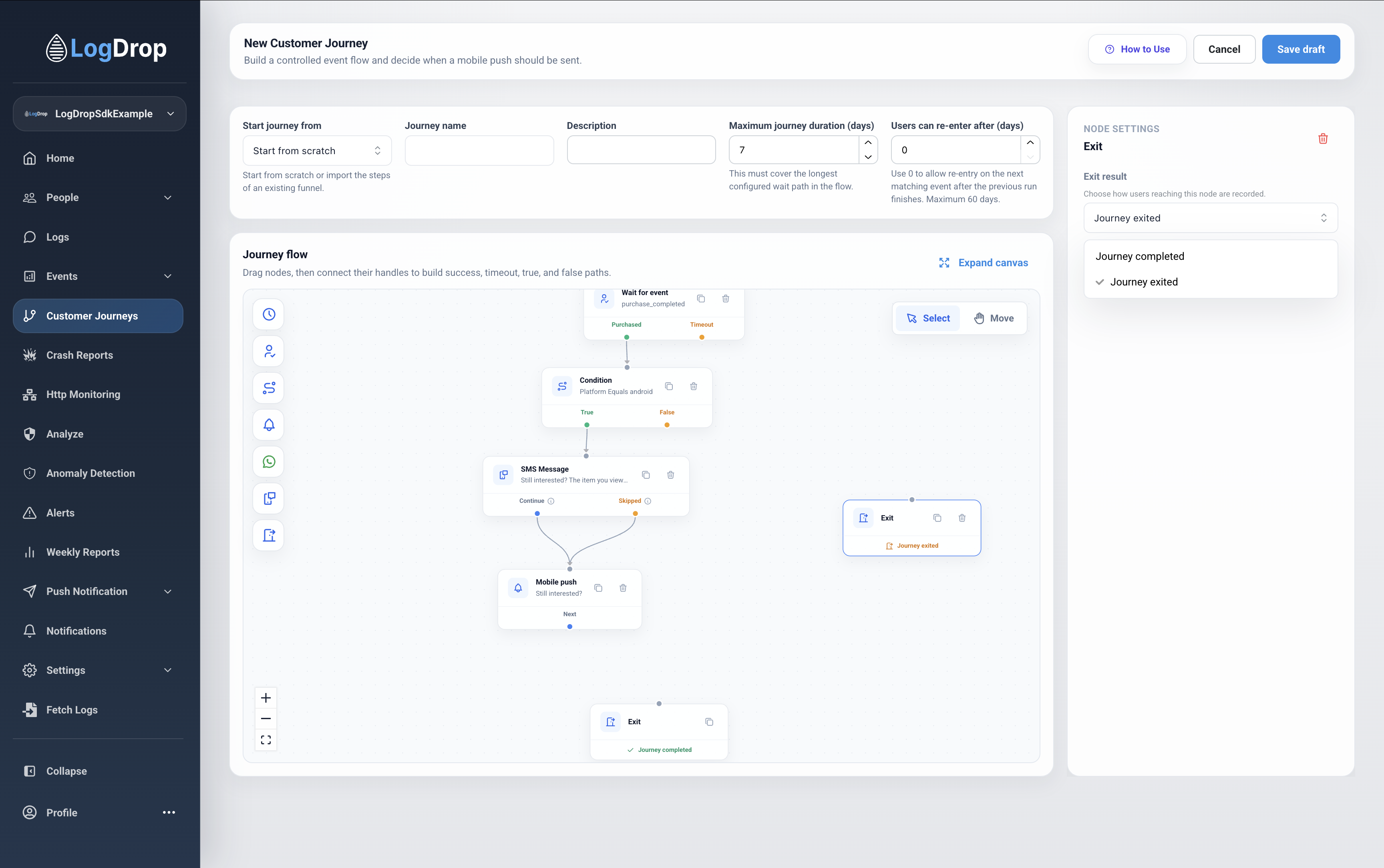
Every finished route should lead to an Exit node. Under Exit result, choose:
| Exit result | Meaning |
|---|---|
| Journey completed | The run reached the intended end of this route and is counted as Completed. |
| Journey exited | The run ended without being counted as Completed, such as a user excluded by a condition. |
These are the outcomes you choose for the flow. A completed Exit after a reminder means the user finished the configured reminder route; it does not prove they made a purchase. If purchase is the outcome you want to label Completed, connect the purchase path to that Exit and label other endings accordingly.
Connection checklist
The panel checks these rules when you save the draft. Use the list to find what to fix when a node or path is highlighted.
- Exactly one Entry event.
- At least one Exit.
- No loops, including a connection from a node to itself.
- All nodes reachable from the entry; unused duplicate nodes must be connected or removed.
- Next paths connected for Entry, Wait, and Mobile push.
- Every event path and Timeout connected for Wait for event.
- True and False both connected for Condition.
- SMS Continue connected; Skipped connected whenever users should continue without SMS.
- WhatsApp Next connected.
A journey supports up to 50 nodes. For message-specific outputs and eligibility, see WhatsApp, SMS, and mobile push.