.png)
Customer Journeys
Build event-driven flows with waits, conditions, WhatsApp, SMS, and mobile push notifications
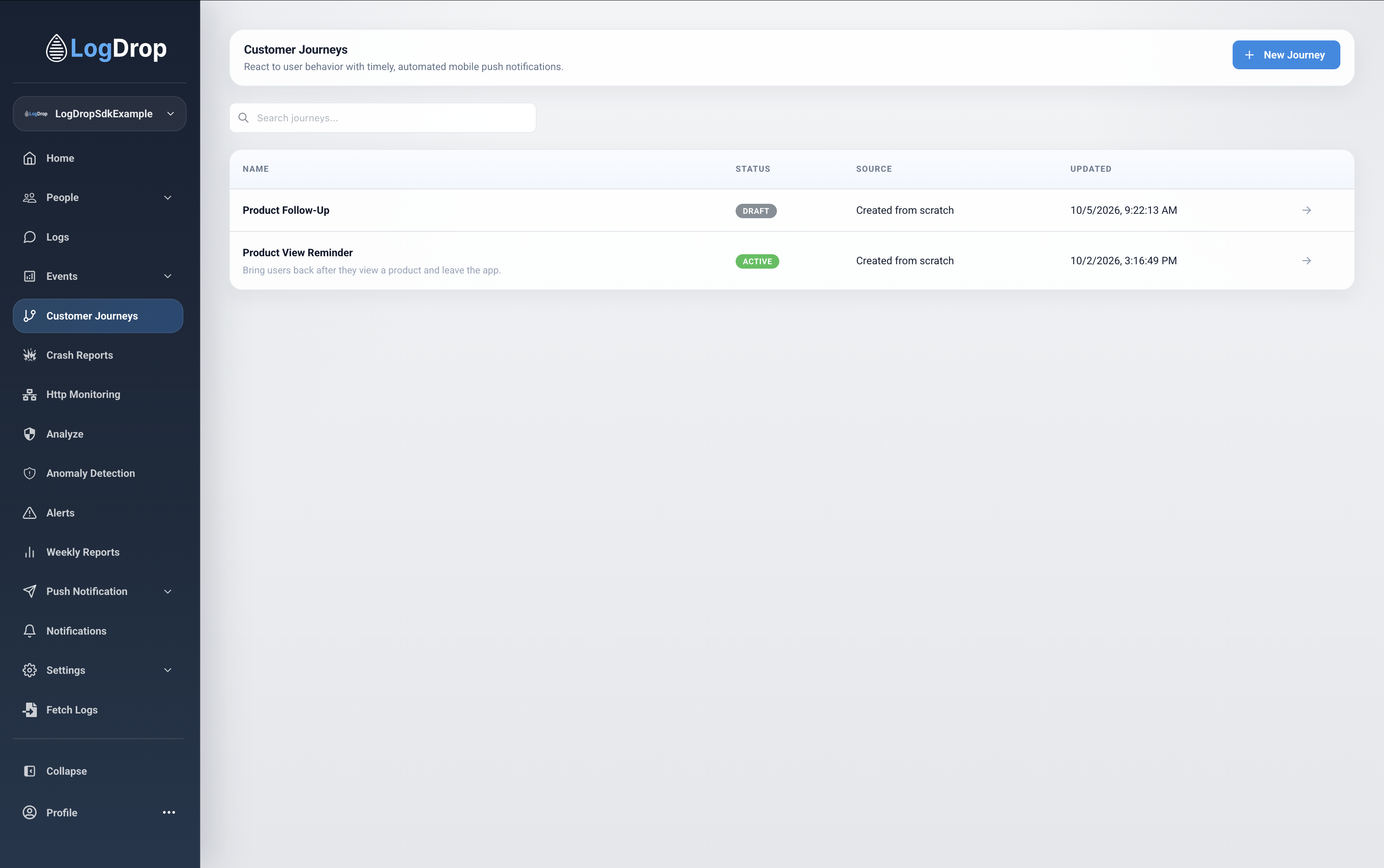
Select a screenshot to open it at full size.
Customer Journeys turns application events into a sequence of actions for each user. Choose what starts a journey, decide when to wait or branch, and configure the messages that should follow. Build the flow visually in LogDrop Panel → Engagement → Customer Journeys.
What you can build
Use a journey when a message should depend on what a user does, or does not do, in your app. For example:
- Follow up after a user views a product but does not complete a purchase.
- Wait for a registration or another milestone before sending a welcome message.
- Choose different paths using event properties or device attributes.
- Combine WhatsApp, SMS, and mobile push. Use SMS's separate path when it cannot be sent because of missing consent or an invalid phone number.
A journey belongs to the project selected in the panel. Select the correct project before creating the flow or configuring its messages.
How a journey works
Each user who matches the Entry event moves through the flow on their own, one step at a time.
- An Entry event matches. The published journey starts a run for that user.
- The user follows the connected nodes. A node can wait, evaluate a condition, or request a message.
- An Exit ends the run. Choose whether to record it as completed or exited.
| Term | Meaning |
|---|---|
| Journey | The flow you design: its nodes, connections, messages, and settings. |
| Run | One user's progress through that journey. The same user can have later runs when re-entry is allowed. |
| Node | A step, such as Wait, Condition, or SMS Message. |
| Output / path | A node's outgoing connection, such as True, Timeout, or Skipped. |
| Published version | A saved version used to run the journey. Editing and saving does not automatically publish a new version. |
A user follows one selected path at a branch. Connecting two outputs to the same node lets either outcome reach that node; it does not send the user down both paths at once. A user's current run must end before that user can start another run of the same journey.
Journey completion is not a delivery receipt. WhatsApp, SMS, and push steps can continue before the message is delivered. A Completed count tells you that a run reached a completed Exit, not that the user received, opened, or acted on a message.
Before you start
A journey depends on events and user attributes from your app, and on provider connections in Settings. Check these before you build one:
- Customer Journeys must be included in your project's subscription. Review Billing if the panel shows that the feature is unavailable.
- Install and configure the LogDrop SDK, and make sure the events you want to use are being sent for this project.
- Use consistent user identification for events intended to belong to the same user's journey. Anonymous activity and signed-in activity are separate; do not assume a run started before sign-in will automatically become a signed-in run.
- For mobile push, configure the relevant Push Backends and ensure test devices can receive notifications.
- For SMS, enable the SMS feature, connect Twilio, and provide the phone number and consent as user custom attributes. See SMS Config.
- For WhatsApp, enable the WhatsApp feature, connect your Meta business account, approve a text template, and provide the recipient phone number and explicit consent as user custom attributes. See WhatsApp Config.
Use a current SDK version when setting up user custom attributes. Follow the setup guide for Android, iOS, Flutter, or React Native.
Watch the walkthrough
The How to Use button beside Cancel and Save draft in the journey editor opens the video walkthrough. It builds the same flow as the product follow-up example.
Guides
Read the guides in order when you build your first journey. Use Troubleshooting when a journey does not start, wait, or send as expected.
Create a journey
Start from scratch or a funnel, set duration and re-entry, and use the canvas.
Nodes and conditions
Understand events, timers, event paths, conditions, filters, and exits.
WhatsApp, SMS, and mobile push
Configure providers, recipients, consent, templates, notification content, and message paths.
Example: product follow-up
Build the complete reminder flow step by step.
Publish and monitor
Understand drafts, paused journeys, versions, existing users, and counters.
Troubleshooting
Resolve missing properties, disconnected steps, skipped SMS, and publishing warnings.