.png)
WhatsApp, SMS, and Mobile Push
Configure messaging connections, recipients, consent, templates, and message paths
Select a screenshot to open it at full size.
A message node defines the content for the user progressing through that journey. It is not a broadcast to everyone in the project. Configure the required providers and recipient information before publishing a flow containing messages.
SMS Message
An SMS Message step sends a plain-text SMS to the user through your connected Twilio account. Use it when your app provides the user's phone number and SMS consent as custom attributes.
Connect Twilio first
Open Settings → SMS Config in the selected project and connect the Twilio account and sender you intend to use. See SMS Config for the connection steps and the effect of changing an existing connection.
If you add SMS without a connection, the editor offers Open SMS Config in a new tab. Finish the connection, return to the journey, and review the SMS node's provider and sender.
Configure the recipient and consent
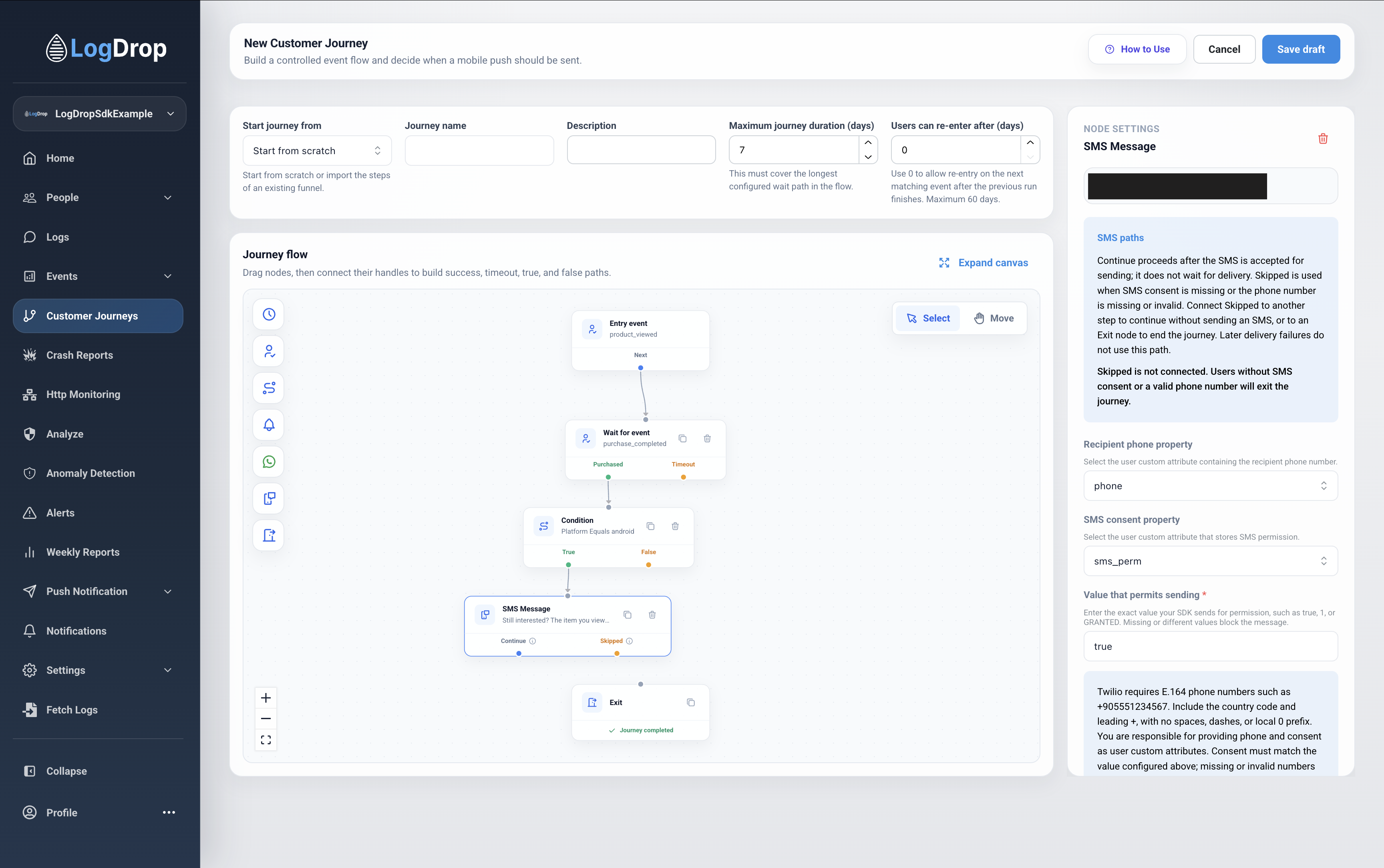
The step finds each user's phone number and SMS permission in that user's custom attributes. Add an SMS Message node and configure:
| Field | What to select or enter |
|---|---|
| Recipient phone property | The user custom attribute containing the recipient's phone number, such as phone. |
| SMS consent property | The user custom attribute recording permission, such as sms_perm. |
| Value that permits sending | The exact permission value sent by your app, such as true, 1, or GRANTED. |
| SMS message | The plain-text message to send. |
Phone and consent keys are selected from custom attributes already synchronized for the project. They are user attributes, not event-property names or a hardcoded recipient number entered into the node.
For example, your application might provide:
{
  "phone": "+905551234567",
  "sms_perm": "true"
}
These are example attribute names and values, not mandatory names. Follow the custom-user-attribute guide for your SDK and use the same keys and permission representation in the node.
Use E.164 phone format: a leading +, the country code, and the remaining digits.
Do not include spaces, dashes, or a local leading zero after the country code.
A well-formed phone number does not by itself guarantee provider delivery.
Consent must match the configured value. Missing consent or a different value prevents the SMS attempt. Set consent from the user's actual preference in your application.
| Recipient and consent | Message and preview |
|---|---|
 | 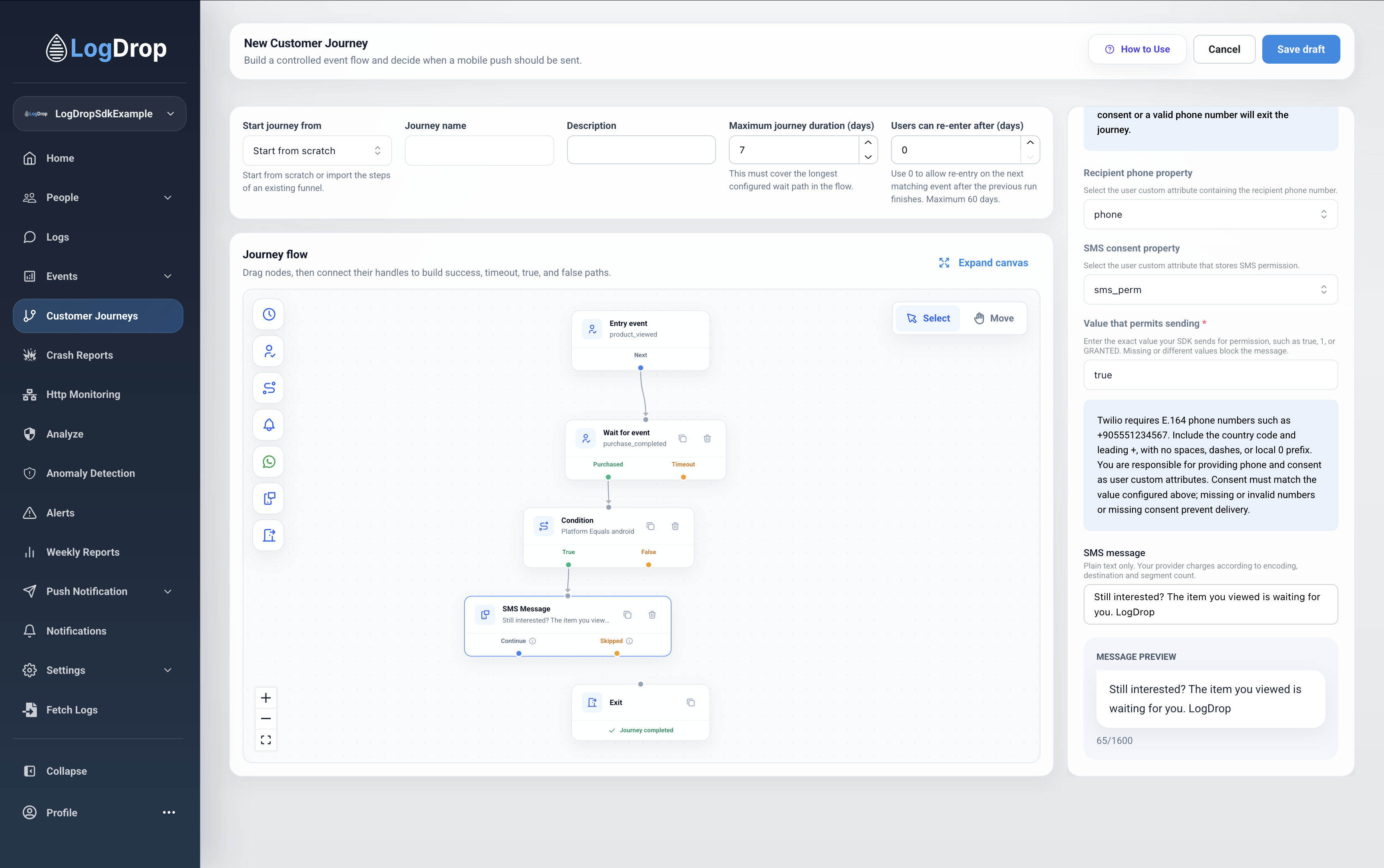 |
Message content and preview
Use the preview to check the text, and review the character count. A journey SMS body can contain up to 1,600 characters. Long messages can use multiple SMS segments; encoding and destination also affect provider billing. Twilio charges remain on your connected Twilio account.
Continue and Skipped
The SMS node has two outputs. Hover over their information icons for a reminder.
| Output | When it is used | What it does not mean |
|---|---|---|
| Continue | Phone and consent checks pass, and the SMS is accepted for sending. | It does not confirm delivery to the phone. |
| Skipped | Consent is missing or does not match, or the phone number is missing or invalid. | It is not a callback for a later Twilio delivery failure. |
The journey does not wait for SMS delivery before moving through Continue. A later provider rejection or delivery failure does not send the user back through Skipped.
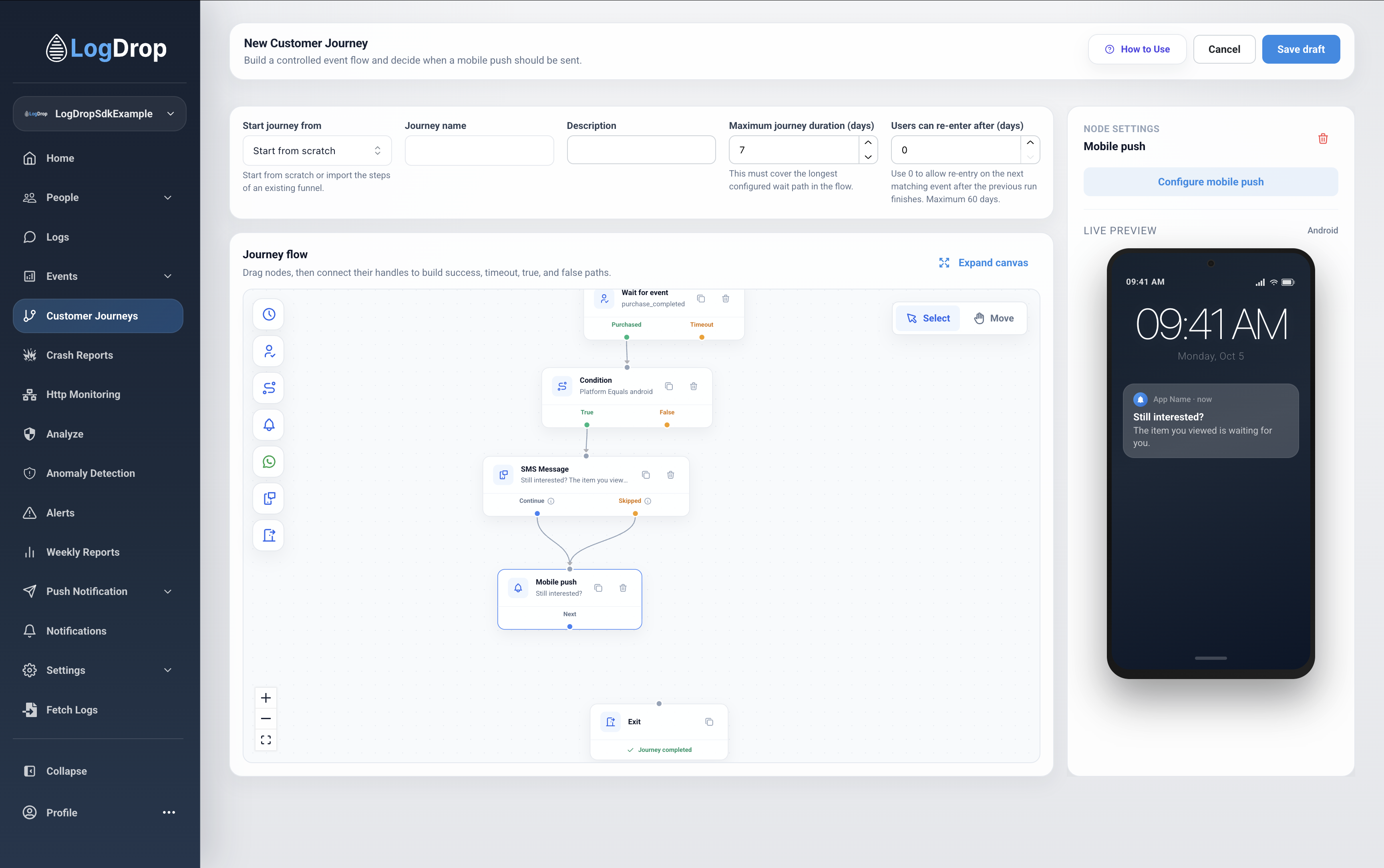
Connect both outputs to Mobile push if the next step should attempt a push in either case. Connect Skipped to a different action or an exited Exit if the alternative route should behave differently.
If Skipped is left unconnected, a user who fails the phone or consent checks exits the journey. Connect this path explicitly when SMS eligibility should not stop the rest of the workflow.
| Continue | Skipped |
|---|---|
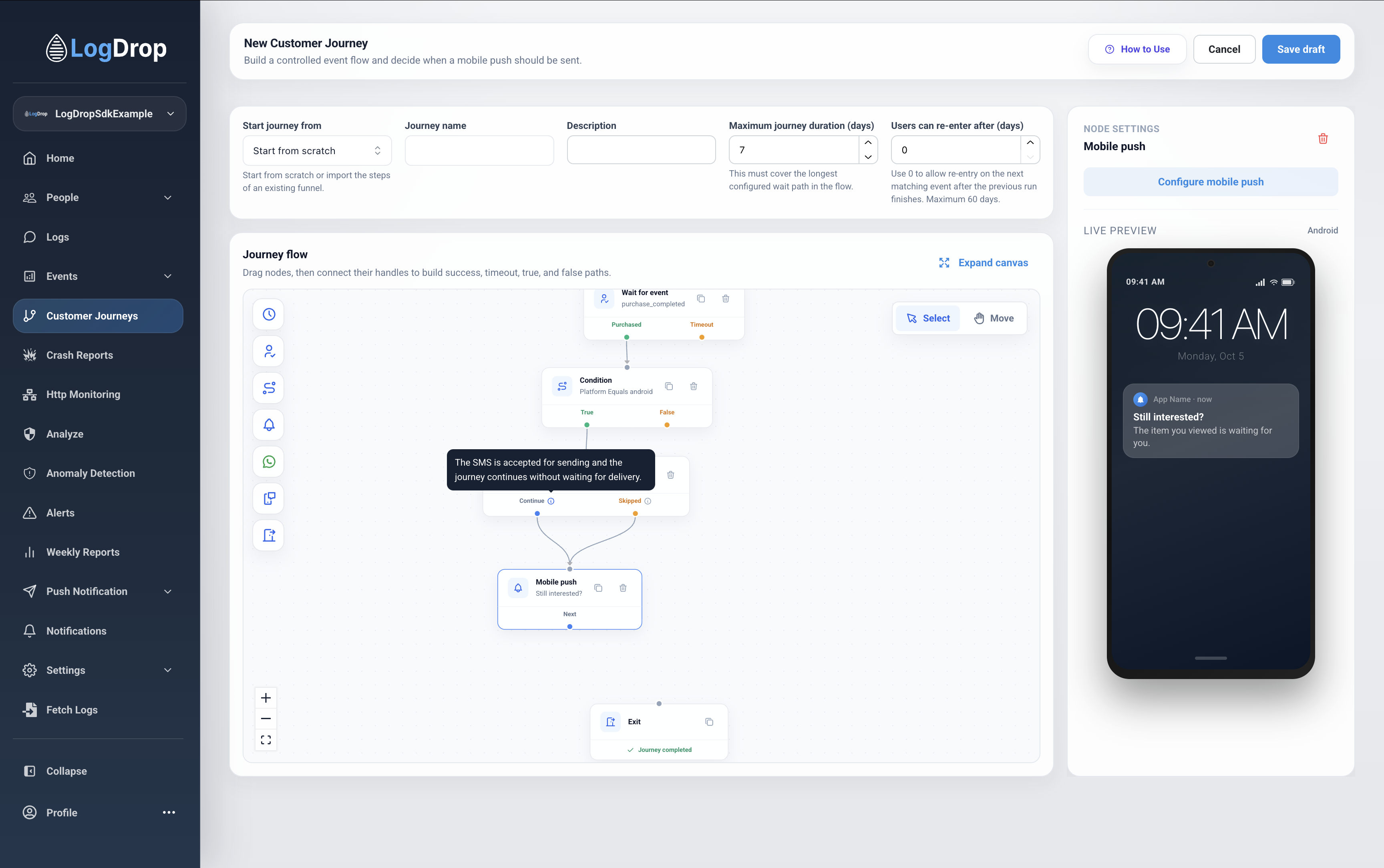 | 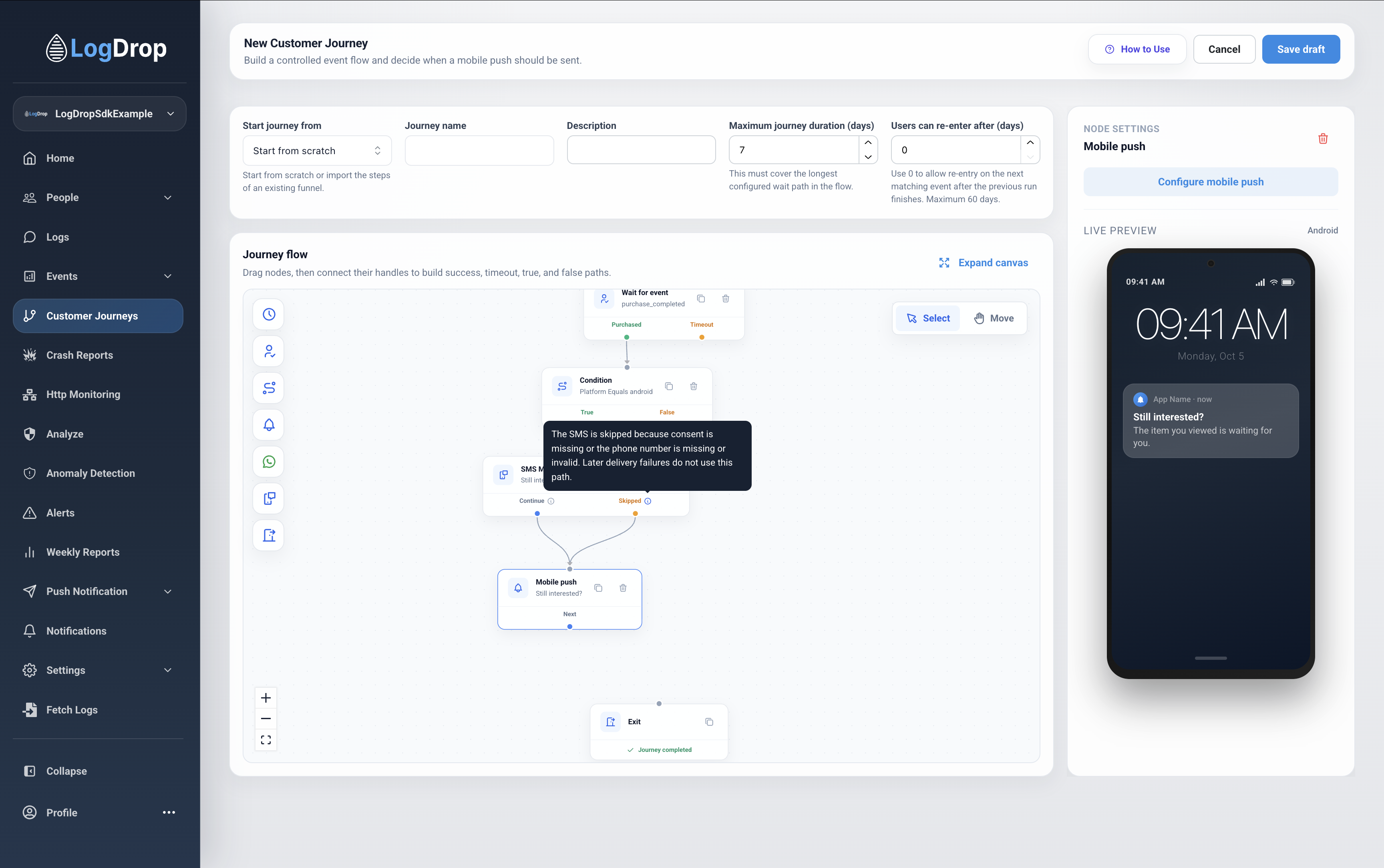 |
A push connected to both SMS outputs is an independent next action. It may be attempted whether SMS was accepted or skipped. This is not a delivery-based fallback that waits for SMS to fail.
Mobile push
A Mobile push step sends a notification, in-app message, or deep link to the user's iOS, Android, or Huawei device. Configure the appropriate Push Backends first. Receiving a visible notification also depends on the device's notification permission, valid push registration, and the platform's behavior.
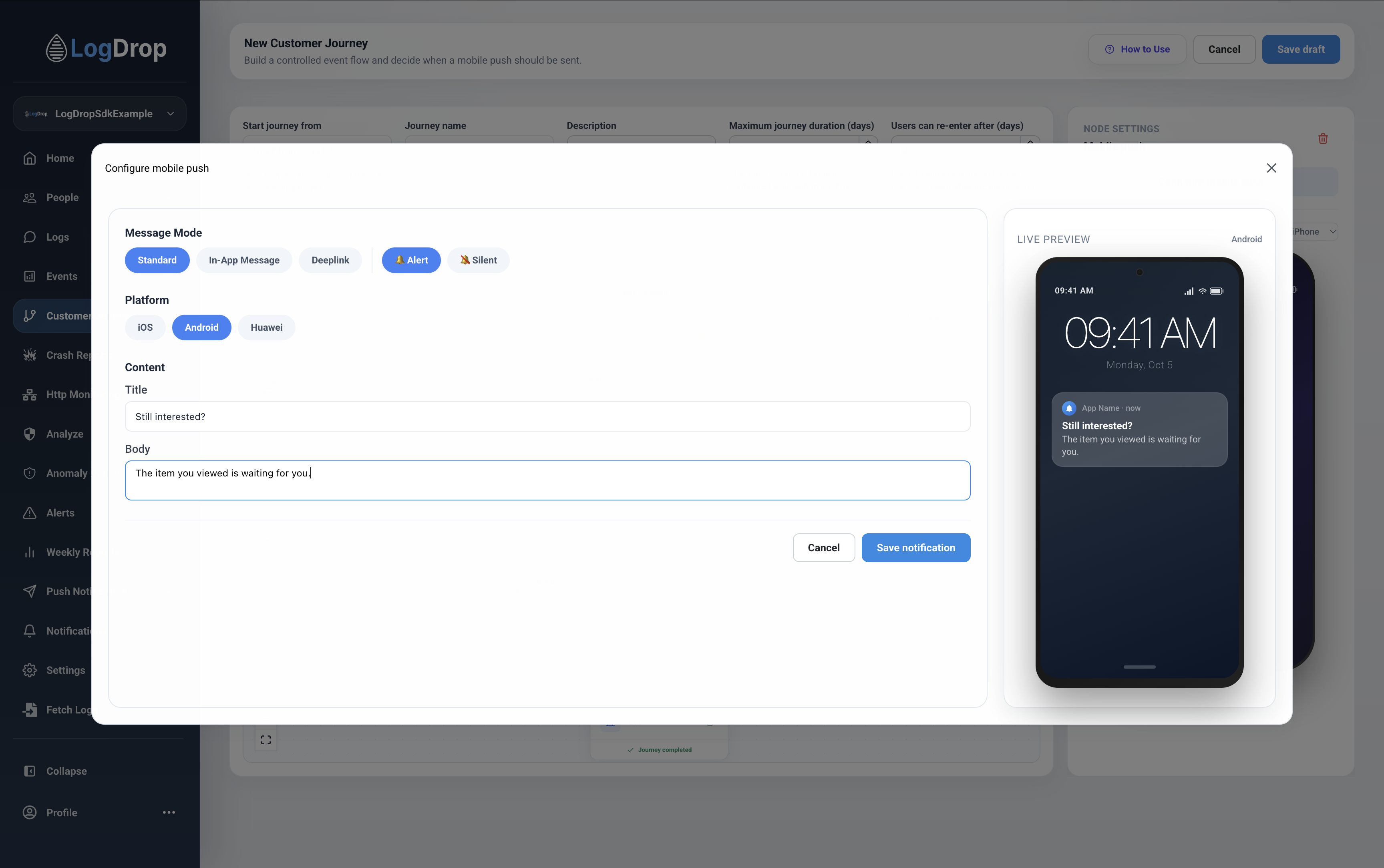
- Add Mobile push.
- Select Configure mobile push in Node settings.
- Choose the message mode, notification style, and target mobile platforms.
- Fill in the content and check the preview.
- Select Save notification to apply it to this node.
- Connect Next to the following node or an Exit.
Save notification updates the node configuration. You must still use Save draft to save the journey and Publish to activate the new version.
Message modes
The mode decides what the user sees and which content fields you fill in.
| Mode | Use it for |
|---|---|
| Standard | A notification with a title and body. |
| In-App Message | A configured modal or banner displayed inside the app. |
| Deeplink | A message with a navigation target and optional fallback target. |
The configuration also supports alert/silent styling and custom data where relevant to the selected message mode. Supported journey push platforms are iOS, Android, and Huawei. Web push is not a target of the Mobile push journey node.
For a standard notification, use a title of up to 100 characters and a body of up to 200 characters. Include at least a title or body for an alert notification.
| Configure the notification | Saved notification preview |
|---|---|
 |  |
In-app content
Choose the modal or banner layout and configure the headline, body, optional image, buttons and button actions, dismissal behavior, and message lifetime. The app must support and display the selected in-app behavior; this is different from receiving a system-tray notification.
Deep links
A deep link opens a specific screen in your app when the user taps the message. Choose the available deep-link mode, enter the destination, and optionally supply a fallback target. Ensure your application can handle the destination you configure.
The Send Push guide explains the shared message configuration controls in more detail. Journey messages use those content controls; their recipient is determined by the journey, not the standalone Send Push audience selector.
What happens after push
The Next path continues after the push is accepted for processing, without waiting for the user to receive or open it. An Exit reached after push records the journey's outcome; it is not a message-delivery result.
Reuse a message step
Use Duplicate node to copy a configured SMS or push node. The copied content and settings are independent of the original. Connect the copy's outputs before saving. This is useful when multiple branches need similar messages.
WhatsApp Message
A WhatsApp Message step sends a Meta-approved text template to the user's WhatsApp number.
Connect the selected project's WhatsApp Business account in Settings → WhatsApp Config before adding this step. The account needs an approved text template with a body and optional footer. WhatsApp access must also be included in the subscription.
- Add WhatsApp Message to the journey.
- Choose an approved template and language. The editor shows a preview.
- Select a recipient phone property and a separate WhatsApp consent property from the user's synchronized custom attributes.
- Enter the value that permits sending. It must match the value your app sends for that user; the default is
true. - Fill every template body parameter shown in the editor, then connect Next to the following node or an Exit.
- Save the draft and publish the journey.
Use an international phone number beginning with +, followed by 8–15 digits, and record explicit WhatsApp consent. A missing or invalid phone number or a missing or nonmatching consent value prevents sending. The WhatsApp step has a Next path; it does not wait for Meta delivery confirmation before the journey continues. A completed journey therefore does not prove that a WhatsApp message was delivered.
If the project is not connected, the editor offers a link to WhatsApp Config. After reconnecting, review existing steps, select the current connection and template, and republish. Copying a journey with WhatsApp steps to another project is not currently supported.