.png)
Troubleshooting
Resolve common journey configuration, event, WhatsApp, SMS, and publishing issues
Select a screenshot to open it at full size.
The journey is not starting
Check the following in order:
- The correct project is selected and Customer Journeys is enabled in its subscription.
- The journey is Active, not Draft or Paused.
- Your application is sending the selected entry event for this project.
- Entry property filters match the values and types actually sent by the app.
- The user does not already have a current run of this same journey.
- The configured re-entry delay has elapsed after their previous run finished.
Historical events do not become new entries when you publish. Trigger a new matching event for your test user. Use consistent identification when testing a run that depends on multiple events from the same user.
An event or property is missing from a dropdown
Event and property choices come from the current project's definitions. Confirm that you selected the right project and that the application has provided the intended event and properties. Custom events are identified in the list.
For an event-property condition, choose Journey event data and select a preceding Source event first. A source event with no defined properties cannot provide property choices. Adding a Condition does not create new event properties in the application.
The Wait for event step does not advance
- Check that a new occurrence of the selected event happens after the user reaches the node.
- Make sure it belongs to the user whose run is waiting.
- Check all filters in the intended event path; every filter must match.
- Remember that paths are evaluated from top to bottom and the first matching path wins.
- If the event arrives but no path matches, the run stays waiting until a match or timeout.
A fixed Wait is different: it advances after its duration, not when an event arrives.
SMS follows Skipped
Open the SMS step and verify:
- The selected user phone attribute exists and contains an international number beginning with
+. - The selected consent attribute exists.
- Its value matches Value that permits sending.
- Those attributes have synchronized for the intended user, not just an unrelated test user.
The phone and consent dropdowns are based on synchronized project attribute keys. If they are empty, provide those user attributes through the SDK before configuring the step.
If the user must continue without SMS, connect Skipped to the next step. Without that connection, missing consent or an invalid phone number ends the run.
SMS follows Continue, but no message arrives
Continue means that the SMS was accepted for sending, not that it reached the phone. Review the connected account, sender, destination permissions, provider delivery status, and any trial restrictions in Twilio. A later delivery failure does not use Skipped.
Do not interpret the journey's Completed counter as confirmation of SMS delivery.
WhatsApp does not arrive
Check that WhatsApp is included in the project's subscription and the Meta account is connected in WhatsApp Config. Confirm that the selected text template is approved, its language and body parameters are set, and the user's phone and explicit WhatsApp consent attributes are present and match the step settings. Review Meta's message status for delivery issues. The journey's Next path and Completed counter do not confirm delivery.
Push does not arrive
Check the selected mobile platforms, Push Backends, notification permissions, and the test device's push registration. Ensure the node contains saved notification content and is reachable through the path the user followed.
Saving content in the push configuration dialog is separate from saving and publishing the journey. In-app messages also depend on the app being able to display the configured in-app experience.
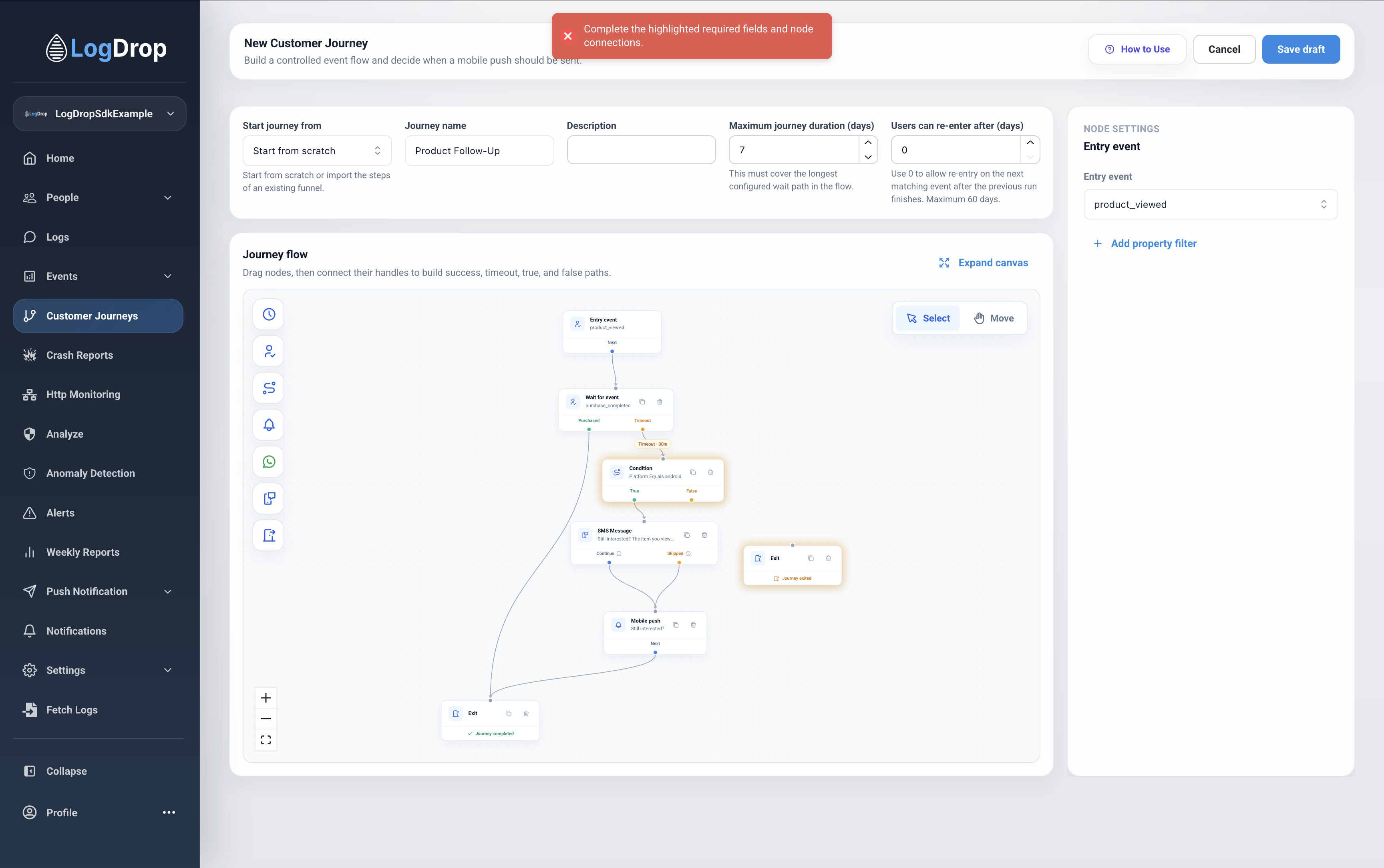
Saving or publishing highlights a problem
- Configure the entry event and all required node fields.
- Connect Next, True/False, every event path, and Timeout where required.
- Remove unused duplicate nodes, or connect them into the flow.
- Break any loop or self-connection.
- Ensure the maximum duration covers the longest configured wait path.
- Review provider-connection warnings in message nodes.
- For WhatsApp steps, check the project connection, approved template, recipient and consent fields, template parameters, and subscription access.
The journey is Paused after editing
This is expected when you save changes to an active journey. The draft is stored, and new entries and new message submissions are paused. Publish again and choose how current users should continue. Existing runs do not automatically receive your changed message content, and their waiting deadlines are not frozen during the pause.
Moving current users is unavailable
The panel cannot safely move every current run to the updated flow. Review the impact counts, then either keep current users on the previous version, end their runs, or revise the flow changes. Do not assume a moved user restarts at the Entry event: a compatible move preserves their current step and waiting deadline.
A Twilio connection was changed
Review the affected journeys listed during the connection update. After the change, open each SMS journey, select Use current Twilio connection if shown, verify the message settings and paths, save, and publish again. Updating account settings does not automatically rewrite each configured SMS node.
See SMS Config for what the connection confirmation means.