.png)
Publish and Monitor
Understand Draft, Active, Paused, published versions, existing users, and execution counters
Select a screenshot to open it at full size.
Journey statuses
The status tells you whether a journey accepts new entries right now.
| Status | Meaning |
|---|---|
| Draft | A newly saved journey that has not been published. It does not accept new entries. |
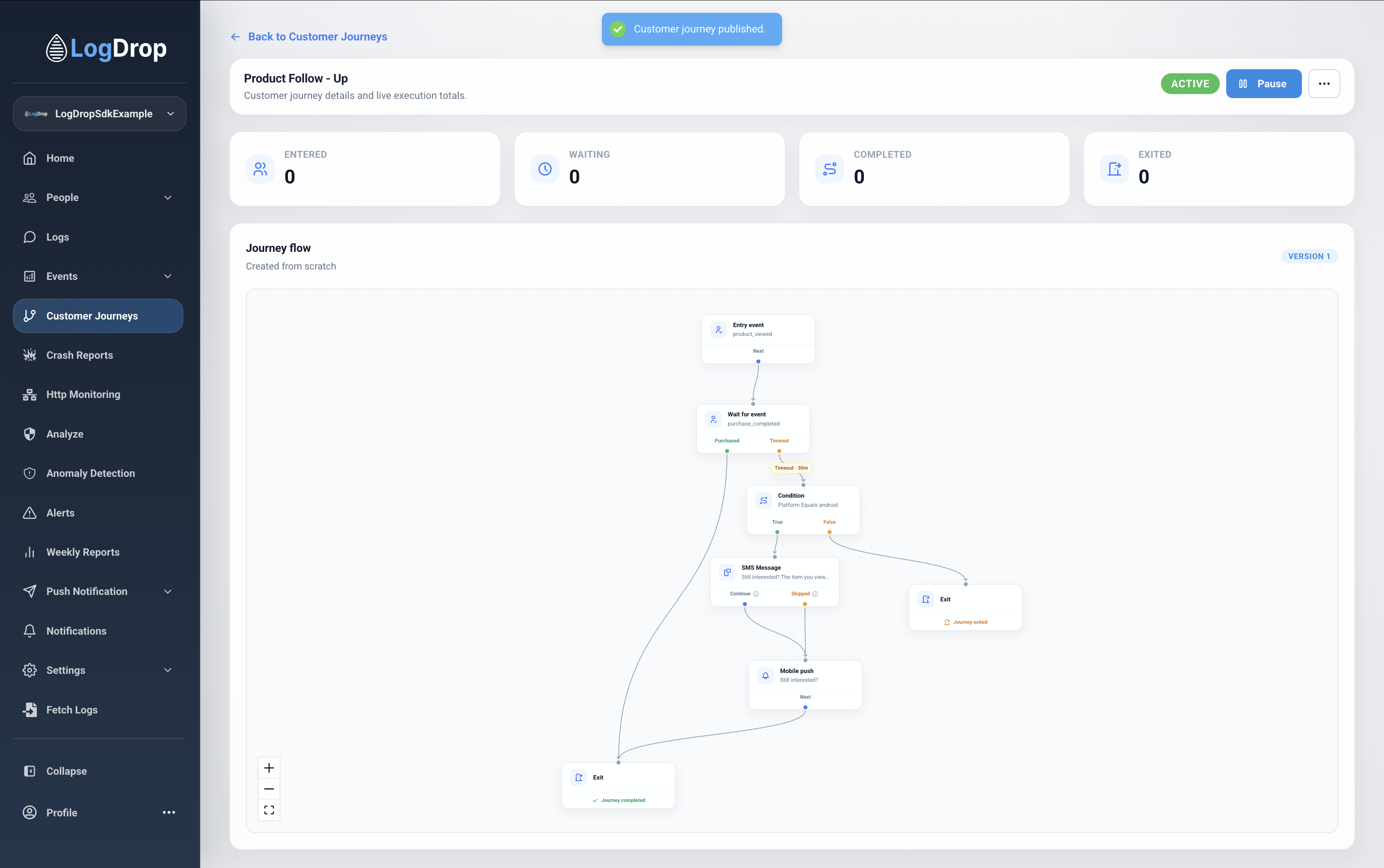
| Active | A published journey that accepts matching entry events. |
| Paused | New entries and new message submissions are stopped. A published version and existing runs may still exist. |
The Version badge refers to the published version, not the number of times you clicked Save draft. A new journey has published version 0; its first publication creates Version 1.
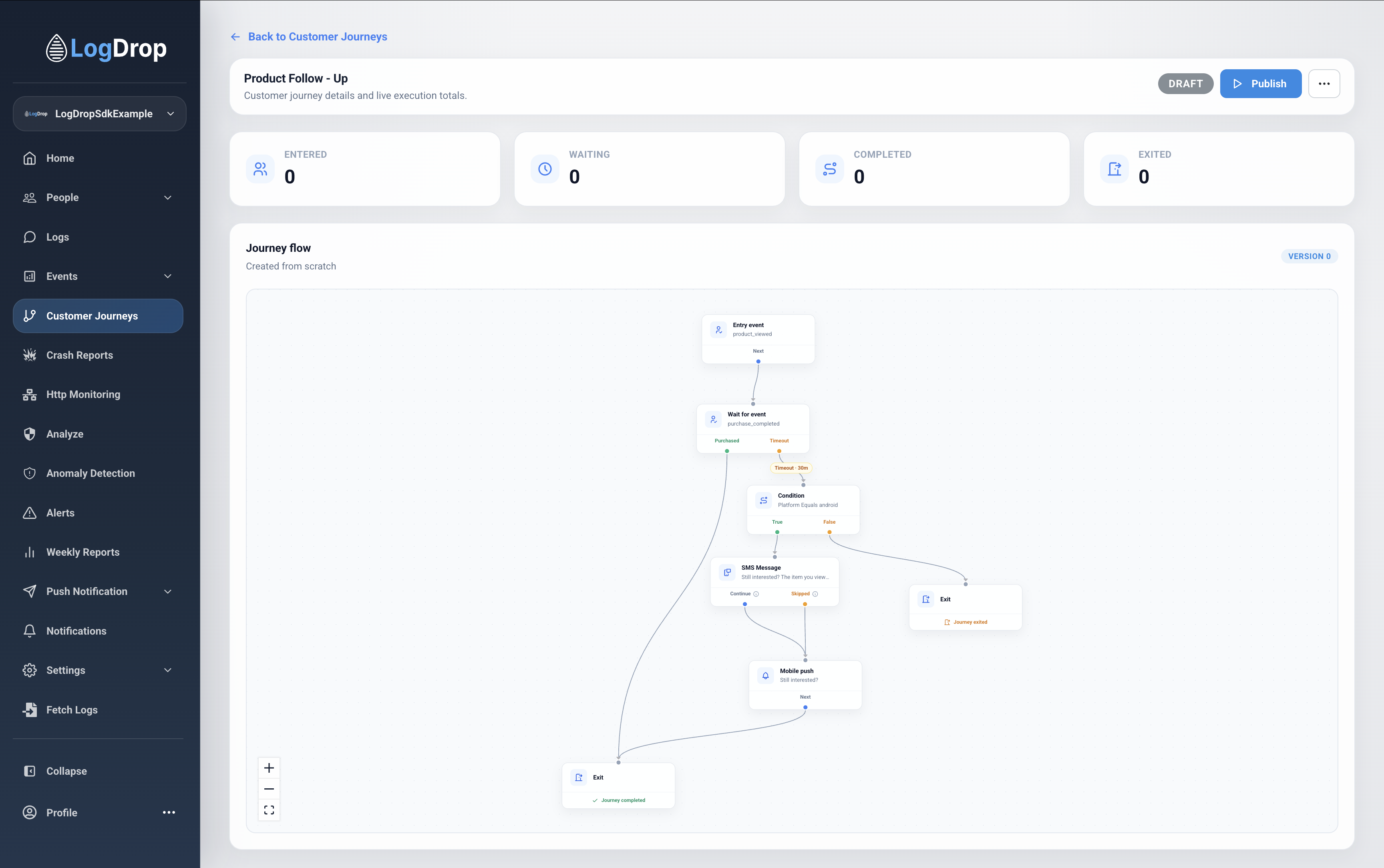
Publish a new journey
A saved journey stays inactive until you publish it.
- Complete and connect the flow.
- Click Save draft.
- Open the journey details.
- Click Publish.
- Check that the status is Active and the version badge shows the first published version.
Publishing activates the journey for new matching events. It does not replay earlier activity, and it does not immediately send every configured message. Users reach messages according to the events, waits, and conditions in the flow.
Edit a published journey
Changes to a live journey go through a draft first. When you publish them, you choose how users who are already in the journey continue.
- Open the journey and click Edit.
- Change the configuration, for example the SMS message body.
- Click Save draft.
- The journey is Paused; saving does not publish the updated content.
- Click Publish again to choose how existing users should continue.
While the journey is paused, new entries and new message submissions are stopped. Existing runs are not automatically cancelled, and their waiting deadlines are not frozen. Do not treat Save draft as a way to hold every user at exactly the same step, or as a way to recall messages already sent. Review and publish the update before assuming the flow is ready to run again.
Choose what happens to current users
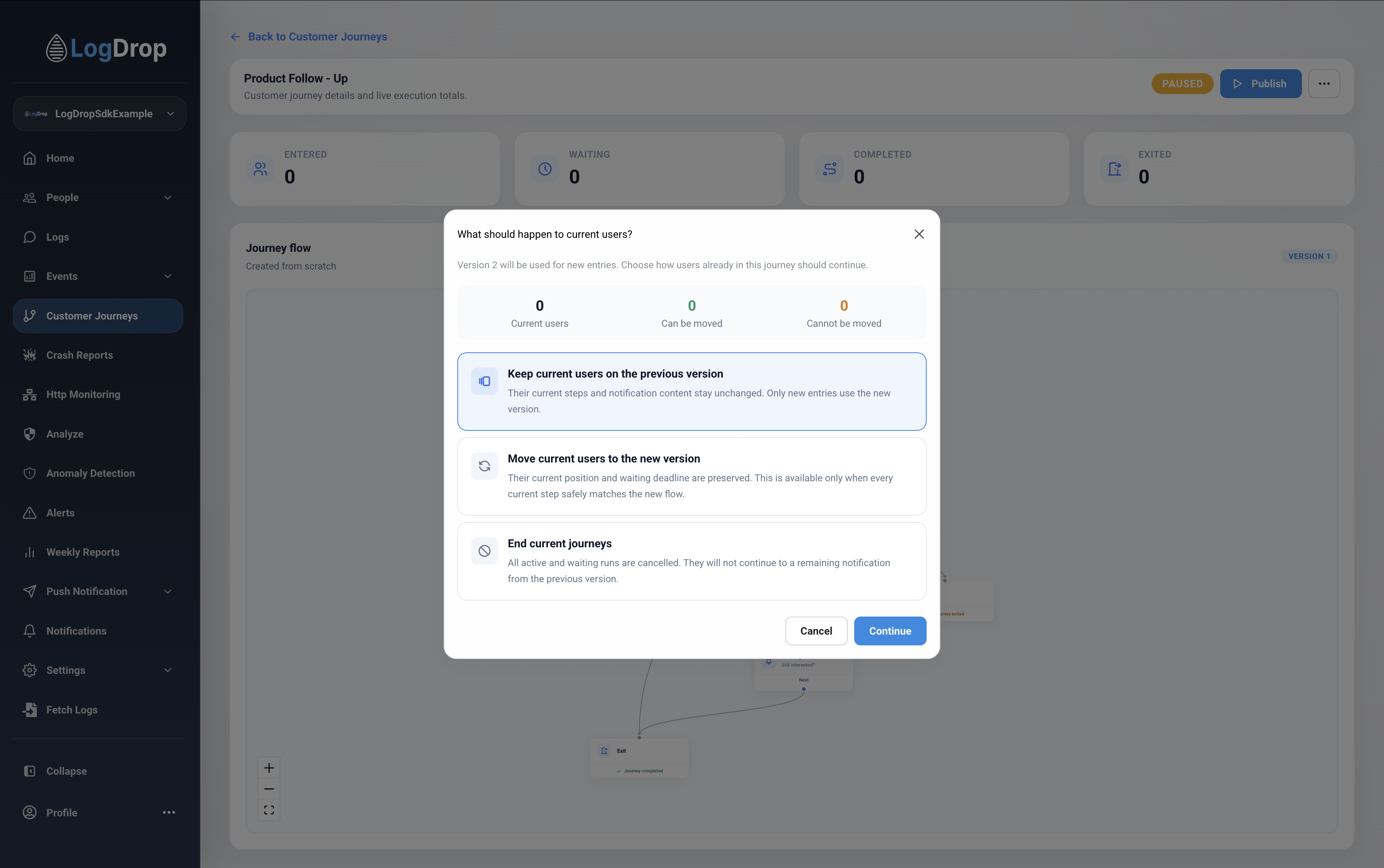
Current users are users whose run is still active or waiting when you publish a new version. The publishing dialog shows how many current users there are, how many can be moved, and how many cannot be safely moved to the edited flow.
| Option | Effect | Choose it when |
|---|---|---|
| Keep current users on the previous version | Existing runs keep their previous flow and content. New entries use the new version. | You want changes to apply only to new runs. |
| Move current users to the new version | Compatible runs continue at their current step with the new configuration. Their waiting deadline is preserved. | You want the updated content or compatible changes to apply to users already progressing. |
| End current journeys | Current active and waiting runs are cancelled. New entries use the newly published version. | Existing runs should not continue to later steps. |
Migration is offered only when all current users' steps are compatible with the new flow. If it is unavailable, review the incompatible count and choose another option or revise the changes.
After selecting an option, click Continue, read the confirmation, and click Publish version. Check the Active status and updated version badge afterward.
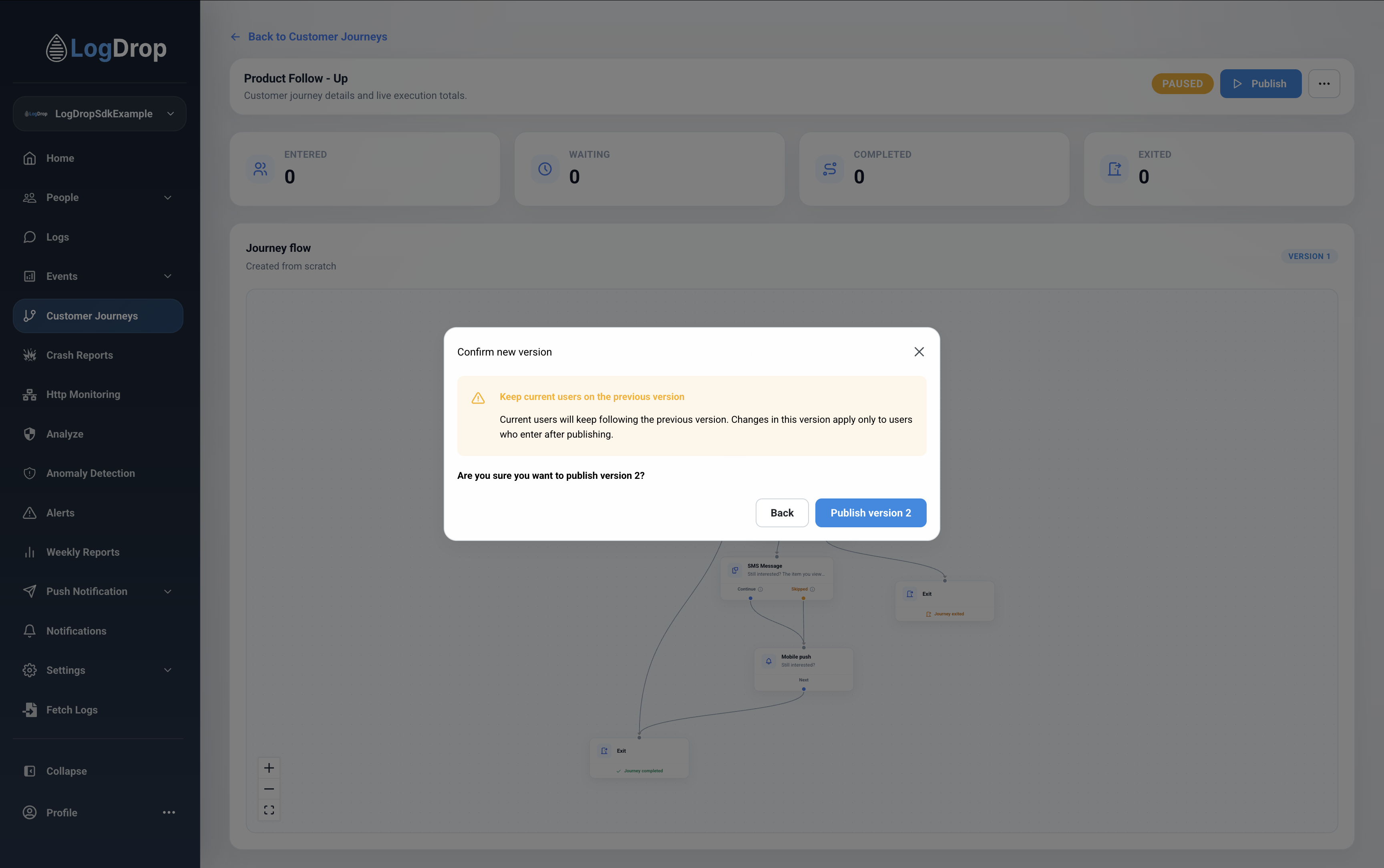
Ending current runs cannot be undone. A message already being processed or already sent cannot be recalled by cancelling its journey. Review the confirmation before publishing.
Pause a journey
Use Pause on an active journey to stop new entries and new message submissions. Messages already submitted cannot be recalled. Existing runs are not automatically cancelled, and their wait deadlines do not stop counting down. Pausing is not a guarantee that every run or message will resume from the same point when you publish again.
To intentionally end current runs while publishing an update, use End current journeys and review its confirmation.
Republishing a paused journey follows the version publishing flow; it is not a way to silently apply draft edits to every current user.
Understand the counters
The details page displays journey execution totals:
| Counter | Meaning |
|---|---|
| Entered | The number of runs started. A user's later re-entry can add another run. |
| Waiting | Runs currently waiting at a step, such as Wait or Wait for event. This is a current count, not a lifetime total. |
| Completed | Runs that ended at an Exit set to Journey completed. |
| Exited | Runs that ended without completion, such as an exited Exit, an expired journey, or an intentionally cancelled run. |
Entered, Completed, and Exited describe runs, not necessarily unique people. The same user can contribute more than once when the re-entry settings allow later runs.
A run can be progressing between steps rather than waiting or finished, so the displayed counters are not a message-by-message delivery report. In particular, Completed does not mean an SMS was delivered or a push notification was opened.

For push delivery information, use the relevant Messages view when available for the message, and check your provider's results as appropriate. For SMS provider delivery problems, review the corresponding Twilio message details.
Delete a journey
Delete removes the journey definition from the panel. Use the confirmation carefully. Deletion is not a recall for messages already sent. If your immediate goal is only to stop new entries, use Pause rather than deleting the flow.