.png)
Example: Product Follow-Up
Build a product reminder with event waiting, conditions, a delay, SMS, and mobile push
Select a screenshot to open it at full size.
This walkthrough follows the same setup shown in the How to Use video. The goal is to start after a product view, allow time for a purchase, and send a reminder when no matching purchase event arrives within that time.
The event names and user-attribute keys below are examples. Choose the corresponding events and attributes defined in your own project.
Example flow
This is the finished flow. The numbered steps below build it node by node.
Entry: product_viewed
  └─ Wait for purchase_completed
       ├─ Purchased → Exit: Journey completed
       └─ Timeout → Condition: Platform equals Android
                     ├─ False → Exit: Journey exited
                     └─ True → Wait: 10 minutes → SMS Message
                                                   ├─ Continue ─┐
                                                   └─ Skipped ──┴─ Mobile push
                                                                    └─ Exit: Journey completed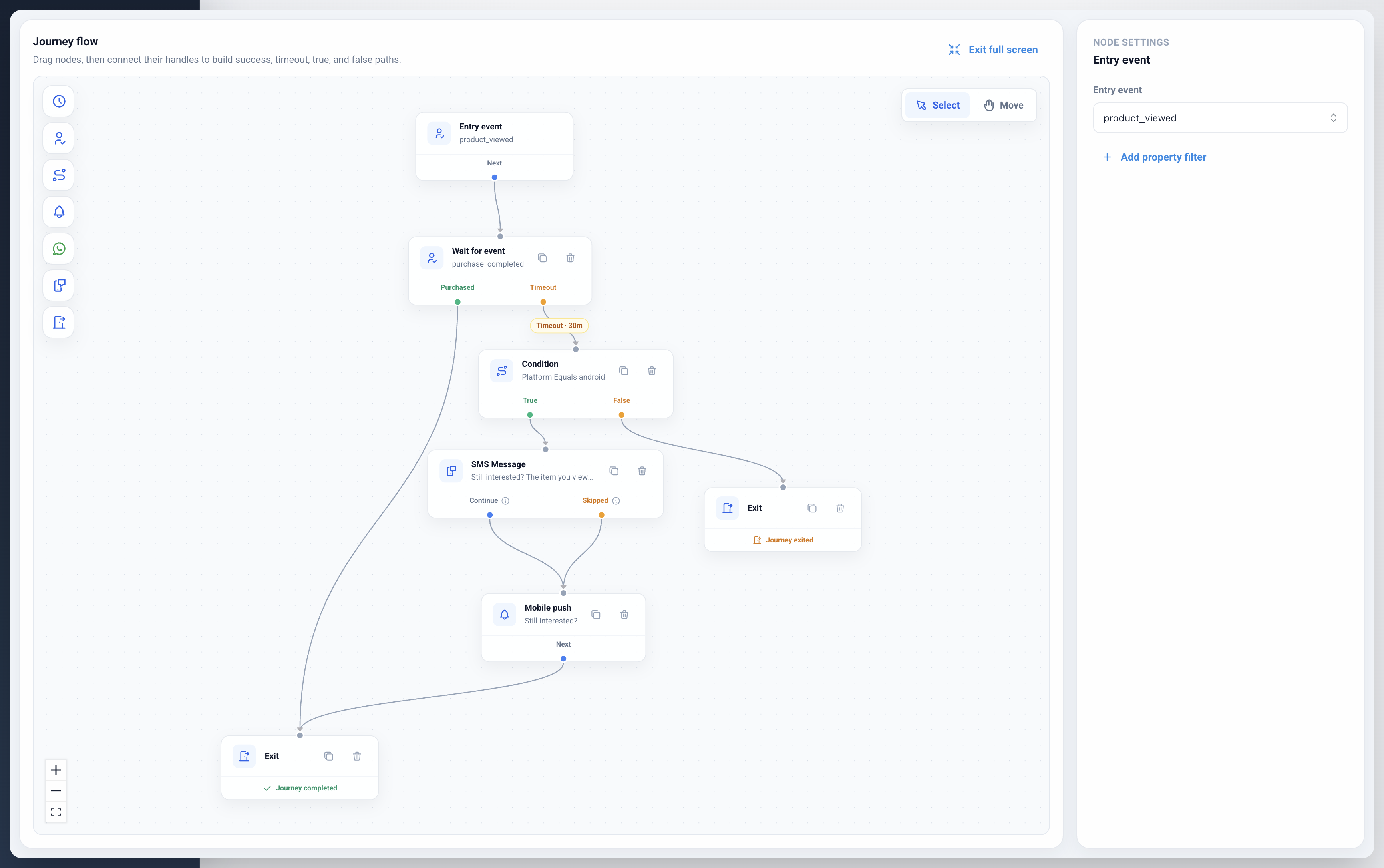
Prepare the project
The example needs these events, attributes, and connections in your project:
- Your app sends
product_viewedandpurchase_completedfor the intended user. - The project can send mobile push to your test device.
- Twilio is connected if you want to include SMS.
- User attributes contain a phone number and consent, such as
phoneandsms_perm.
For a recording or short test, you can use a 30-second event timeout. For an actual campaign, choose a meaningful purchase window rather than copying a demo duration.
1) Create the journey
Open Engagement → Customer Journeys, click New Journey, choose Start from scratch, and name it Product Follow-Up. Set Maximum duration (days) and Re-entry delay (days). For example, 1 day covers a 30-minute purchase timeout followed by a 10-minute fixed delay. A re-entry delay of 1 day spaces out repeated runs after the earlier run finishes.
2) Configure the Entry event
Select product_viewed. Add entry filters if only particular products should qualify.
If your event has a price or category property, you can use that property to narrow the
entry criteria.
3) Wait for a purchase
Add Wait for event, select purchase_completed, and set a timeout such as 30 minutes.
Create a single event path without filters if any purchase event should qualify.
Name the path Purchased, then connect it to a completed Exit.
If the purchase must relate to a particular product, review the properties and static filters you configure. Selecting the event name alone accepts that user's matching purchase event; it does not automatically match a product identifier from the entry.
Connect Timeout to the Condition in the next step.
4) Choose the reminder audience
Add a Condition, choose Device attribute, then configure Platform → Equals → Android. This example targets Android to demonstrate branching; you can use different criteria appropriate to your application.
- Connect False to an Exit with Journey exited.
- Connect True to a Wait node.
To use event data instead, select Journey event data, choose a preceding Entry or Wait for event node, and compare one of its properties. For example, check a price captured by the product-view event. This evaluates that recorded event value immediately.
5) Add a fixed delay
Set the Wait duration to 10 Minutes. This adds a delay after the timeout and condition, before the reminder. Connect Next to the SMS node.
Wait does not monitor purchases. In this example, a purchase during the extra 10-minute Wait does not automatically cancel the reminder. If you need to keep watching for a purchase during that period, use another Wait for event step with the appropriate purchase path and timeout instead of a fixed Wait.
6) Configure SMS
Select the phone attribute, consent attribute, and the exact permitted value. For example:
| Setting | Example |
|---|---|
| Recipient phone property | phone |
| SMS consent property | sms_perm |
| Value that permits sending | true |
| SMS message | Still interested? Open the app to revisit the item you viewed. |
Check the preview. This text is an example; use content permitted by your Twilio account and suitable for your audience.
7) Configure mobile push
Add Mobile push, open its configuration, and use:
- Notification title:
Still interested? - Notification message:
The item you viewed is waiting for you.
Choose the platforms and any navigation target appropriate to your app, then select Save notification.
Connect both SMS Continue and Skipped to this push node. A user who has SMS consent and a valid phone number can receive both message attempts. A user without those SMS requirements can still reach the push step. Push delivery still depends on its own provider, device registration, and notification permission.
Connect push Next to the completed Exit.
8) Review the meaning of the exits
In this example, both a purchase and the completed reminder route reach Journey completed. Therefore, the Completed counter includes both outcomes. It is not a purchase count.
If your reporting should reserve Completed for purchases, use a Journey exited Exit for the reminder route instead. The Exit labels should reflect the outcome you intend to measure.
9) Save and publish
Review all connections, remove unused copies, and select Save draft. The new journey is Draft and has not been published yet. Open its details and select Publish when ready. The first publication creates Version 1 and changes the status to Active.
You can use the walkthrough to configure the flow without demonstrating a live message. Before using it for a real audience, validate the entry, purchase, timeout, and skipped-SMS paths with test users and suitable provider settings.
Alternative: bring users back after leaving the app
To follow up after someone views a product and backgrounds the app, keep the product-view entry and use Wait for event for the background event exposed by your project's event list. Connect that matching path to the intended condition or reminder. Choose an explicit Timeout route for users who do not background the app within the window.
A background event is an event trigger; it is not an ongoing check that the app remains in the background. If returning to the app should prevent a later reminder, model the return event with another Wait for event step and connect that path to an Exit.