.png)
SMS Config
Connect a project to Twilio and understand the impact of changing an SMS connection
Select a screenshot to open it at full size.
Before connecting
Use SMS Config in the selected project's Settings to connect your own Twilio account for journey SMS messages. You need it only if a journey in this project uses an SMS Message step. SMS must be included in the project's subscription. Review Billing if the panel shows that it is unavailable.
Your sender and destination must be permitted by your Twilio account. Provider charges, trial restrictions, destination permissions, and sender approval requirements still apply to messages sent through LogDrop.
Connect Twilio
Connecting links your Twilio account and sender to this project. You need the Account SID, the Auth Token, and a sender from your Twilio account. The panel checks the account before it connects.
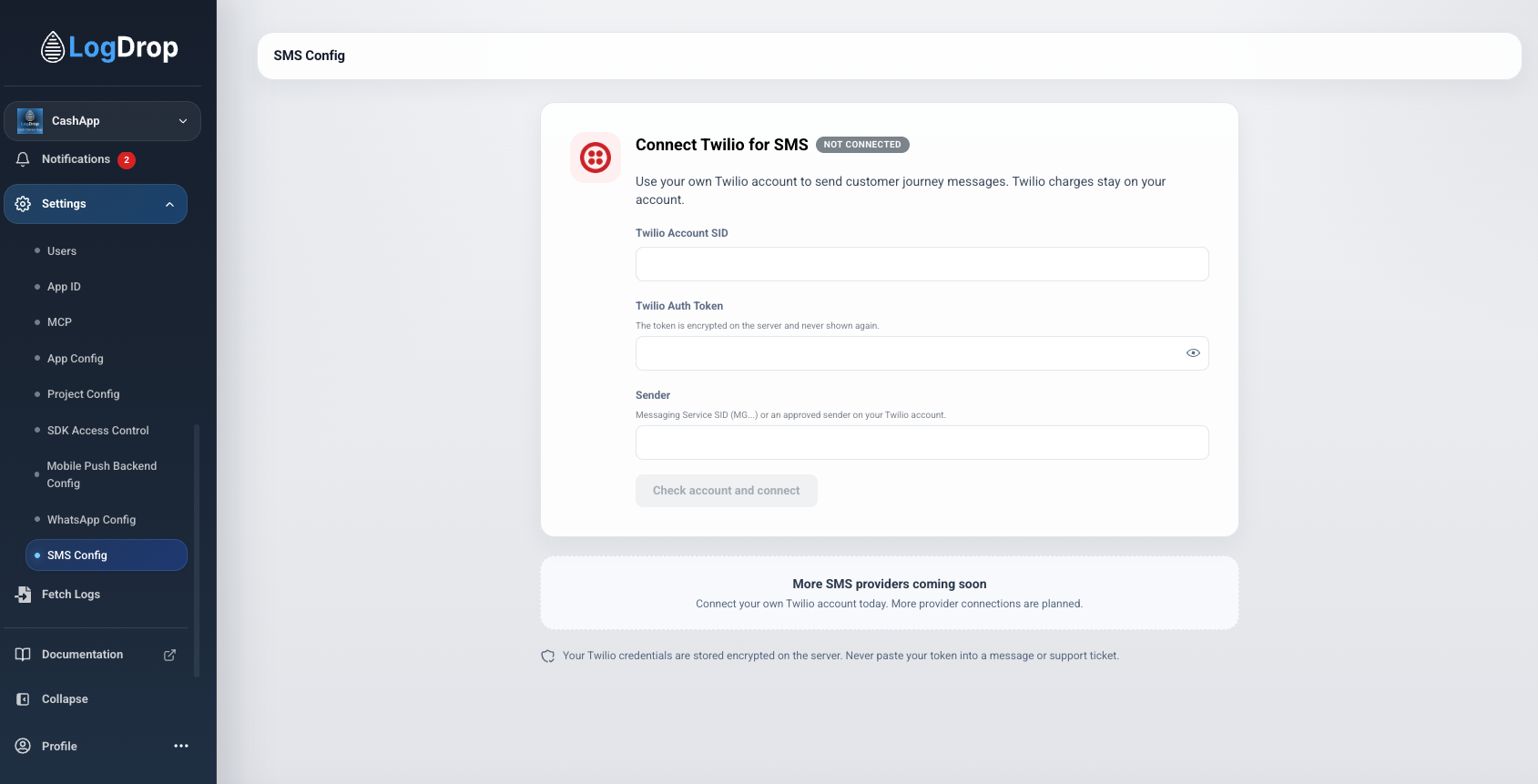
- Select the correct project.
- Open Settings → SMS Config.
- Enter the Twilio Account SID and Twilio Auth Token.
- Enter the Sender: a Messaging Service SID beginning with
MG, or an approved sender on your account. - Click Check account and connect.
- Confirm that the status becomes Connected and the sender is correct.
The Auth Token is sensitive. Do not put it in a screenshot, SMS body, or support message.
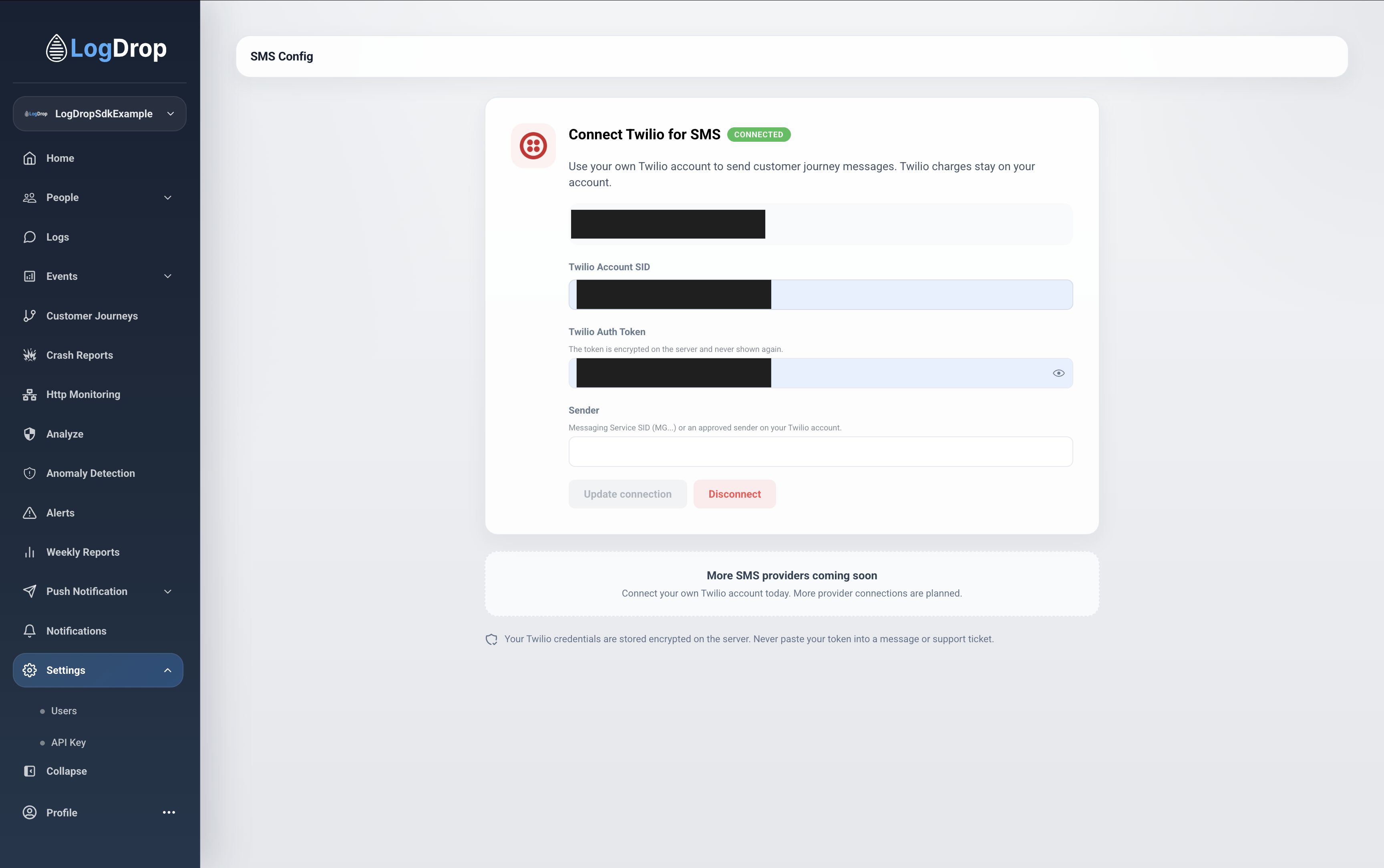
The connection is project-specific. Connecting it for one project does not configure SMS automatically for every other project under the same merchant. You can configure the intended account separately in another project when needed.
Next, return to the journey and configure SMS recipient and consent fields. These user attributes are still required even after the provider is connected.
Update or disconnect a connection
Update the connection when the project should use a different Twilio account, credentials, or sender. Disconnect it when the project should stop sending journey SMS.
The panel shows a confirmation listing affected active SMS journeys before a connection update or disconnection. Read the affected journey names and the warning. The confirmation has a short countdown before you can acknowledge the change.
Confirming the change pauses affected active journeys and ends their current active or waiting runs. This is different from manually pausing a journey, which stops new entries and new message submissions without automatically cancelling existing runs.
After updating a connection:
- Open each affected journey.
- Review each SMS Message step.
- If the editor reports an old connection or sender, click Use current Twilio connection.
- Check the phone attribute, consent value, message, and outgoing paths.
- Save the draft and publish the updated journey.
After disconnecting, reconnect a working provider before publishing SMS journeys again. Draft or already paused journeys also need their SMS settings checked before a later publication.
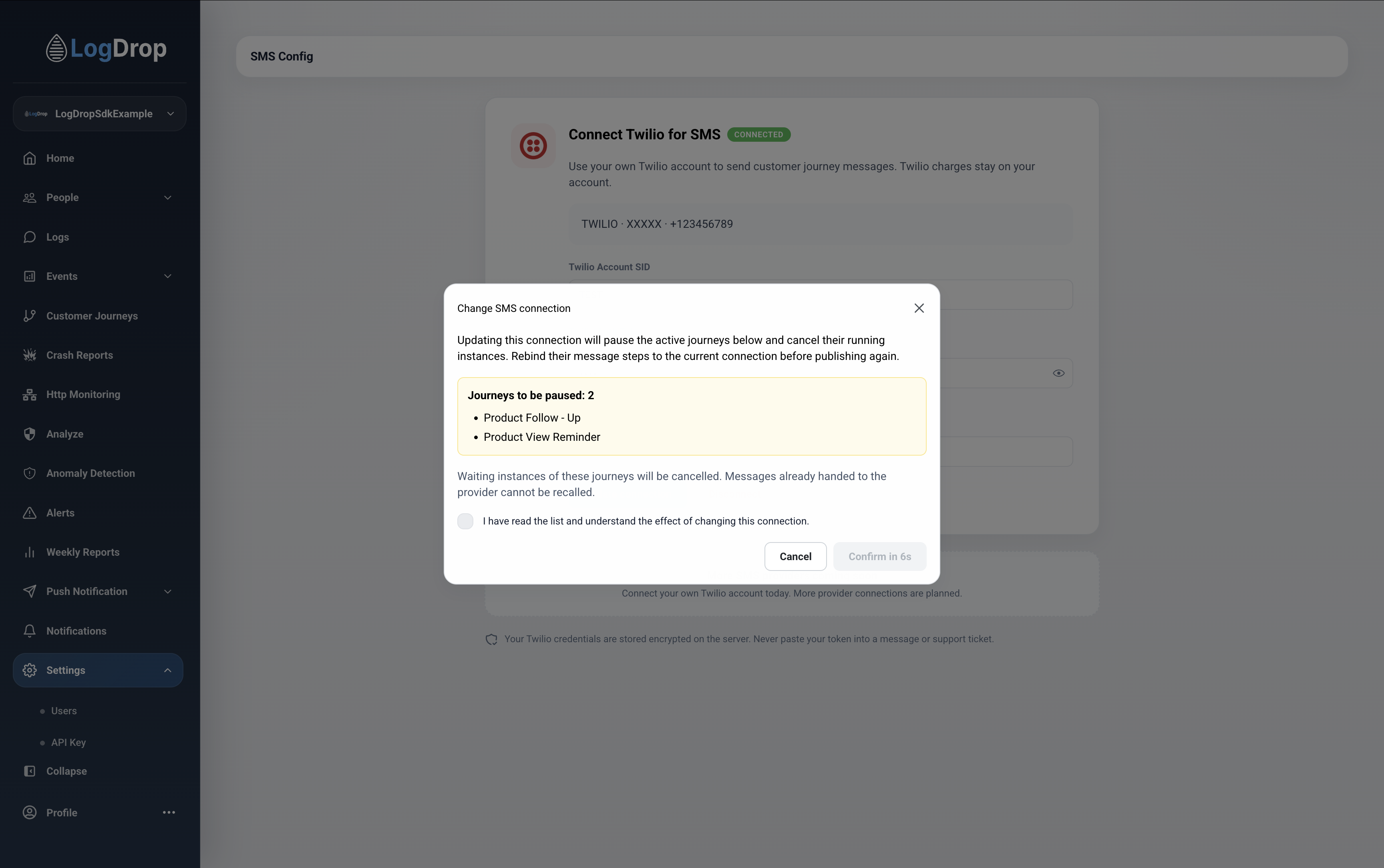
A connection change does not recall messages already sent or already being processed. Plan the change and review its impact before confirming it.